Bend Settings and Machine Profiles
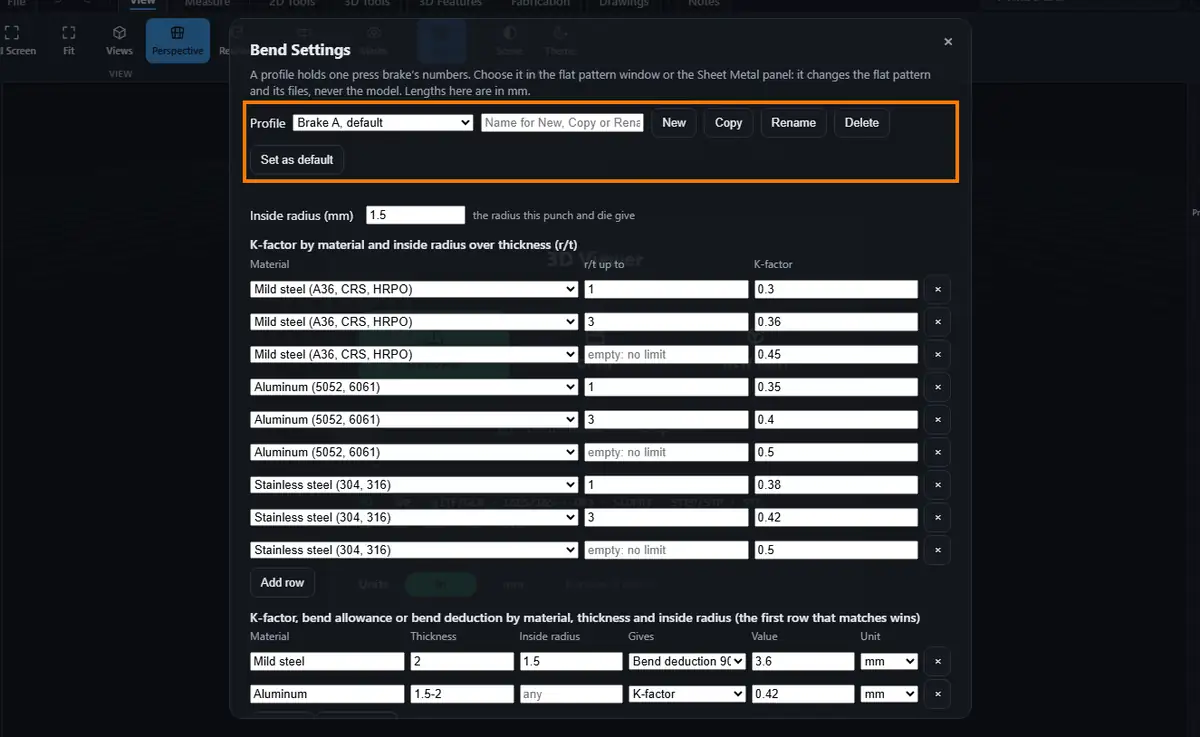
A bend profile holds the numbers of one press brake: its K-factors by material, its own bend rows (K-factor, bend allowance or bend deduction by material, thickness and inside radius), its gauge table, the tooling and inside radius it gives, the minimum flange, the relief and your notes. Choose a profile and the flat pattern, its DXF, the Unfold of the Sheet Metal panel and the gauges use that brake's numbers. Fold does not use the profile: it bends back with the K-factor each Unfold step kept. The tooling, tool inside radius, minimum flange, relief and notes are stored with the profile and written in the DXF header for the shop to read; they do not change any size. The 3D model never changes, and choosing a profile adds no History step and leaves Undo and Redo as they were.
What you get: named profiles kept with your account, one of them the default, a Bend profile list in the flat pattern window and the Sheet Metal panel, and files that say which profile made them (a line in the DXF header, the first line of the CSV and the end of the file name, such as bracket-flat-Brake_A.dxf).
Bend profiles are a Pro feature. On every other plan, and when you are not signed in, the flat pattern uses Shop default, exactly as it did before profiles.
Shop Default
Shop default is built in and always there. It is the StepFile bend table and your Shop Bend Table, as before profiles, so with Shop default chosen every flat pattern, DXF and CSV is the same as it was. It cannot be changed, renamed or deleted. To make a profile of your own, copy it.
Step by Step: Make a Profile
The quickest working profile takes three inputs: a name, New, Save. It starts with Shop default's numbers; change only what differs on your brake.
- Open Bend Settings: on your account page, the Settings tab, press Open Bend Settings; or in the flat pattern window or the Sheet Metal panel, press Bend Settings... beside Bend profile.
- With Shop default (built in) shown in the Profile list, type a name in the name box (Brake A, Amada 100 ton) and press Copy. The copy starts with Shop default's numbers. New does the same; Copy on a profile of your own copies that one.
- Change what differs on that brake. The window is simple at first: Inside radius (mm), the K-factor rows and the bend rows. Press Advanced for Tooling, Minimum flange (mm), Relief with its width and depth, Notes and the gauge table; press Hide advanced to put them away. This browser remembers which way you left it.
- In K-factor by material and inside radius over thickness (r/t), give each material its K rows. A row is used for bends up to its r/t up to; leave the last row of a material empty there so it covers the rest. Every material needs at least one row.
- In the bend rows table, press Add row for each line of your brake chart: Material (or empty for any), Thickness and Inside radius (one size, a range such as 1.5-2, or empty for any), Gives (K-factor, Bend allowance 90 or Bend deduction 90), Value and Unit. The first row that matches a bend wins; a bend no row matches takes the K row of its material.
- Under Advanced, change the Gauges (thickness in inches) table if your stock differs.
- Press Save. The message says Saved. and names the profile in use.
Step by Step: Rename, Delete and Default
- Choose the profile in the Profile list.
- To rename it, type the new name and press Rename. To remove it, press Delete. To use it whenever you open a part, press Set as default; the list marks it default.
- Press Save. Nothing is kept until you do; Close or Esc leaves the saved profiles as they were.
Step by Step: Choose a Profile
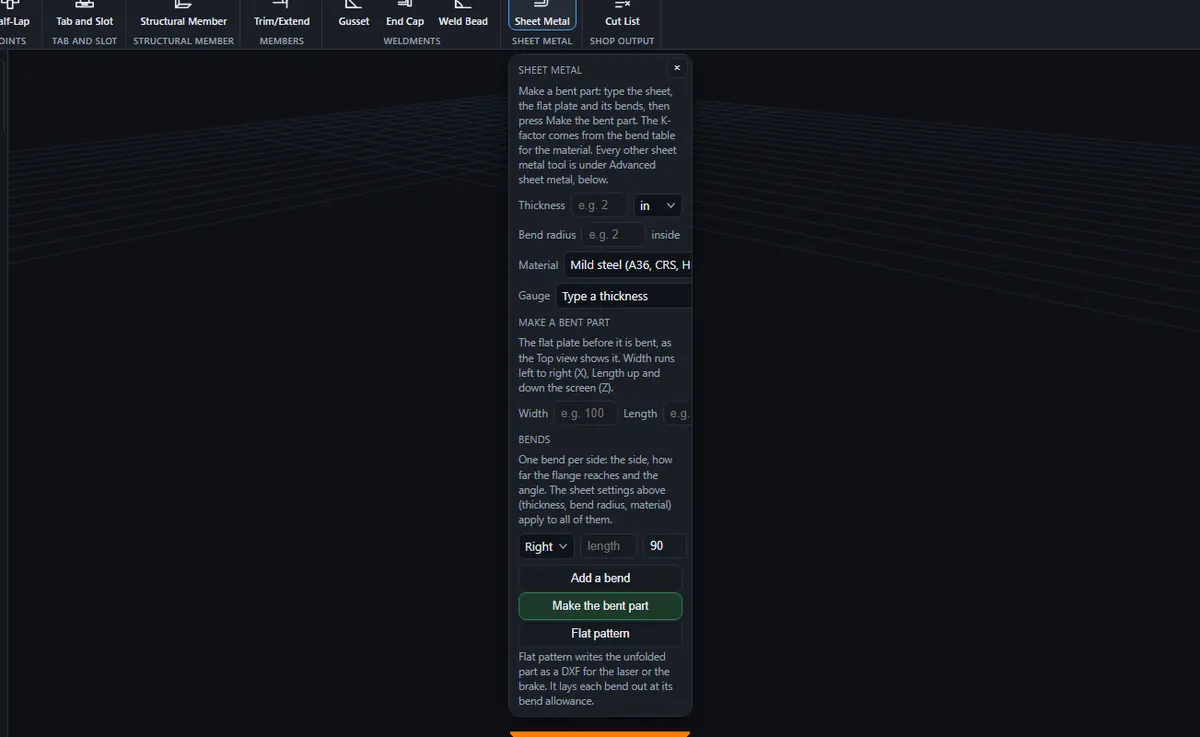
- In the flat pattern window (right-click a face of bent sheet metal, Export, Export this face as DXF, Whole flat pattern (unfolded)), or in the Sheet Metal panel, open the Bend profile list.
- Choose the profile. The flat size, the gauges and the next Unfold are worked out again with its numbers. Your choice is remembered in this browser; the account default is used where nothing was chosen.
- Press Export. The DXF header has the lines Bend profile: and the profile name, and its tooling and relief; the file name ends with the profile name. Export CSV in Bend Settings writes the bend rows with the profile name on the first line. Shop default adds nothing, so its files are as before.
Limits
- Up to 50 profiles, and up to 200 rows in each table.
- A name of up to 40 letters, without control, invisible or text direction characters, and not the same as another profile (Brake A and brake a count as the same).
- K-factors from 0 to 1, thickness over 0 up to 50 mm, inside radius up to 500 mm, minimum flange up to 1000 mm and relief up to 100 mm. Numbers that do not read, are below zero or are too big are refused with a message naming the row. Lengths in Bend Settings are in mm; the bend rows have their own Unit.
- Minimum flange, relief and tooling are kept with the profile and written in the DXF header for the shop to read. They do not yet change the flat pattern or check the flanges.
- The model is never changed by a profile, and choosing one is not a History step.
Common Mistakes and Messages
- "Bend Settings profiles are a Pro feature. Upgrade from your account page to save a profile for each press brake." Your plan does not include profiles. Shop default is used and your files are as before.
- "Bend profiles are kept with your account. Sign in to make and choose them; until then the flat pattern uses Shop default." Sign in, then choose a profile.
- "Your bend profiles were changed in another window or on another computer since you opened Bend Settings, so this change was not saved. Close Bend Settings, open it again to see the newest profiles, and make the change again." Someone (or you, in another tab) saved profiles after you opened the window. Close it, open it again and redo the change.
- "Shop default is built in and cannot be deleted: it is the one profile that is always there. Press Copy to make a profile you can change." Copy it instead and change the copy.
- "You can keep up to 50 bend profiles. Delete one to make another." Delete a profile you no longer use.
- "The name holds a control, invisible or text direction character. Type it again in plain text." The name was pasted with hidden characters. Type it by hand.
- "There is already a profile named Brake A. Choose another name." Each profile needs its own name.
- "Brake A: K-factor row 1: the K-factor must be a number (type it like 0.4 or 1.5) (from 0 to 1; 0.3 to 0.5 is usual). Fix it first." A field that does not read stops Save, New and Copy until you fix it; the message names the profile, the table and the row.
- "Too many saves. Wait a minute and try again." More than 30 saves in a minute.