Angle Dimensions
There are three ways to put an angle on a sketch. Pick two lines for the angle between them. Pick an arc for the angle it sweeps. Or pick three points for the angle at the first point. Each one is held by the sketch solver.
What you get: two lines, an arc or three points held at the exact angle you typed, in degrees, with the angle shown on the sketch.
When to Use It
- Set a bracket arm at exactly 30 degrees to its base
- Make an arc sweep 90 degrees, or 270
- Set the angle at a corner between two points that are not on the same line, such as the centers of three circles
- Hold an angle so later edits cannot change it
Between Two Lines
- Open a sketch and draw two lines that meet or cross.
- Click Dimension on the Sketch tab.
- Click one line, then the other. A box opens with Angle and the angle between them in degrees.
- Type the angle, such as
30, and press Enter. The second line turns about the point where they meet.
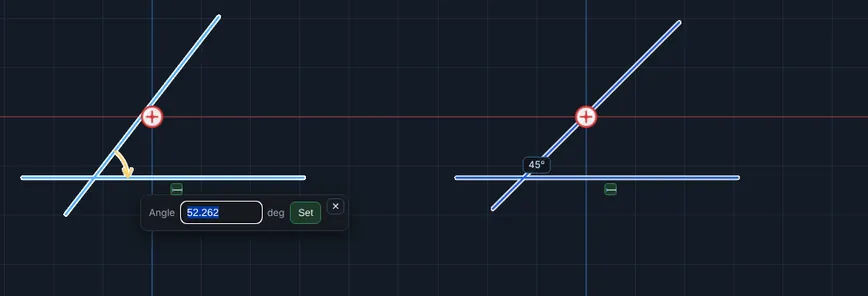
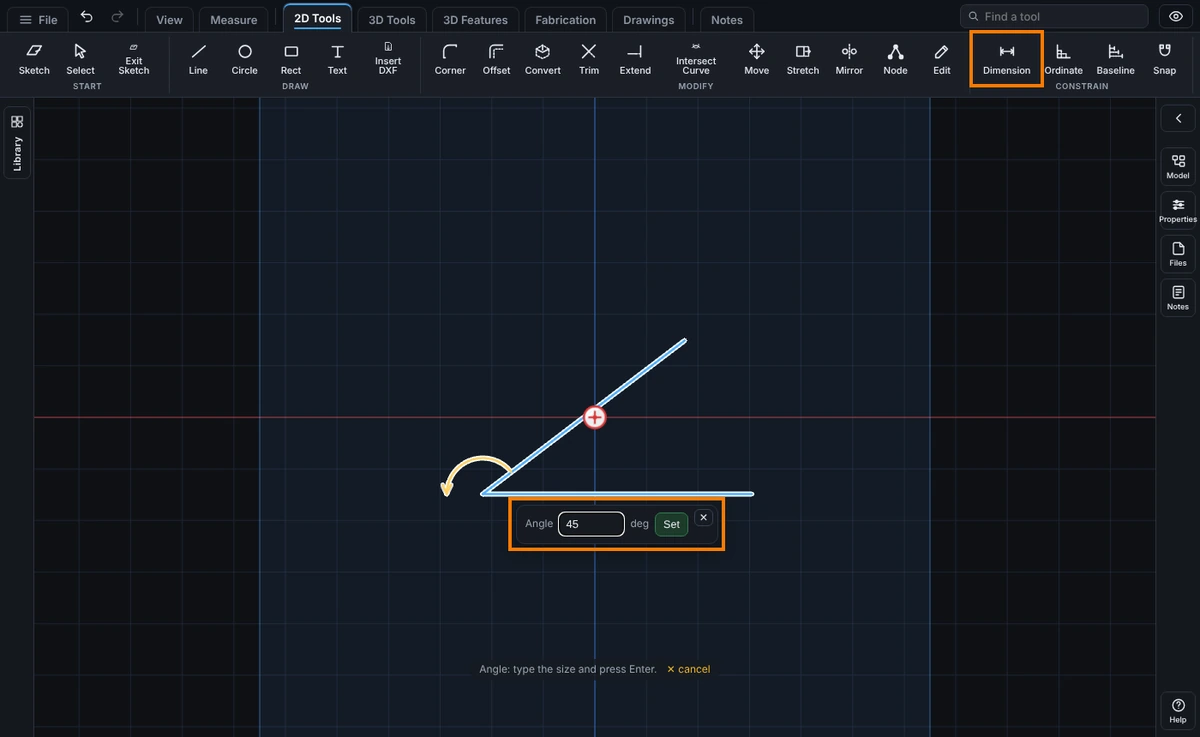
The angle is the smaller of the two the lines make, so a V reads 30, not 150. Lines that are parallel give the distance between them instead.
Arc Angle
The arc angle is how far the arc sweeps round its center.
- Open a sketch and draw an arc.
- Click Dimension and click the arc. The box opens on Radius.
- Click Arc angle. The box now says Arc angle and shows the sweep in degrees. The two radii and a small arc between them are drawn.
- Type the angle, such as
90, and press Enter. The end of the arc you did not draw from swings to match.
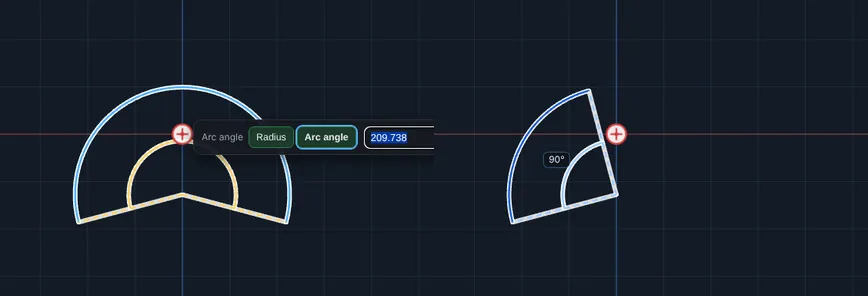
The center, the radius and the end you drew from stay where they were. An arc angle can be any value above 0 and below 360, so 270 is fine. Click the number later to type a new angle. The choice between Arc angle and Radius is made when you place the dimension. To change it afterward, delete the dimension (the × beside it under Constraints in Edit on the Sketch tab, or its box) and place the other one.
Three Points
The three point angle is the angle at the first point you click, between the other two.
- Open a sketch with three points that make a corner, such as a two segment line, or the centers of three circles.
- Click Dimension.
- Click the corner point first. This is where the angle is measured.
- Click the end of the first arm. A box opens with the distance between the two points. The prompt says a third point makes the angle.
- Click the end of the second arm. The box changes to Angle, with the angle in degrees, and the two arms and a small arc are drawn.
- Type the angle, such as
60, and press Enter. The third point swings round the corner to match.
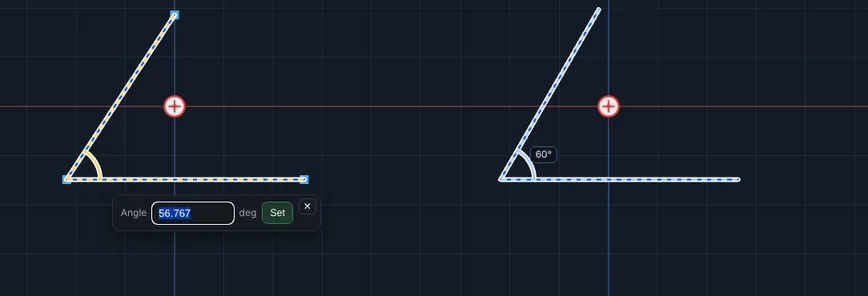
Options
- Between lines: click two lines. The angle is the smaller one they make. Between 0 and 180 degrees can be typed.
- Arc angle: click an arc, then Arc angle. Above 0 and below 360 degrees.
- Three points: corner first, then the first arm's end, then the second arm's end. Between 0 and 180 degrees. The side you drew it on is kept, so an angle drawn clockwise stays clockwise.
- Whole pieces: when the corner and the first arm are on other pieces, those pieces stay put. The piece of the third point moves. When all three are on one piece, only the third point moves.
Tips and What to Expect
- The third click only makes an angle when it is a point. Clicking a line after two points still gives the distance to that line.
- Three points in a line have no angle, so they are refused with a message, and so is the same point clicked twice. Two points tied together count as one point, so an arm of no length is refused too. Your first two clicks stay, so click a different third point.
- The middle of a line cannot be one of the three points. Click a corner or an end.
- Click the number on the sketch to change it. One Undo takes back an angle and the move it made, and Redo puts them back.
- An angle can follow a formula of a length, such as
D1@Sketch1 / 1 in * 15, which gives degrees. See Equations. - If a change would break another dimension, nothing moves and a message says so. See Relations.
- Cutting a shape with Trim or breaking it apart lets go of a three point angle on it, and a message counts it.
- Press Help while Smart Dimension is armed to open Smart Dimension.
Common Mistakes and Messages
- "Those three points are in a line, so there is no angle. Click a point off the line." The third point lines up with the other two. Your first two clicks stay; click a point off the line.
- "Two of those points are in the same place, so there is no angle. Click a point away from the corner." You clicked the corner again, or a point tied to it. Click a different point.
- "A line's middle cannot be one of the three points of an angle. Click a corner or an end." Click the end of a line or a corner instead of its middle.
- "That change cannot hold with the relations and dimensions on it. Nothing changed." The angle fights another dimension or relation. Change that one first.
- Two lines gave a distance, not an angle. The lines are parallel, so there is no angle between them. Rotate one line, or dimension the distance.