Loft
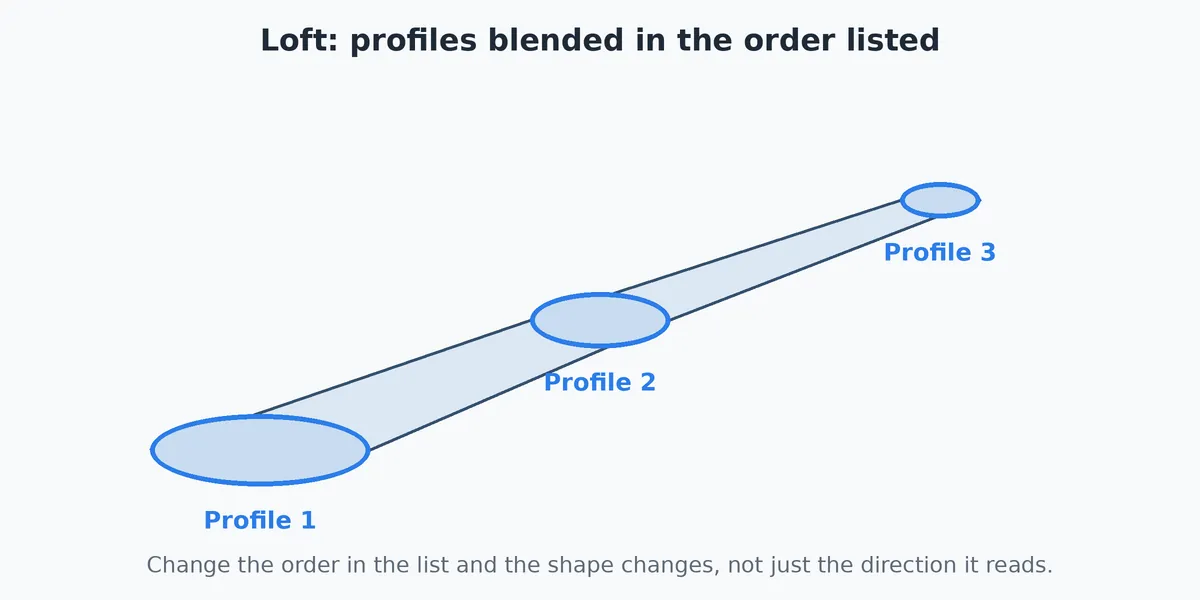
Loft blends two or more closed shapes into one smooth solid. Each shape is drawn in its own sketch on its own plane, and the solid flows from the first to the last in the order you list them. The solid can be added to the part or cut out of it. Guide curves, drawn in sketches of their own, can steer the sides of the solid between the shapes.
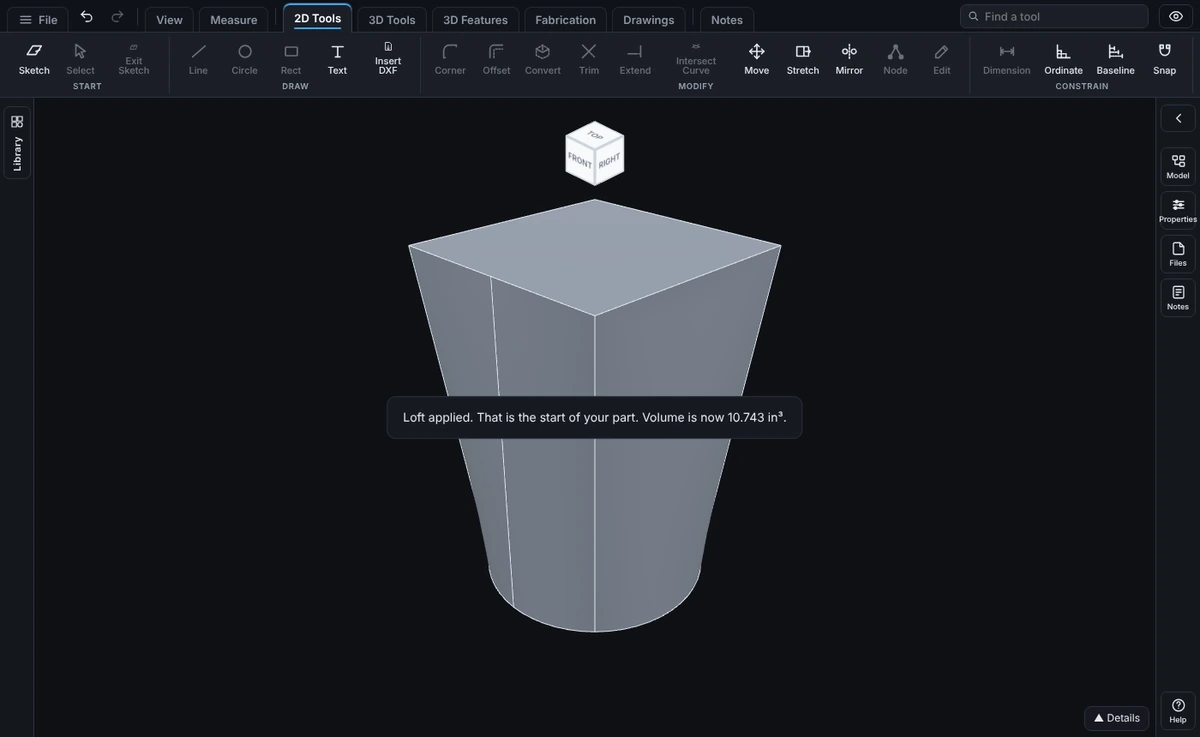
What you get: one smooth solid that passes through every shape in the order listed, added to the part or cut out of it, with a message such as "Loft applied." and the new volume.
When to Use It
- Make a transition from a round end to a square end, such as a duct or a hopper
- Make a tapered or swollen shape, such as a bottle neck or a handle
- Cut a pocket whose size changes with depth
- Make a solid that passes through three or more different shapes in turn
- Give the sides a bulge or a sweep of your own, such as a barrel, a boat hull or a curved handle, with guide curves
Step by Step
- Open a sketch on a plane and draw the first closed shape. Click Exit Sketch so it waits in the Model tree (see Exit Sketch).
- Make a second plane for the next shape. In the Sketch on panel type a distance in the Offset box before you pick Top, Front, Right or a face (see Reference Planes). Draw the second closed shape there and click Exit Sketch.
- Repeat for any more shapes. Each one needs its own plane.
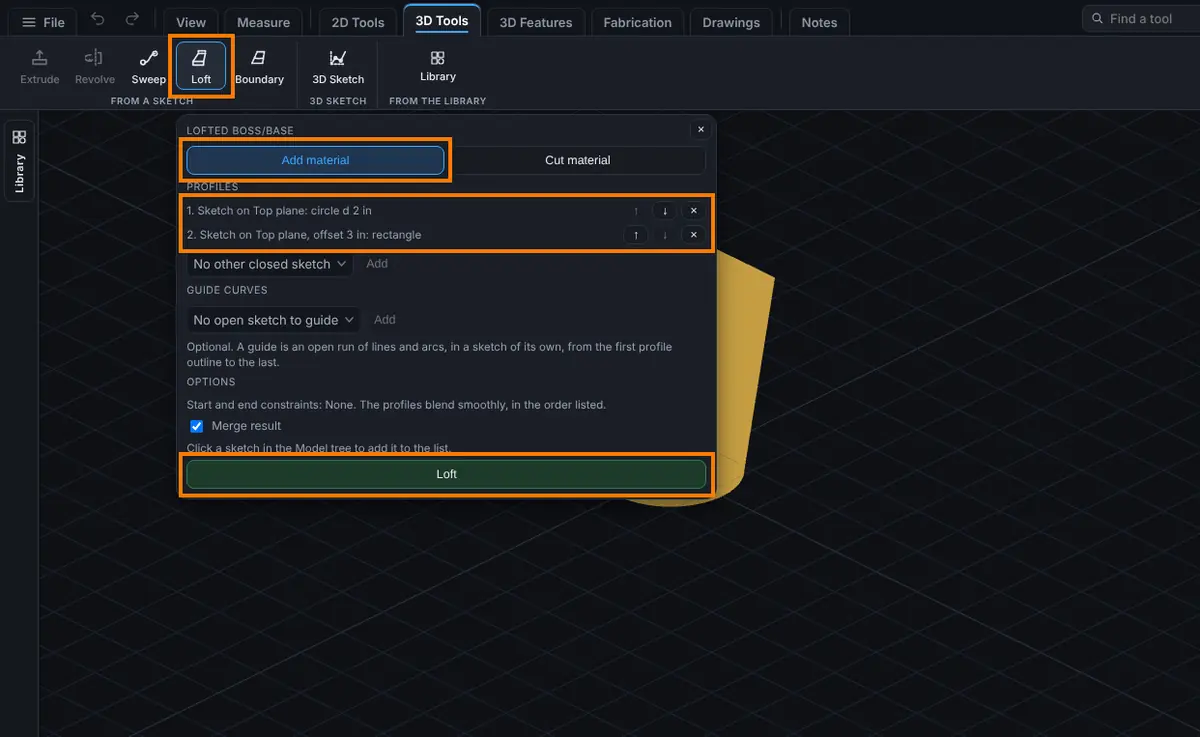
- Click Advanced on the Features tab, then Loft.
- Choose Add material or Cut material.
- Check the Profiles list. When the planes are parallel, the sketches are listed in order along them. Use the up and down arrows to reorder, the × to remove one, and the picker with Add to put another waiting sketch at the end. You can also click a sketch in the Model tree to add it.
- To steer the sides, add guide curves (optional, see Guide Curves below): pick a waiting guide sketch under Guide Curves and click Add, or click it in the Model tree.
- For Add material, leave Merge result ticked to join the body the solid touches, or untick it for a separate body.
- Watch the preview: yellow for an added loft, red for a cut. Click Loft (or Lofted Cut).
Guide Curves
A guide curve is an open run of lines and arcs that runs from the first shape to the last and passes through the outline of every shape on the way. Between the shapes, the solid's sides follow it.
- Draw the shapes first, on parallel planes (Offset planes from Top, Front or Right), and click Exit Sketch after each.
- Open a sketch on a plane that cuts across the shapes, for example Front when the shapes are on Top and planes offset from it. Each guide needs a sketch of its own, and a plane holds only one sketch, so give each guide its own plane: Front for the first, then Right or an Offset of Front for the next.
- Draw the guide with lines and arcs. Start it on the outline of the first shape and end it on the outline of the last, and make it pass through the outline of each shape between. Snap its ends onto the outlines, or type the points. Click Exit Sketch.
- In the Loft panel, pick the sketch in the Guide Curves picker and click Add. Add more guides the same way, up to 8.
How the guides steer the shape:
- One guide: each section between the shapes moves sideways so it keeps touching the guide. A 2 in circle lofted to a 2 in circle 4 in above it, with one arc that bows out 1/2 in at the middle, makes a bent rod of the same size all the way.
- Two guides: each section moves, turns and stretches along the line between the two guide points, so it touches both. Across that line it keeps its width, and a circle becomes an ellipse. For example, one arc on Front through one side of a square and one arc on Right through the next side: each section grows along the line between the two guide points and moves so it touches both.
- Three or more guides: each section takes the closest even stretch that touches them all. Guides that pull against each other are refused.
Limits of guide curves today:
- The shapes must be on parallel planes, listed in order along them.
- Two guides that would lie on the same plane cannot both be drawn, because a plane holds one sketch. Draw them on different planes.
- Each guide must meet every shape, not only the first and the last, and must keep heading from the first shape to the last (it cannot turn back).
- The guides must meet every shape in the same order going round, and each at its own point.
- There are no tangency settings at the start or end, and no centerline.
- A guide can miss an outline by at most 0.02 mm (more on very large parts).
Options
- Add material or Cut material: the panel heading reads Lofted Boss/Base or Lofted Cut.
- Profiles: a numbered list in blend order. Each row names the sketch and its shape. The Loft button needs at least two.
- Merge result (Add material only): joined to the body it touches, or kept separate.
- Bodies to cut (Cut material only, parts with more than one body): see Extrude and Cut.
- Guide Curves: a numbered list of guide sketches, with × to remove one and the picker with Add to put another on the list. Leave it empty for a plain loft.
- Start and end constraints are None: the profiles blend smoothly in the order listed. There are no tangency settings or centerline.
Edit It Later
Right-click the step in the Model tree and choose Edit Feature. You can reorder the profiles with the arrows, remove a guide curve with its × under Guide curves, and change Merge result. To change a shape or a guide curve, right-click its sketch under the step and choose Edit Sketch. Guide sketches are listed after the profile sketches. The sketches are used up when the loft is made. Undo brings them back.
Tips and What to Expect
- The order matters. Reordering the list changes the shape, not only which way it reads.
- For the smoothest result give every shape the same number of sides, or use circles for all of them. A 2 in circle lofted to a 2 in square 3 in above it makes a clean transition.
- Planes do not have to be parallel, but each shape needs a plane of its own. Two sketches on the same plane are refused.
- Each sketch must hold one closed outline. A shape with a hole inside it is refused.
- Shapes that cross each other, or are listed out of order, can fail. Check the preview before you click Loft.
Common Mistakes and Messages
- "A loft needs two or more profiles, each a closed shape in its own sketch." Add a second sketch, or tick the sketch you have not added yet.
- "Each loft profile must be in a sketch of its own, on its own plane." Two listed profiles came from one sketch. Move one to its own plane.
- "Profiles 1 and 2 are on the same plane. Each loft profile needs its own plane (use an Offset plane)." Make the second plane with an Offset.
- "Profile 2 has an outline inside it. A loft profile must be one closed outline." Remove the inner outline.
- "The loft could not make a solid from those profiles. Check they are in order and do not cross each other." Reorder with the arrows, or redraw so the shapes sit one after another without crossing.
- "That sketch has no closed shape to loft and no open run of lines and arcs to guide it." The sketch you clicked in the Model tree holds neither a closed shape nor a guide.
- "Guide 1 misses the outline of profile 2 by 0.500 mm." Edit the guide sketch so the guide passes through that outline. Snap it to the outline.
- "Guide 1 must run from the plane of the first profile to the plane of the last, with its ends on those two outlines." Make the guide start on the first shape and end on the last.
- "Guide 1 turns back toward the first profile." Redraw the guide so it keeps heading toward the last shape.
- "Guide 1 has a piece that runs flat along a plane (at ..." A guide piece lies along a shape's plane instead of heading on. Remove that piece and join the guide straight through the outline.
- "This loft with guide curves is too big to work out in time: ..." or "The profiles have too many pieces for a loft with guide curves (..." Draw the shapes with fewer lines: a circle or a few arcs instead of many short lines.
- "Guide 1 must be an open run of lines and arcs, not a closed loop or a circle." Shown by Update step after Edit Sketch on a guide. Open the loop, or Cancel.
- "With guide curves, every profile must be on a plane parallel to the first (use Offset planes from one plane). Profile 2 is not." Put every shape on a plane offset from one plane, or remove the guides.
- "The guides meet profile 2 in a different order going round than profile 1." The guides cross between the shapes. Redraw them so they keep the same order round every shape.
- "The guides pull the profile in ways one shape cannot follow: ..." Make the guides agree, for example mirror images of each other, or use fewer guides.
- "Guide 1 is a closed loop." A guide must be open: from the first shape to the last.