Tangent Mate
Keeps a round face touching a flat face or another round face along a line, the way a roller sits on a table.
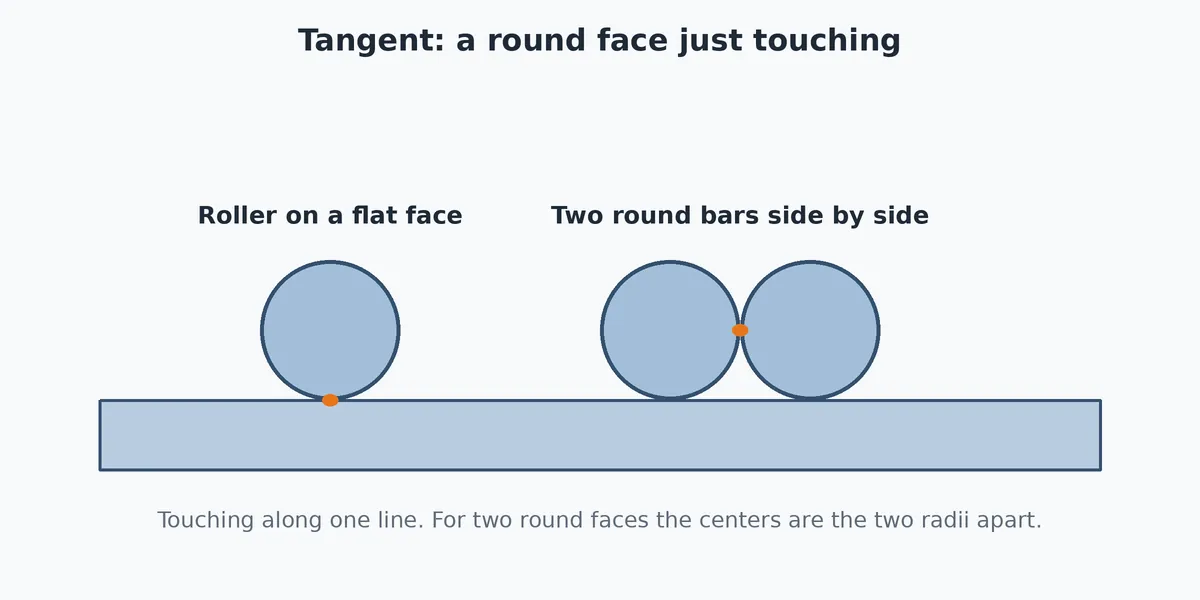
What you get: the round face touching the other face along a line, and one mate named Tangent1 in the Mates folder of the Model tree.
When to Use It
- Rest a roller or a rod on a flat face
- Make two round bars touch side by side
- Keep a pin touching the wall of a bore
What It Does With Each Pair
The Tangent button is lit for these pairs of picks:
- Two round faces
- Round face with flat face
- Round face with straight edge
- Round face and flat face: the axis stays parallel to the face and the surface just touches it.
- Two round faces: the axes stay parallel and the distance between them equals the two radii added together (the round faces touch from outside). When one round face is inside the other, the distance is the difference of the radii.
- Round face and a straight edge: the edge touches the surface.
Step by Step
- Open an assembly (assemblies need the Pro plan) with at least two components in it. See Assemblies: Start and Insert Parts.
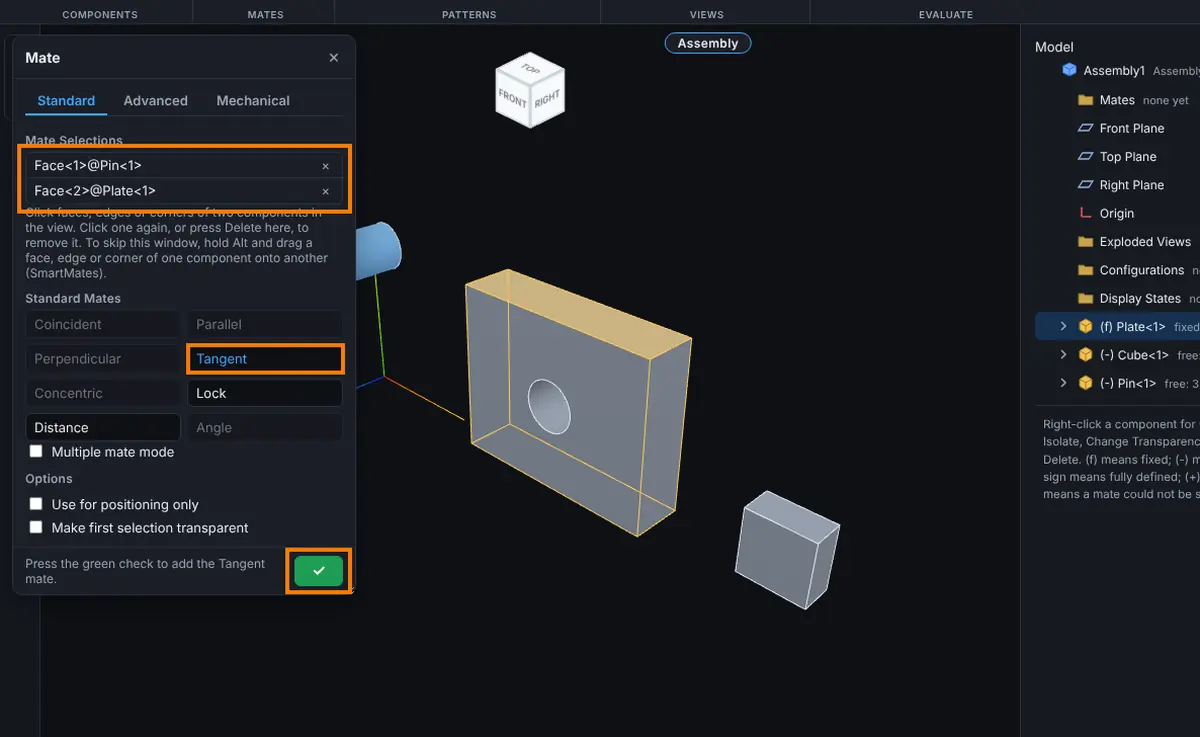
- Click Mate on the Assembly tab (or right-click a component and choose Assembly tools, Mate...). The Mate window opens on the Standard tab.
- Click the first entity on one component in the view. It appears in Mate Selections. You can also click the Front Plane, Top Plane, Right Plane or Origin row of a component or of the assembly in the Model tree.
- Click the second entity on a different component. After the second pick the parts move to show the result, and a small Quick Mate pop-up by the pointer lists the mates that fit. Leave it, or press Esc to close it; your two picks stay.
- Click Tangent in the Standard Mates list of the Mate window. Click the other buttons in the list to compare; only the mates that fit your two picks are lit. (A click on a button in the Quick Mate pop-up adds that mate straight away, as it stands, with no further steps.)
- Click the green check (or press Enter) to add the mate. The message reads "Tangent1 added." and the window stays open for the next pair.
Options
- Tangent has no alignment choice. The side the parts touch on follows where they are now, so start with the parts on the side you want.
- Use for positioning only: moves the parts as the mate would, but no mate is kept. The message reads "Positioned. No mate was added."
- Make first selection transparent: the component you picked first turns see-through so you can reach what is behind it.
- Multiple mate mode: the first pick is the Common reference, every further pick is a Component reference on its own component, and one mate is made for each. Create multi-mate folder groups them (MultiMate1, MultiMate2 and so on).
Tips and What to Expect
- Tangent leaves the part free to roll and slide along the line of contact.
- If the round face flips to the wrong side, drag the part to the side you want first, then re-pick or edit the mate.
- To set a gap instead of touching, use Distance.
Common Mistakes and Messages
- The mate you want is grey. The two picks do not fit it. Remove one pick (click it again, or press Delete in Mate Selections) and pick a different entity. The window says "Those entities have no mate in common." when nothing fits.
- "Pick the second entity on a different component." Both picks were on the same component. A mate always joins two components, or a component and the assembly's own planes or origin.
- "Collapse the exploded view to add mates." Mates cannot be added while the assembly is exploded. See Exploded Views.
- The Over defined prompt appears. The new mate conflicts with the ones already there. See Mates: Fixing Mate Problems.
- Nothing moves. A fixed component does not move. Right-click it and choose Assembly tools, Float, or fix the other component's side on purpose.