Centerpoint Arc
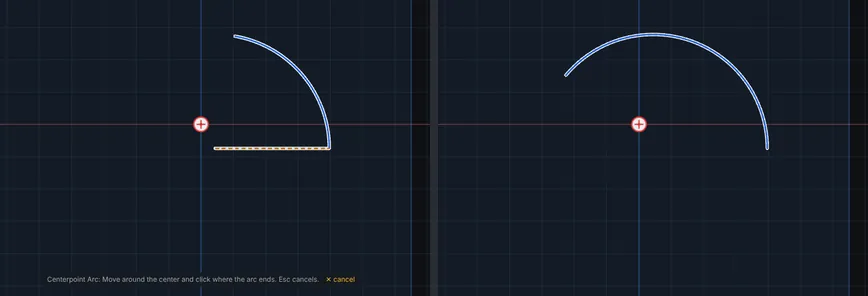
Draws an arc around a center you click. You click the center, then the start (which sets the radius), then swing the mouse around the center to where the arc ends. It makes the same arc as Arc (3 points), so it dimensions and relates the same way.
When to Use It
- A round feature where the center is the thing you know (a bend, a radius about a pivot)
- Any arc where the radius matters more than a point the arc passes through
- A corner of an outline that must be centered on a point
Step by Step
- Open a sketch on a plane or a face (see Planes and Faces). Sketching is part of modeling, which comes with the Pro plans.
- On the Sketch tab, click Line. In the flyout, click Centerpoint Arc.
- Click the center of the arc.
- Click where the arc starts. The distance from the center sets the radius, and a dashed line shows it.
- Move the mouse around the center. The arc grows from the start point and follows the mouse, either direction, up to nearly a full turn. Move smoothly around the center rather than jumping across it.
- Click where the arc ends. The arc is placed and selected, and a Radius box opens ready to type. Type a size such as
1.5 inand press Enter to set it, or press Enter to keep the radius as drawn.
Options
- Construction Geometry: tick the box at the bottom of the flyout first and the arc is drawn dashed, as layout geometry that is never cut or extruded.
Tips and What to Expect
- Clicking the end without moving around the center first shows Move around the center first: an arc needs some sweep. Swing the mouse and click again.
- If a snapped click lands exactly on an end or a point of another piece, Add relations while drawing (Settings, Snap) joins them with Coincident. See Relations.
- Esc after the first or second click cancels the arc. Esc on the Radius box right after drawing removes the arc you just made, so press Enter to keep it.
- An arc does not close a profile for cutting or extruding on its own. Join it to lines so the ends meet, and the outline closes (see Line, Circle, Rectangle, Arc, and Construction).
- One Undo takes the whole arc back. To change it later, double-click it to open its Radius box.
Related Tools
- Tangent Arc, for an arc that leaves a line or arc smoothly
- Corner, to round where two lines meet
- Perimeter Circle