File, Open
File, Open is the one door for getting a model into the viewer. It opens the Open a file window.
What you get: the model you picked, loaded and fitted to the screen, ready to view, measure or model. Signed in, the same window lists the models saved in your account.
What It Does
It loads a model from your computer, or one you saved to your account. The window lists the file types it takes under Accepted file types: 3D models (open and rotate) from 3MF, glTF, GLB, IGES, IGS, OBJ, SLDPRT, STEP, STP and STL files, and 2D drawings (open flat) from AI, DXF, PDF and SVG files. PDF, JPG, PNG, WEBP and GIF files, and any of the CAD types, can also be attached to a model as drawings, photos or instructions. Part files from desktop CAD programs open too; see Opening a File.
Step by Step: Signed In
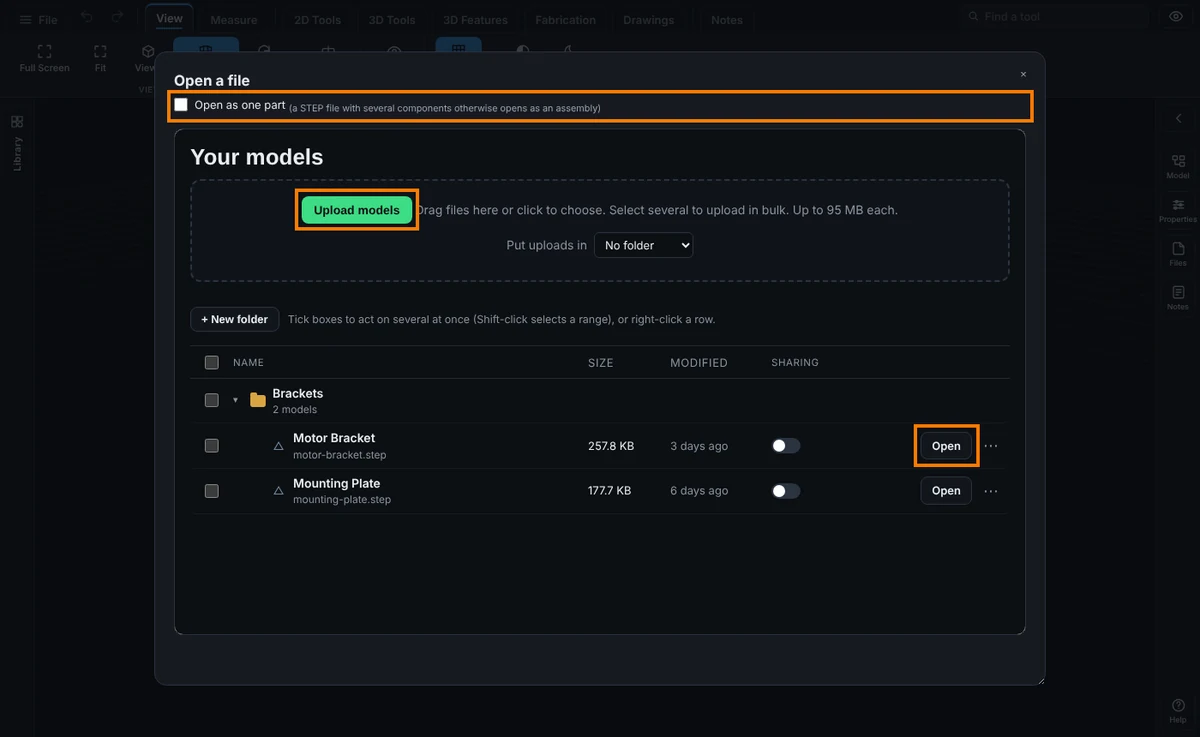
- Click File, then Open. The Open a file window opens with Your models, the models saved in your account, grouped by folder.
- To open a STEP file with several components as one single part, tick Open as one part before you open it.
- Pick the model:
- Click Open beside a model in the list.
- To add a new file, choose a folder under Put uploads in, then press Upload models (on the free plan, Upload a model) and choose the file. You can also drag files onto that box. The list reloads with the new model in it; click Open beside it.
- The model loads and fits the screen.
Step by Step: Signed Out
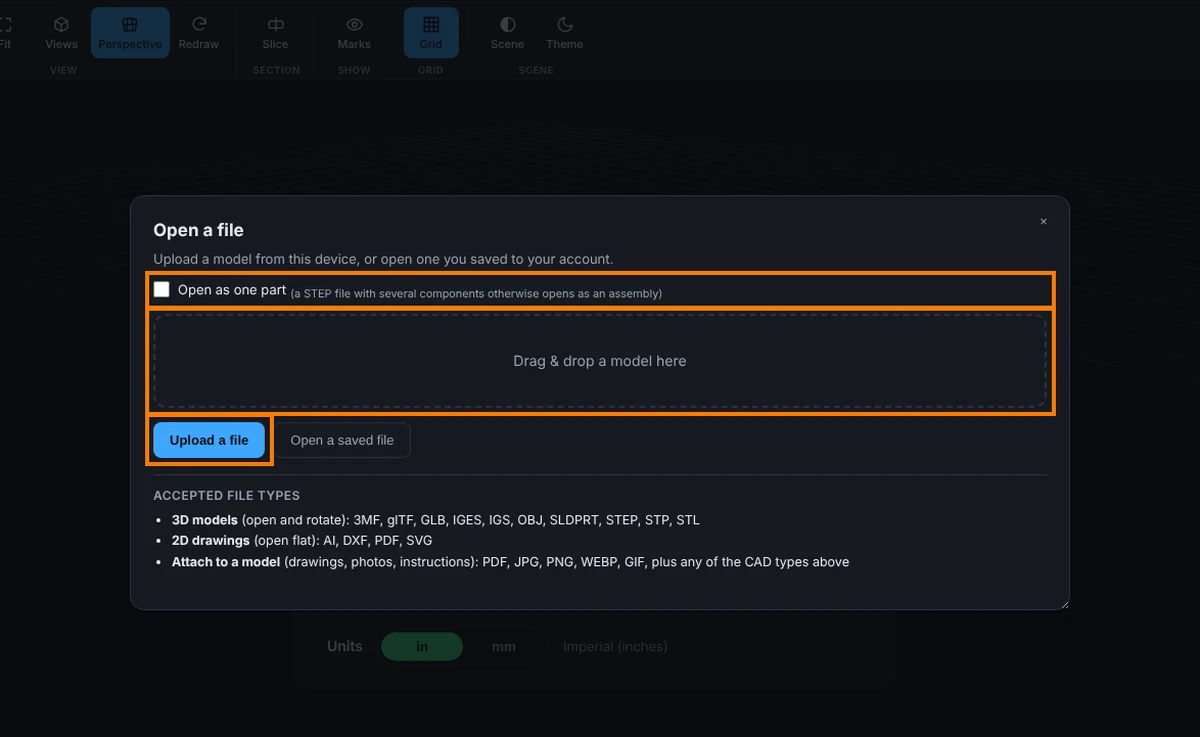
- Click File, then Open. The Open a file window opens.
- To open a STEP file with several components as one single part, tick Open as one part before you pick the file.
- Pick where the file is:
- Upload a file opens your computer's file picker. Choose the file and confirm.
- You can also drag a file onto the box that says Drag & drop a model here.
- Open a saved file asks you to sign in and opens your account page, because saved models live in your account.
- The model loads and fits the screen.
The Boxes in the Window
- Open as one part: a STEP file with several components otherwise opens as an assembly. Tick this box to open it as a single part instead. The viewer remembers your choice.
- Open in new tab: paid plans only. See Tabs: Several Files at Once.
Common Mistakes and Messages
- "Opening another model will discard 2 unsaved modeling changes. Save as new version or Download STEP first to keep them. Continue anyway?" Your edits are in the way. Choose Cancel to keep working, then save them first.
- "Exit Edit Part first, then open another model." You are editing one part of an assembly. Press Exit Edit Part, then open the file.
- "Sign in to save projects. Opening your account page..." Open a saved file was pressed while signed out. Saved models live in your account. Sign in, then open File, Open again to see your models.
- "Could not load: Unsupported .xyz" The file will not open. Check the type against the list above. Uploads on paid plans can be up to 95 MB. Viewing a model of any size is free on every plan.
- You want the full list with folders and sharing. Use Manage files instead; see Your Account: Models and Folders.