Center Rectangle
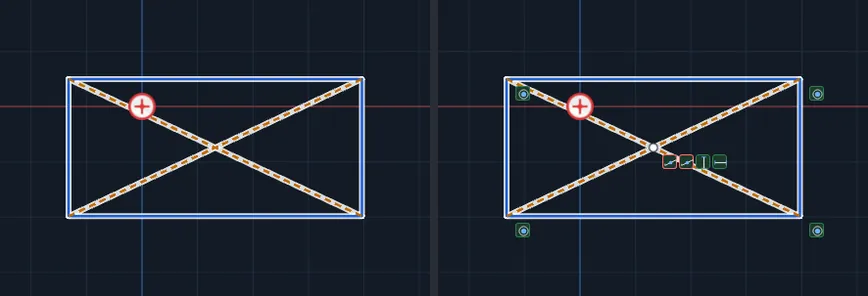
Draws a rectangle outward from its center. You press on the center and drag to a corner, and the opposite corner is placed the same distance on the other side. Two dashed diagonals and a center point are added, so the center stays a real, usable point.
When to Use It
- A plate or pocket that must be centered on a point, such as the origin
- Anything symmetric about its middle
- A rectangle you will dimension from the center instead of from a corner
Step by Step
- Open a sketch on a plane or a face (see Planes and Faces). Sketching is part of modeling, which comes with the Pro plans.
- On the Sketch tab, click Rect. In the flyout, click Center Rectangle.
- Press on the center and drag toward a corner. A preview shows the whole rectangle growing out from the center. Let go to place it. Or click the center, then click a corner.
- The rectangle is placed and selected, with its diagonals and center point. A size box opens with width and height. Type values such as
4 inand2 into resize it, then press Enter. - The tool stays armed for the next one. To stop drawing shapes, click Select on the Sketch tab.
Options
- Construction Geometry: tick the box at the bottom of the Rect flyout first and the rectangle is drawn dashed, as layout geometry.
Tips and What to Expect
- The two diagonals are dashed construction lines, tied to the four corners with Coincident relations. The center point is tied to the middle of both diagonals with Midpoint relations. So when you resize the rectangle, the center stays in its middle.
- A rectangle drawn square to the screen keeps its sides Horizontal and Vertical (with Add relations while drawing on, in Settings, Snap).
- To place the rectangle exactly, use Smart Dimension from the center point to another point or an edge. See Dimensions and Units.
- Dragging to a corner that is level or upright with the center shows Click a corner that is neither level nor upright with the center. Move the mouse off the axis.
- The rectangle is a full profile for Cut or Extrude. The diagonals and the center point are construction, so they never cut.
- Esc after the first click cancels. One Undo takes back the rectangle, the diagonals and the point together.
Related Tools
- 3 Point Center Rectangle, for a rectangle at any angle from the center
- 3 Point Corner Rectangle
- Point
- Line, Circle, Rectangle, Arc, and Construction