Mirror (Bodies)
Mirrors whole solid bodies, or chosen features, across a plane. (Compare Sketch Mirror, on the Sketch tab, which mirrors 2D sketch pieces instead.)
What you get: a copy of the bodies or steps you chose on the far side of the plane, as one Mirror step in the Model tree, and a message such as Mirrored Hole1 across the Right plane. with the new volume.
How to Start It
Click Mirror on the Features tab.
What to Pick
- Bodies or Features: Bodies copies whole bodies (below). Features copies earlier steps instead (see Mirror Features). Steps selected in the History tree when you click Mirror fill the Features list for you
- Mirror across: Top plane, Front plane, Right plane, Sketch plane (the plane you are currently sketching on, whether a face or an offset plane; open a sketch on it first, and a tip in the panel explains how), a Reference plane from the list (made with Reference Geometry), or Pick a flat face (click a flat face of the part and the mirror plane is that face)
- Bodies to mirror: with the panel open, click a body in the 3D view to pick it (it outlines in orange); click again to drop it. With none picked, every body in the model is mirrored.
- Merge result: ticked, a mirrored copy joins the body it touches, the way mirroring half a part across its cut face produces the whole part in one body; unticked, every copy is kept as its own separate body
Step by Step: Mirror Features
- If the plane you need is not Top, Front or Right, make it first with Reference Geometry (for example a Mid plane between two faces) and press OK.
- Click Mirror on the Features tab, then click Features at the top of the panel.
- Choose the plane: a button, a name from Reference plane, or Pick a flat face and click a face of the part. The panel says what it is mirroring across.
- Tick the steps to copy in Features to mirror. Nothing ticked is refused.
- Press Mirror. All the copies are one step in History.
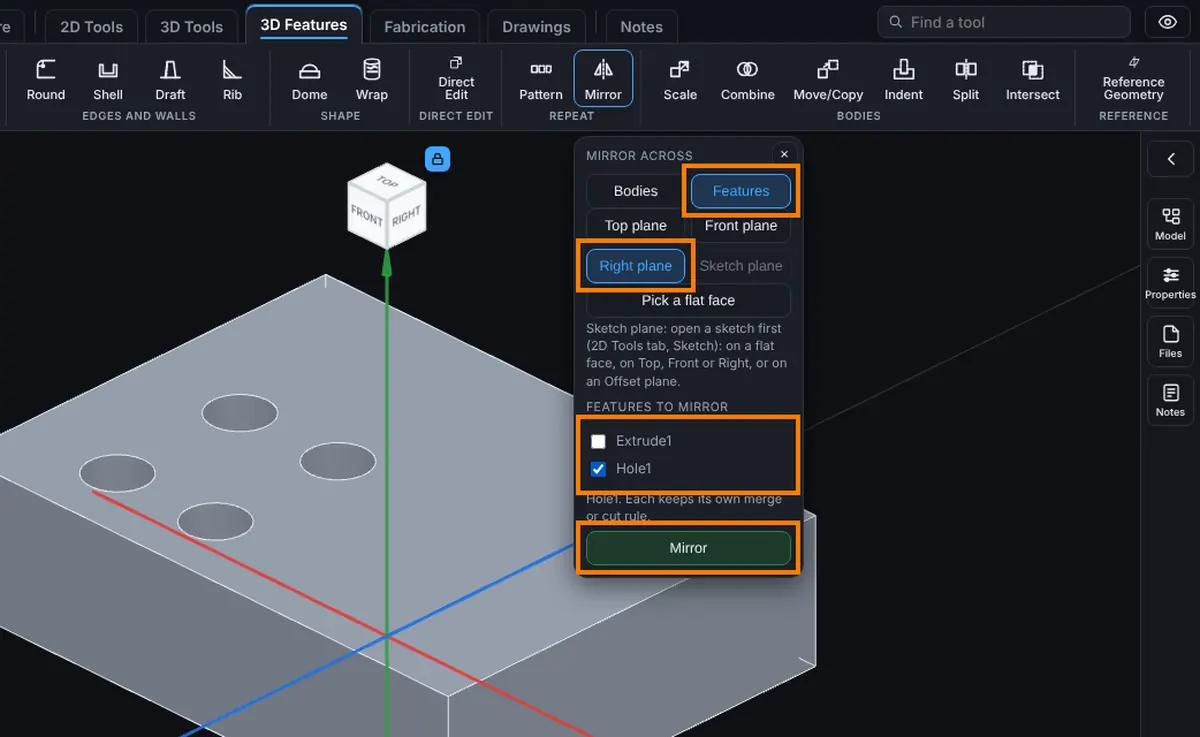
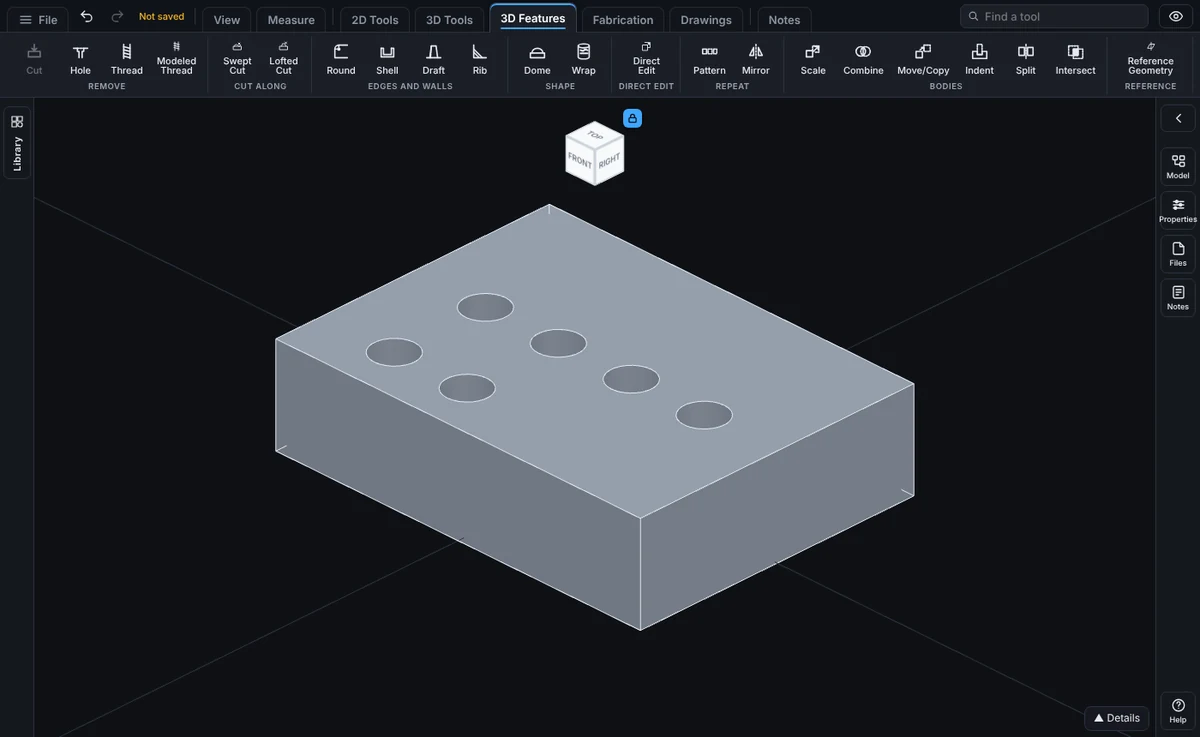
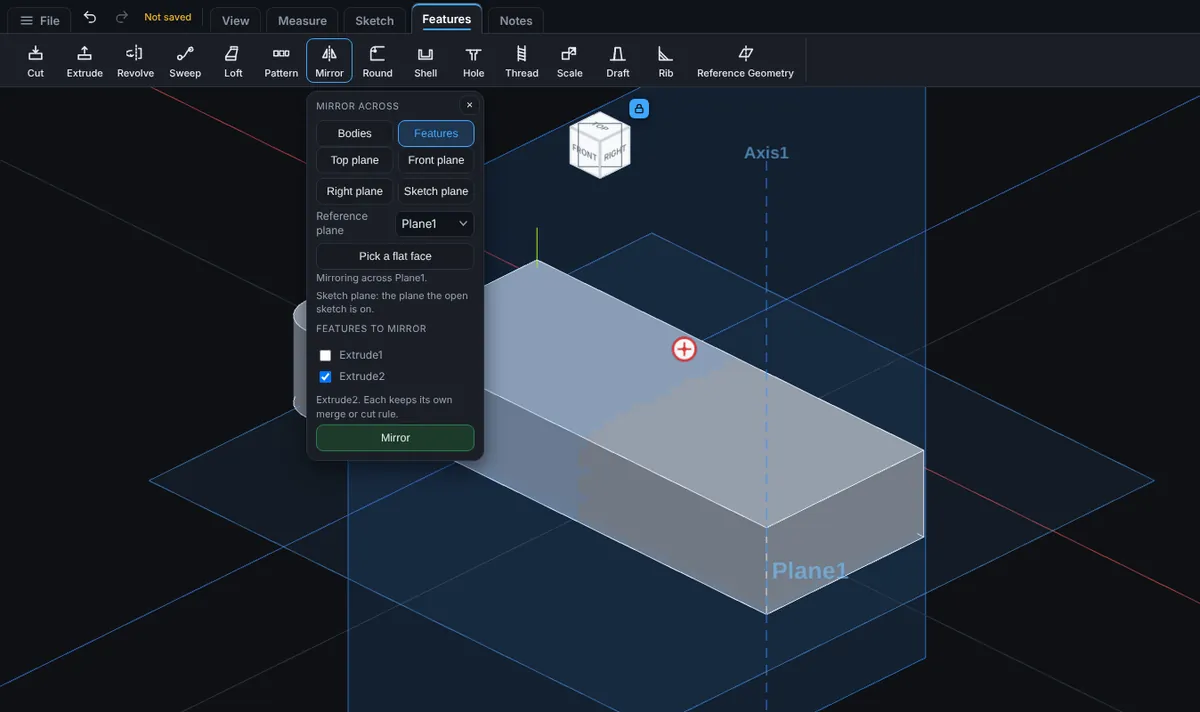
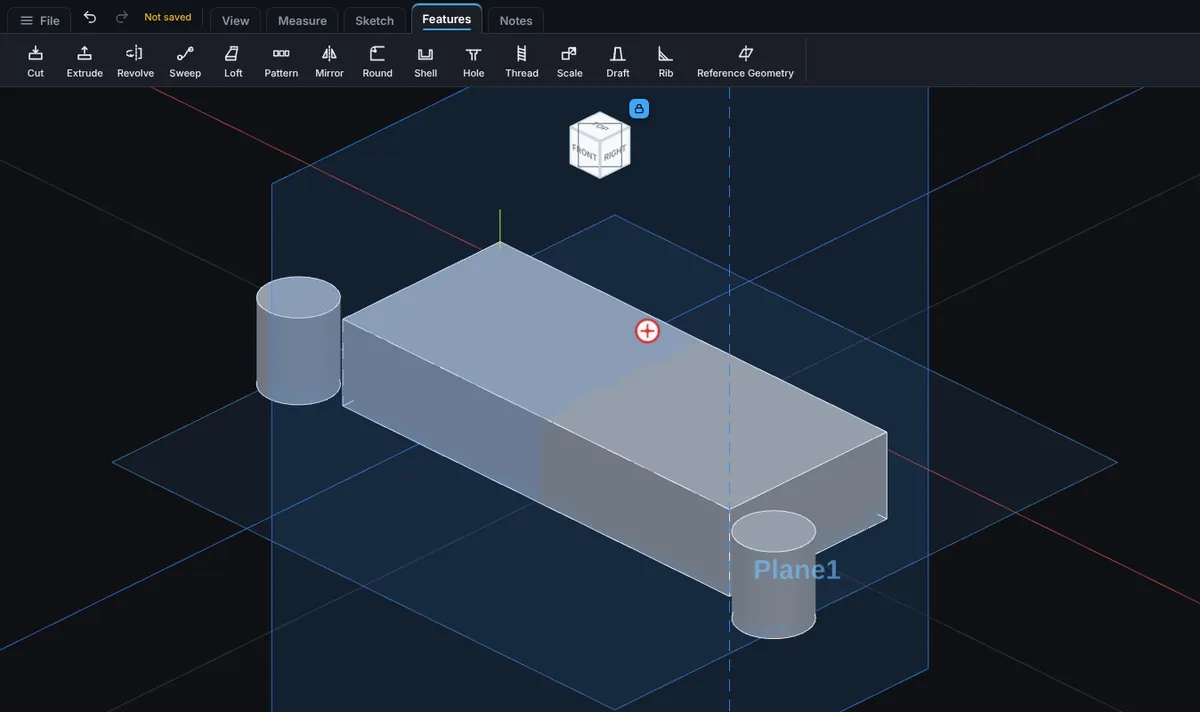
Mirror Features
Select the features in the History tree first (click one, or hold Ctrl and click several), then click Mirror: the panel opens on Features with those steps already ticked. Or choose Features yourself, then tick the steps to copy in the Features to mirror list: extrusions, cuts, revolves, sweeps, lofts and holes (the same kinds Pattern takes). Press Mirror. Each ticked step is rebuilt on the far side of the plane and goes through the same rule as the step it came from: a boss merges (or stays its own body) as the boss did, a cut cuts as the cut did. All the copies are ONE step in History, for example "Mirror Extrude1, Cut-Extrude2 across Plane1", and each is checked by volume. If a copy changes nothing (the feature already sits symmetric on the plane, or the copy lands where the material already is), the step is refused in plain words and nothing changes.
A step that ends Up To Next or Up To Surface, a Flip side to cut step, and any step that is not one of the kinds above cannot be mirrored yet; the panel says so. The step keeps its own copy of what it mirrors, so it builds the same if the list changes, and it follows when you edit the original in History. A mirror cannot be moved above the steps it copies.
What You See
A mirrored copy of the chosen bodies appears on the other side of the plane. The step appears in the Model tree as Mirror.
Tips
- To mirror across a face of the part itself, click Pick a flat face and then the face (or sketch on the face and choose Sketch plane). For an angled or offset plane, make it first with Reference Geometry and choose it from the Reference plane list.
Common Mistakes and Messages
- "Tick at least one feature to mirror." With Features chosen, nothing is ticked in Features to mirror. Tick the steps to copy.
- "Pick a reference plane or a flat face first." You chose Pick a flat face (or a Reference plane) but did not click one. Click a flat face of the part.
- "Open a sketch on the face or plane to mirror across first, or pick Top, Front or Right." Sketch plane needs an open sketch. Open one, or pick a main plane.
- "A mirror cannot copy ...: it ends Up To Next or Up To Surface, which a mirror cannot repeat yet." Untick that step, or change it to Blind or Through all first.
- "... is not an extrusion, cut, revolve or hole, so a mirror cannot copy it." Only those kinds of steps can be mirrored. Mirror the whole body with Bodies instead.