Export as IGES
Saves the whole part as one IGES file (.igs) with its exact surfaces, for CAD and CAM programs, nesting and cutting software and older programs that read IGES but not STEP.
What you get: a .igs file named after the model, every face written as an exact surface, and a message such as IGES exported: 18 faces as exact surfaces, 96 KB, in millimeters.
Step by Step
- Open the part: a STEP file, or a part you drew or changed here.
- Open File, point to Export (or click it) and click IGES.... The Export as IGES window opens.
- Pick the Units: Millimeters or Inches.
- Click Export. The file downloads, named after the model and ending in .igs (with -inch added when you choose inches). A message gives the number of faces, the size of the file and the units.
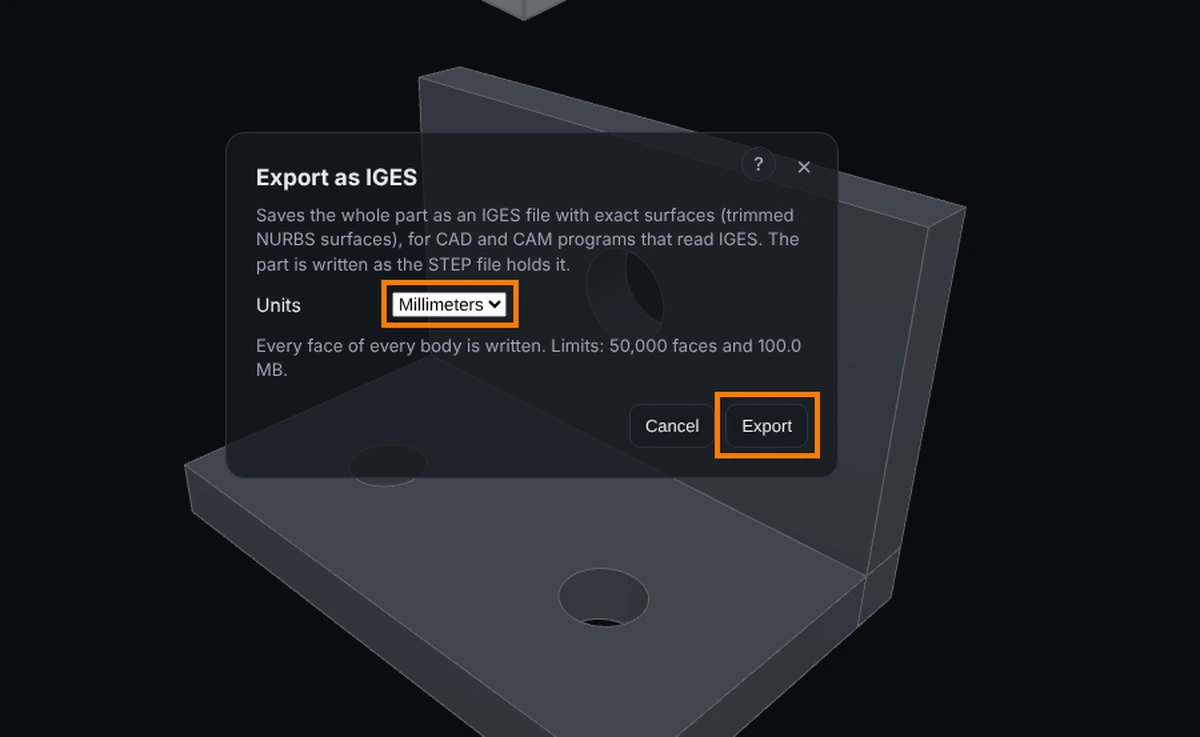
To close the window without exporting, click Cancel, the × at the top right, or press Esc.
Options
- Units: Millimeters or Inches. It starts on the unit of the file you opened, or on your display unit for a part drawn here. The file says its unit, so the program that reads it shows the part at the right size.
What Is in the File
- Every face of every body, written exactly: flat faces, cylinders, cones, spheres, rings (tori), turned shapes, pulled shapes and free form surfaces are all true surfaces, not triangles. Each face is a trimmed surface with its edges as curves, the way most CAD programs write IGES.
- Where a round face meets itself (a seam) or closes at a point (the tip of a cone), the edge is also written on the surface, so the program that reads the file cannot mix up the two sides of the seam.
- With modeling open, the part as it stands now, with your edits whether saved or not. Otherwise the STEP file as it was opened.
Limits
- The file holds faces, not a closed solid. Most programs join the faces into a solid as they read the file (often called knitting or sewing faces). If yours shows only surfaces, look for its option to form solids from the faces.
- Body names, colors, materials and the History steps are not written. Use STEP when you need them.
- One part at a time. While an assembly is open the menu item is hidden; use File, Export, Assembly as STEP, or open one part on its own.
- A mesh file (STL, OBJ, 3MF, glTF) has no exact surfaces, so it cannot be written as IGES; use File, Export, STL... instead. An IGES file you opened is IGES already; use File, Download to save it as it is.
- A face made by offsetting a curved surface (some shells and thickened free form faces) and an edge that has no curve in space cannot be written yet. The window says how many there are; export the part as STEP instead.
- At most 50,000 faces and a 100 MB file, and the writing stops after 30 seconds. Past any of these the window says so and nothing downloads.
- The writing runs in this page, so a big part (thousands of faces) can keep the page from answering clicks for a while; the 30 second limit is for the writing only, and reading the part before it has no limit of its own. Wait for the message, and use STEP for very large parts.
- It needs the Advanced plan or higher, and on a shared model the Exports box ticked. A view-only share without that box cannot export.
Common Mistakes and Messages
- "Export a part as IGES on the Advanced plan or higher." Your plan is below Advanced. Upgrade to export IGES.
- "IGES export writes exact surfaces, and a mesh file (STL, OBJ, 3MF, glTF) has none." The model came from a mesh file. Use Export as STL.
- "This model is an IGES file already." Use File, Download to save the file you opened.
- "IGES export writes one part." An assembly is open. Export it as STEP, or open one part on its own.
- "The modeling engine is busy with a change." Wait for the change you made to finish, then click Export again.
- "There is nothing to export: the part has no faces." A part drawn here has only planes or sketches so far, so there is no solid yet. Extrude something first.
- "...made by offsetting a curved surface..." or "...with no 3D shape...": export the part as STEP instead.
- The part looks open or hollow in the other program: turn on that program's option to join or knit faces into a solid when it reads IGES.
Tips
- Use STEP when the other program reads it: STEP keeps the solid, the names and the colors. Use IGES when it is all the other program takes.
- Check the size in the other program once: the file says millimeters or inches, and most programs follow it.