Gusset
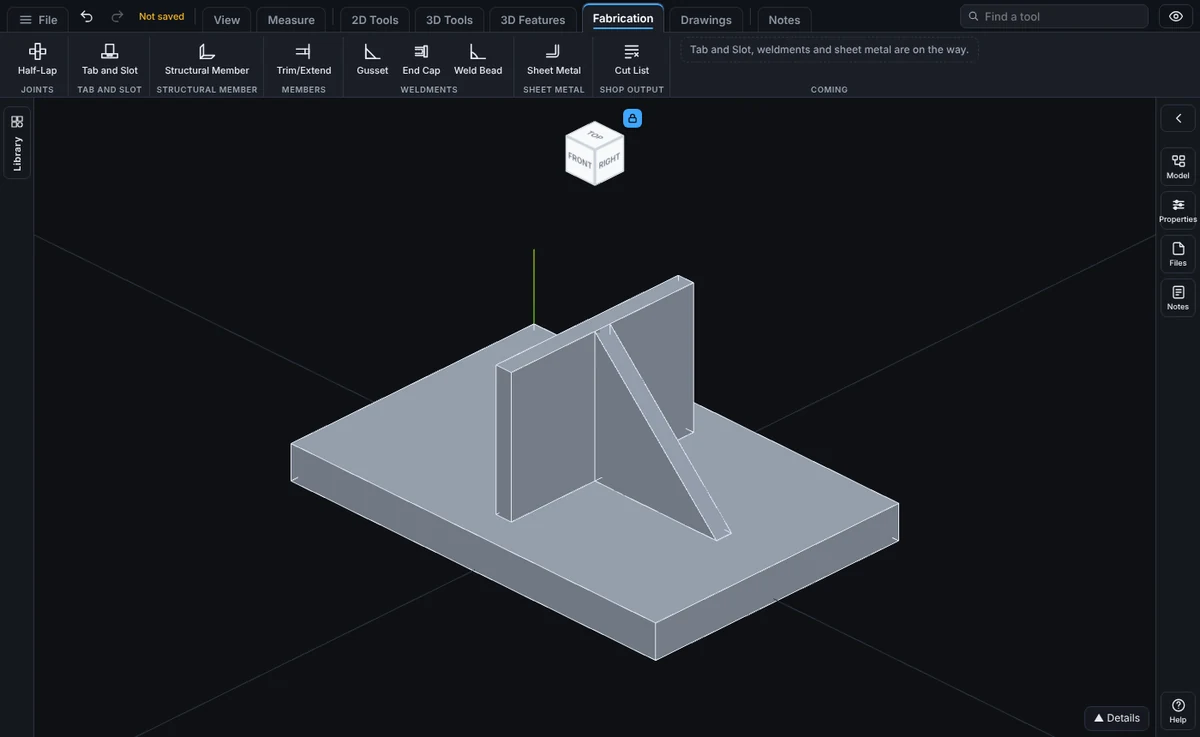
Gusset puts a flat plate across the inside corner where two flat faces meet, like the brace between a base plate and a post, or between two members of a frame. It is made as a new body of its own, the way a welded gusset is a separate piece, and it is one step in the Model tree.
What you get: a flat plate of the legs and thickness you typed across the inside corner of the two faces, as a new body named in the Bodies list and the Cut List.
When to Use It
- Brace a post where it stands on a base plate
- Stiffen the corner where two frame members meet
- Make a knee bracket between a beam and a column
- Add the plates a welder cuts and fits at an inside corner
Step by Step
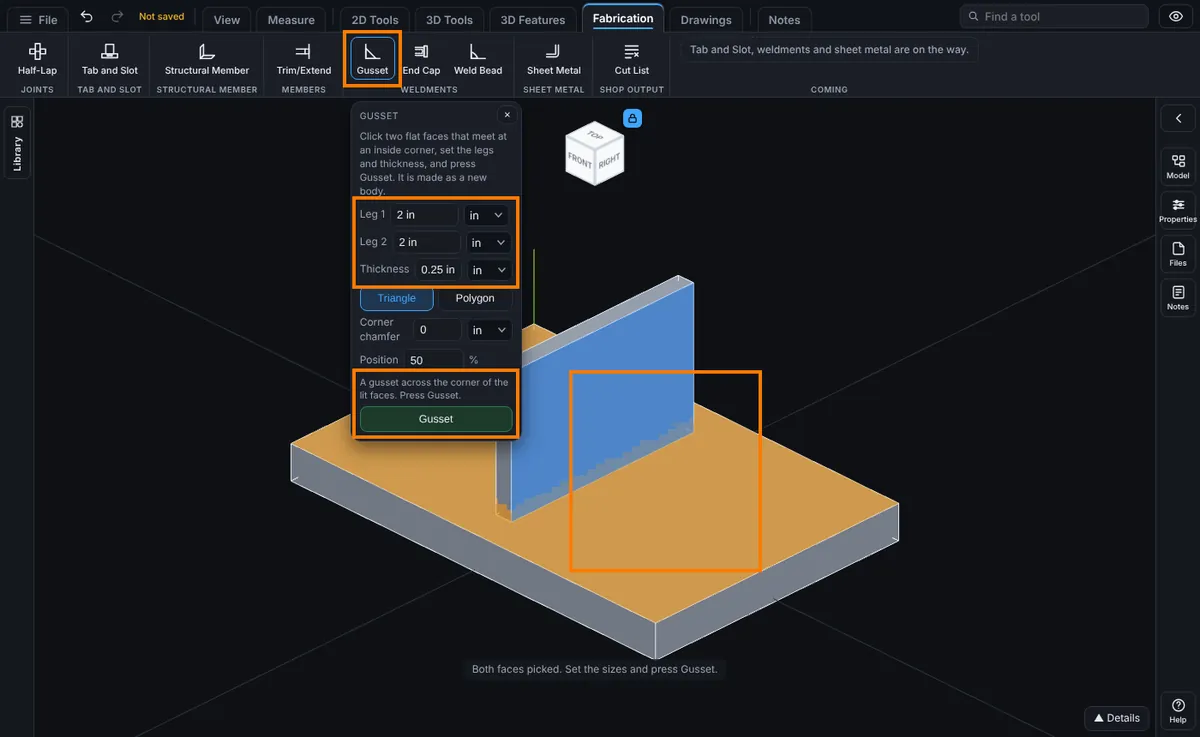
- Open the model for modeling, then click Gusset on the Fabrication tab (on the Features tab in the other layout). The Gusset panel opens.
- Click the first flat face of the corner in the view, for example the top of the base plate. It is lit orange.
- Click the second flat face, for example the side of the post. It is lit blue. Click a lit face again to drop it.
- Type Leg 1 and Leg 2. They start at 2 in (50 mm). You can type any unit, like 3 in or 75 mm.
- Type the Thickness. It starts at 1/4 in (6 mm).
- Pick Triangle or Polygon, and set Corner chamfer and Position if you want them.
- Click Gusset. A message gives the gusset's sizes and the new volume of the part.
Options
- Leg 1: how far the gusset runs along the first face (orange), measured square to the corner.
- Leg 2: how far it runs along the second face (blue).
- Thickness: the plate thickness, measured along the corner.
- Triangle: the two legs and a straight slope between their ends.
- Polygon: the tip cut square. Each leg ends in a straight Flat, then the slope. The Flat must be shorter than both legs.
- Corner chamfer: cuts the inside corner off by this much on each leg, so the gusset clears a weld bead in the corner. 0 is none.
- Position: where the gusset sits along the corner, as a percent: 0 at one end of the stretch both faces share, 50 in the middle, 100 at the other end. The plate always stays on the faces.
How Big It Is
A triangle gusset with 2 in legs, 1/4 in thick, is 2 x 2 / 2 x 0.25 = 0.5 cubic in. In mm, 50 mm legs and 6 mm thick make 50 x 50 / 2 x 6 = 7500 cubic mm. When the two faces are not square to each other, the gusset follows them, and its size is that area times the sine of the angle between the faces.
Edit It Later
Right-click the step in the Model tree and choose Edit Feature. You can change the legs, thickness, Polygon and its flat, the chamfer and the position in place, without picking the faces again. The step is named Gusset and sits in the Bodies group.
Tips and What to Expect
- Pick two faces that meet at an inside corner. The gusset fills the open space in front of both faces.
- The faces can be on one body (the inside of an angle) or on two bodies (a post standing on a plate).
- The gusset is a new body, so it shows in the Cut List and the Bodies list on its own. Use Combine if you want it joined to the part.
- It is made from two faces. Picking edges, or a gusset that wraps a round tube, is not offered yet.
- There is no dashed preview yet: press Gusset and use Undo if the result is not what you wanted.
Common Mistakes and Messages
- "The two faces are parallel (or nearly), so they never meet at a corner." Pick two faces that meet at a corner, like the top of a base plate and the side of a post.
- "You picked the same face twice. Pick two faces that meet at a corner, like the top of a base plate and the side of a post." Click a lit face again to drop it, then click the other face.
- "Leg 1 runs off the first face, so the gusset would hang in the air there." Type a shorter leg, slide the gusset with Position, or check that you picked the faces of an inside corner.
- "That gusset would run into Body 2. Pick two faces that meet at an inside corner (the gusset fills the open space between them), or type shorter legs." Something is in the way, or the faces meet at an outside corner. Pick the faces of an inside corner, or type shorter legs.
- "The corner the two faces share is only ... long, less than the gusset thickness (...). Type a thinner gusset." Type a thinner gusset.
- "The flat (...) must be shorter than both legs (the shorter is ...). Type a shorter flat, or pick Triangle." Type a shorter flat, or pick Triangle.
- "A face this gusset sits on is no longer on the part." An earlier step changed or removed it. Delete the Gusset step and make it again.