Convert Entities
Brings the edges of the part into the sketch. Click an edge, or click a face to take every edge around it, and they are laid onto the sketch plane as lines, arcs and circles that you can draw from, trim, offset or dimension against.
What you get: lines, arcs and circles in the sketch that sit exactly on the edges of the part, held there, ready to cut, extrude or draw from.
When to Use It
- Start a new profile from the outline of a face of the part
- Cut a pocket or a boss that follows an existing edge exactly
- Draw something that must line up with a hole or a slot already in the part
- Turn the edges of a face into pieces you can then offset a wall away
Step by Step
- Open the model for modeling, then open a sketch on a plane or a face (see Planes and Faces). Sketching is part of modeling, which comes with the Pro plans.
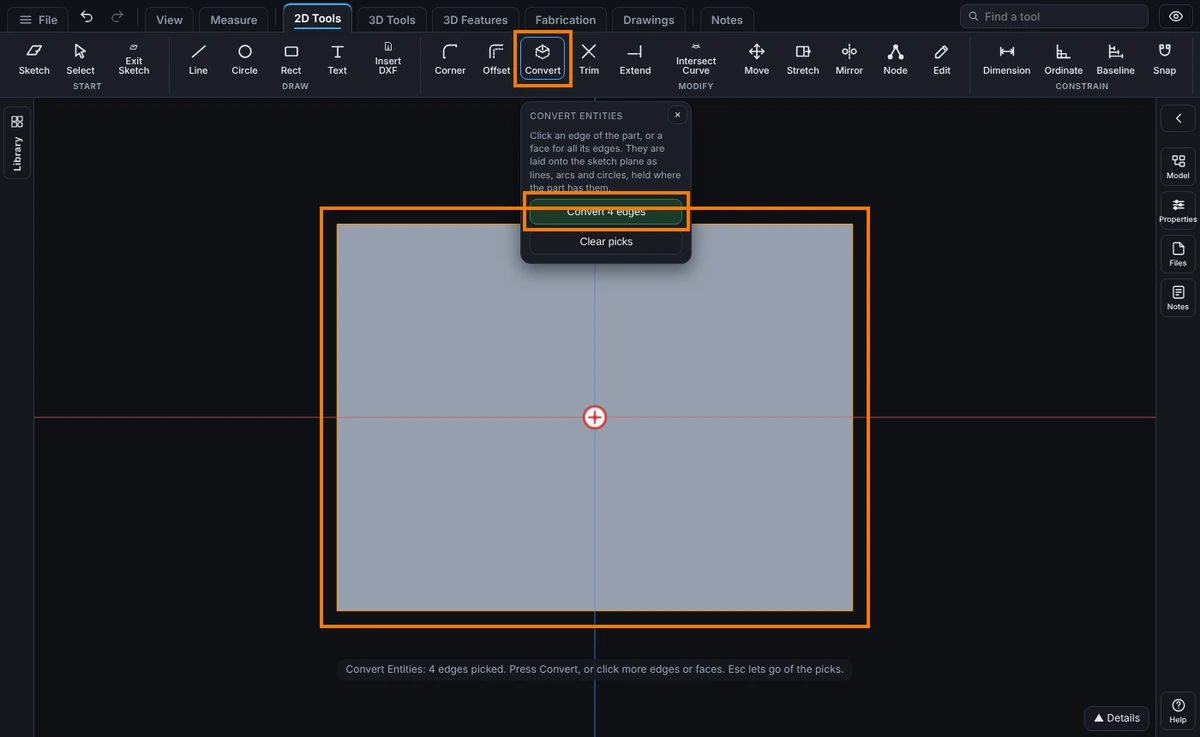
- On the Sketch tab, click Convert. The panel opens and the edges of the part are read.
- Move the mouse over the part. The edge or face under the pointer lights up.
- Click an edge to pick it, or click a face to pick every edge around it. Click again to let one go. The button counts what you picked, for example Convert 4 edges. It stays grey until something is picked.
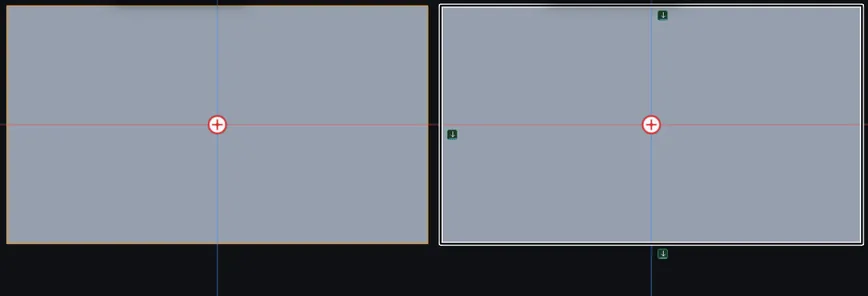
- Press Convert. The pieces are made in the sketch and a message says how many of each, for example "Converted: 4 lines. They are held where the part has them. Ctrl+Z puts it back."
Options
- A straight edge becomes a line, an arc edge an arc, and a full round edge a circle.
- An edge across the sketch plane is projected onto it. An edge seen end on has no length on the plane, so it makes nothing and is counted in the message.
- Any other curve, such as an ellipse or a curve seen at an angle, becomes a run of short lines that lie on the curve. The message counts them so you know.
Tips and What to Expect
- Each piece is held where the edge is, so it cannot be dragged away by mistake, and it is marked as converted. It is a copy: if the part changes later, convert the edge again.
- Converting the same edge twice adds nothing, and a message says those edges are already converted.
- The pieces can be trimmed, offset, filleted and dimensioned like any other. Delete one if you do not want it held.
- One Undo takes back the whole conversion.
- Press Esc to let go of the picks, and Esc again to end the tool.
- Press Help while Convert is armed to open this page.
Common Mistakes and Messages
- "Those edges are already converted." The edges you picked were converted before, so nothing new is made. Pick other edges, or carry on with the pieces you have.
- "Those edges are seen end on from this plane, so they lay down as a point and make nothing. Pick edges that run across the sketch plane." An edge that runs straight toward the sketch plane has no length on it. Pick edges that lie along the plane, such as the rim of the face the sketch is on.
- The Convert button stays grey. Nothing is picked yet. Click an edge or a face of the part first.
- The converted lines will not drag. They are held where the part has them, on purpose. Delete a piece if you do not want it held, then draw your own.
- The part changed and the pieces did not follow. Converted pieces are a copy. Delete them and convert the edges again.