Model Tree: Hide and Isolate Parts
Open the Model tree from the right rail and open Solid Bodies. Each part has a row.
A STEP file made of several parts lists them under Components instead of Solid Bodies, one row for each part with the same eye. The steps below work the same way there.
What you get: the parts you hide gone from the view with their names dimmed in the tree, or, with Isolate, one part alone in the view, and every part back with Show All.
Step by Step
- Click Model on the right rail. The Model tree opens.
- If the list is closed, click the arrow beside Solid Bodies (or Components for a STEP file of several parts) to open it. On a STEP file of several parts the Components list is already open.
- Click the eye at the end of a row. The part disappears from the view and its name is dimmed. Click the eye again to show it.
- To see one part alone, right-click its row and choose Show Only This (on a STEP file of several parts the item is Isolate). Every other part is hidden.
- To bring everything back, right-click Solid Bodies and choose Show All, or for a STEP file of several parts choose Show All Components.
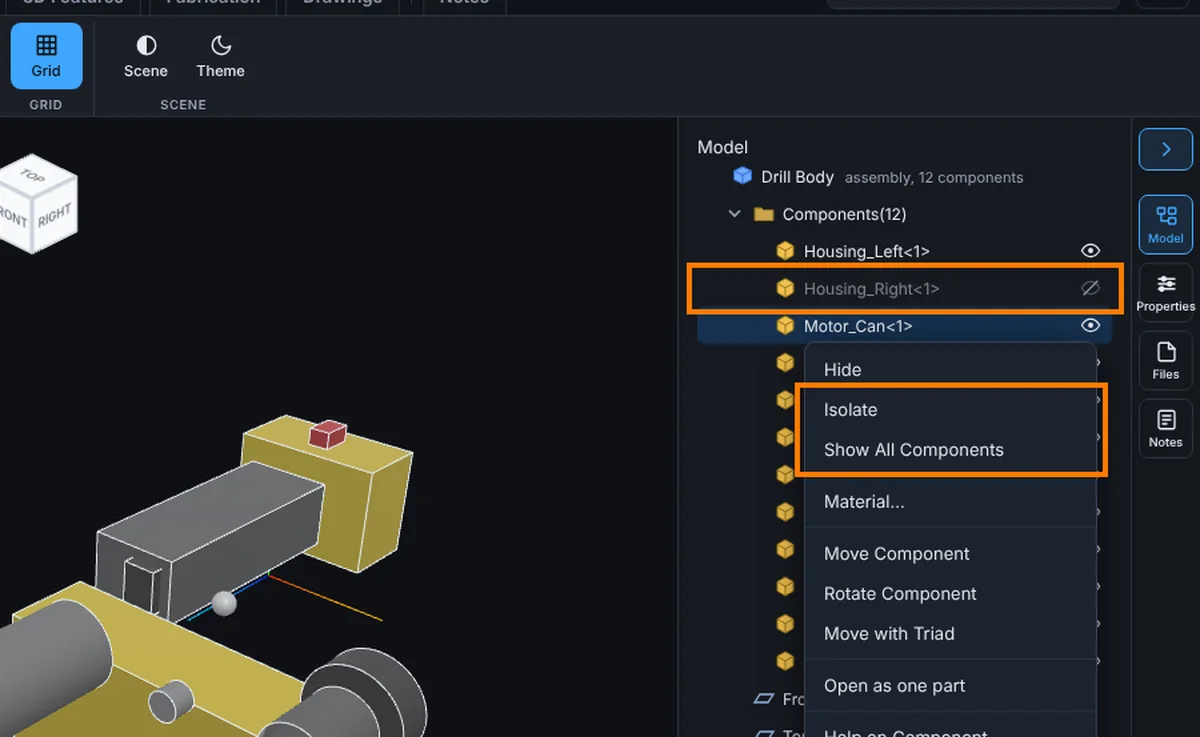
Hide and Show
- Click the eye at the end of the row to hide the part. Click it again to show it. A hidden part's name is dimmed.
- Or right-click the row and choose Hide or Show.
- Right-click Solid Bodies and choose Show All to bring everything back.
- Hiding and showing is free on every plan, and a model of any size opens free.
Isolate
Right-click a part and choose Show Only This. Every other part is hidden. In the Parts list, the only button beside a part does the same. On the model, right-click it and choose Isolate this part (it shows when the model has more than one part).
Isolating needs the Advanced plan or higher. On a lower plan, or signed out, the item stays but is grayed, and a click says what it needs. A shared model follows the sender's plan, so recipients never pay.
Saved With the Model
Which parts are hidden is saved with your saved model, so they stay hidden next time. It is not saved on a share link, an unsaved file or an older version.
Common Mistakes and Messages
- "Isolate a part on the Advanced plan or higher." Show Only This, Isolate and Isolate this part are grayed on the Free plan and when signed out. Hiding with the eye is free: hide the parts you do not want instead.
- I see Components, not Solid Bodies. The file holds several parts, so the tree lists them as components. Hide, Isolate and Show All Components work the same.
- A hidden part is back after I opened the model again. Hidden parts are kept only on a saved model. A share link, an unsaved file or an older version opens with every part shown.
- Show All is grayed. Nothing is hidden.