Measure Edge
Edge gives the length of one edge with a single click. It does not change the model.
What you get: the edge turns orange, its length is written beside it, and the readout says Length.
Step by Step
- Click the Measure tab, click Advanced, then Edge. The readout says "Tap one edge to get its length."
- Click right on an edge of the model. The edge turns orange and its length is written beside it. The readout says Length.
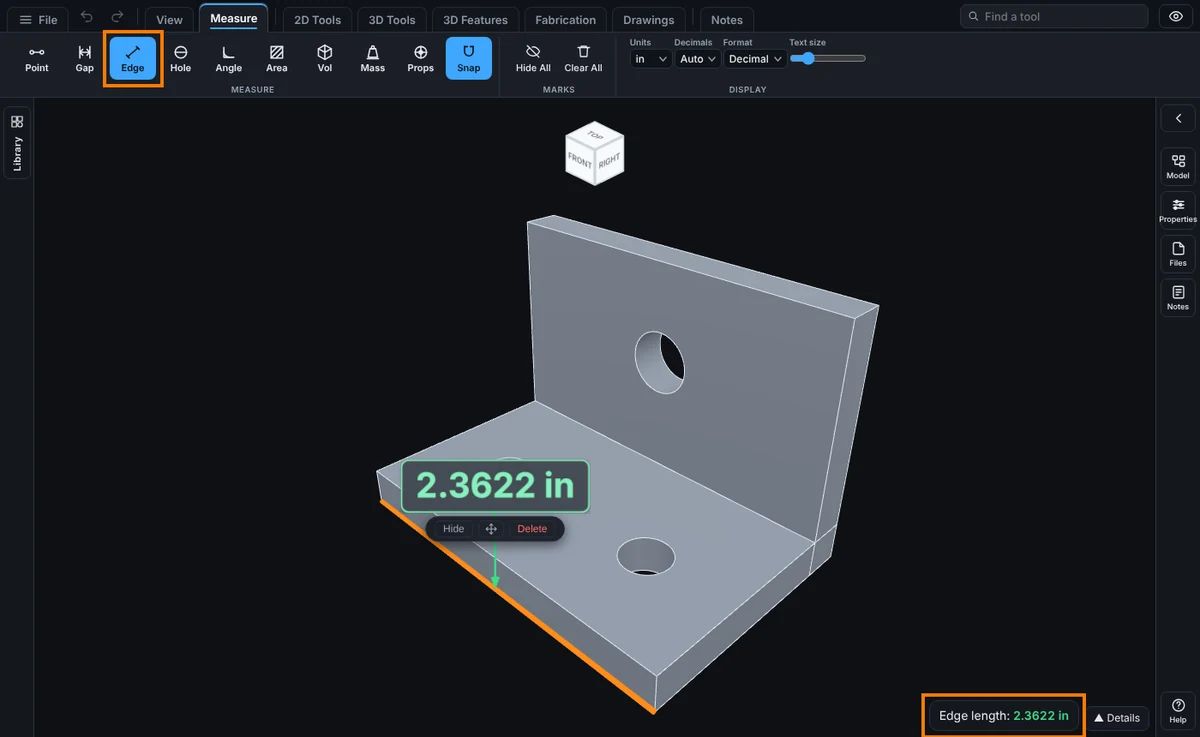
After You Measure
- Click another edge for another length. Each one stays on the model with its own number. See Kept Measurements.
What You Get
- A straight edge: the length of the straight run you clicked. If the outline continues past a corner, the measurement stops where the direction changes by more than about 8 degrees, so you get the one side, not the whole outline.
- A round edge (a circle or an arc): the whole length of the arc or the full circumference, plus the width across it. A hole with a 1 in diameter reads about 3.1416 in around.
Common Mistakes and Messages
- The readout says "No edge there. Tap right on a line." The click was too far from any edge. Zoom in and click closer to the line. The click has to land within about 4 percent of the model's size from an edge.
- I want the diameter of a hole. Use Measure Hole; it reads the diameter first.
- I want the distance between two corners. Use Measure Point.
- The length looks a little off on a curved edge. Curves are read from the drawn outline of the curve, so a very rough model gives a very slightly different number.