Scene
Scene is the look of the model: the background, the part color, how it is shaded and how its edges are drawn. It changes only how the model looks on your screen. The model is not changed.
What you get: the model drawn the way you choose (its background, part color, shading and edge lines), on your screen only; your choices stay in your browser and are saved with a saved model.
How to Start It
Click Scene on the View tab of the ribbon, in the Scene group. A drop-down opens under the button with the choices below. Click Scene again to close it. The light or dark look of the whole screen is a separate button, Theme.
Step by Step: Make a Clean Picture of a Part
- Click Scene.
- Under Background color, click the color box and pick white, or any color you like. (auto, the starting choice, follows the Theme.)
- Under Part color, click the color box and pick a color for the part.
- Under Shading, pick Studio for soft highlights.
- Under Edge lines, pick By angle so only the real corners are drawn.
- Click Scene again, or the × at the top right of the drop-down, to close. Your choices are already applied.
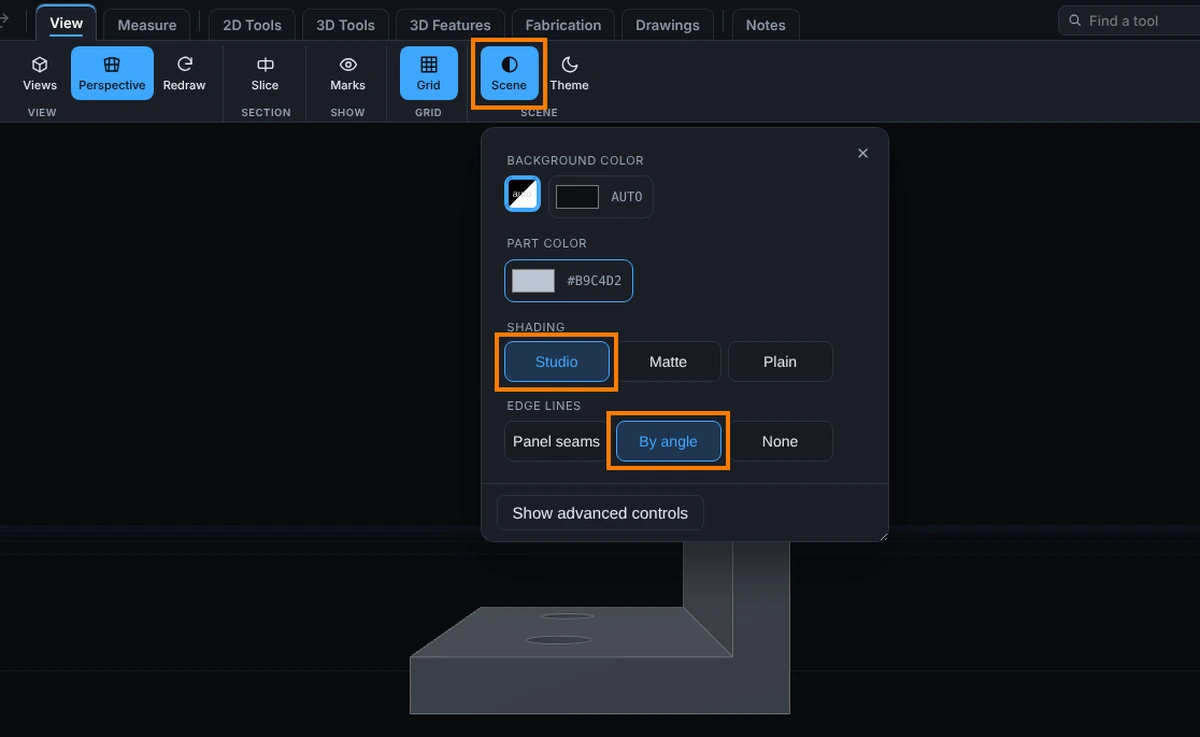
Colors
- Background color: auto, which follows the Theme and is the starting choice, and a color box: click it to pick any color.
- Part color: a color box: click it to pick any color.
- Line color: the color of edge and sketch lines. It shows only when advanced controls are on (see below). auto follows the theme.
Shading
- Studio: a lit, glossy look with soft highlights, good for showing a part. This is the starting choice.
- Matte: a flatter look with little shine.
- Plain: even light with little shading, a clean print-like look.
Edge Lines
How the edges are drawn on the faces.
- Panel seams: a line at every seam between faces. This is the starting choice.
- By angle: a line only where two faces meet at a sharp enough corner, so smooth curves stay clean. With advanced controls on, a slider labeled many on the left and few on the right sets the angle, from 1 to 60 degrees, that two faces must turn through before a line is drawn. Drag it toward few and the angle goes up, so only sharper corners get a line and you see fewer lines; slide toward many to show more lines, including gentler bends. Drag it to the left and gentler bends get lines too, so you see more. A second slider from faint to solid sets how dark the lines are.
- None: no lines at all, faces only.
Advanced Controls
At the bottom of the Scene drop-down, Show advanced controls adds more choices. Hide advanced controls puts them away again.
- Line color and the two edge sliders described above.
- Silhouette outline: click Outline to draw a heavier line around the outer shape, then pick Thin, Medium or Thick. The outline is skipped on a model with a very large number of parts, to keep it fast.
- View, Perspective (3D depth): the same switch as Perspective.
Flat DXF Drawings
For a flat drawing the advanced controls also show DXF drawing display: Show axis lines and Allow 3D rotation (unlock flat view). The floor grid for a drawing is the Grid button.
What Is Remembered
Your choices are kept in your browser. When you save a model to your account, its colors, shading and outline are saved with it, so it opens the way you left it.
Common Mistakes and Messages
- The background will not follow the theme. A color is picked. Press Reset to default beside the color box to go back to auto.
- The part looks flat. Try Studio shading.
- Too many lines. Switch Edge lines to By angle, or None.
- The outline is missing. The model has a very large number of parts. Isolate or hide some, or leave it off.
- The Line color and the edge sliders are not there. They are advanced controls. Click Show advanced controls at the bottom of the drop-down.
- My colors did not change the model for others. Scene changes only how the model looks on your screen. Save the model to keep its colors, shading and outline with it.