Share This Model (Window)
Click Share on the strip, or choose File, Share, Share this model. Save the model first. The window is called Share This Model.
What you get: a link to a copy of your model that you can email or paste, and that the people you pick can open free in their browser, with only the rights you ticked.
What It Does
It makes a link to a copy of your model as it is now, with your measurements and notes. People you share with can look at it free, on any plan.
Step by Step
- Save the model. Signed in, Share asks you to save first and opens the Save window.
- Click Share, then Share this model. A small menu also lists who the model is already shared with; see Shared With.
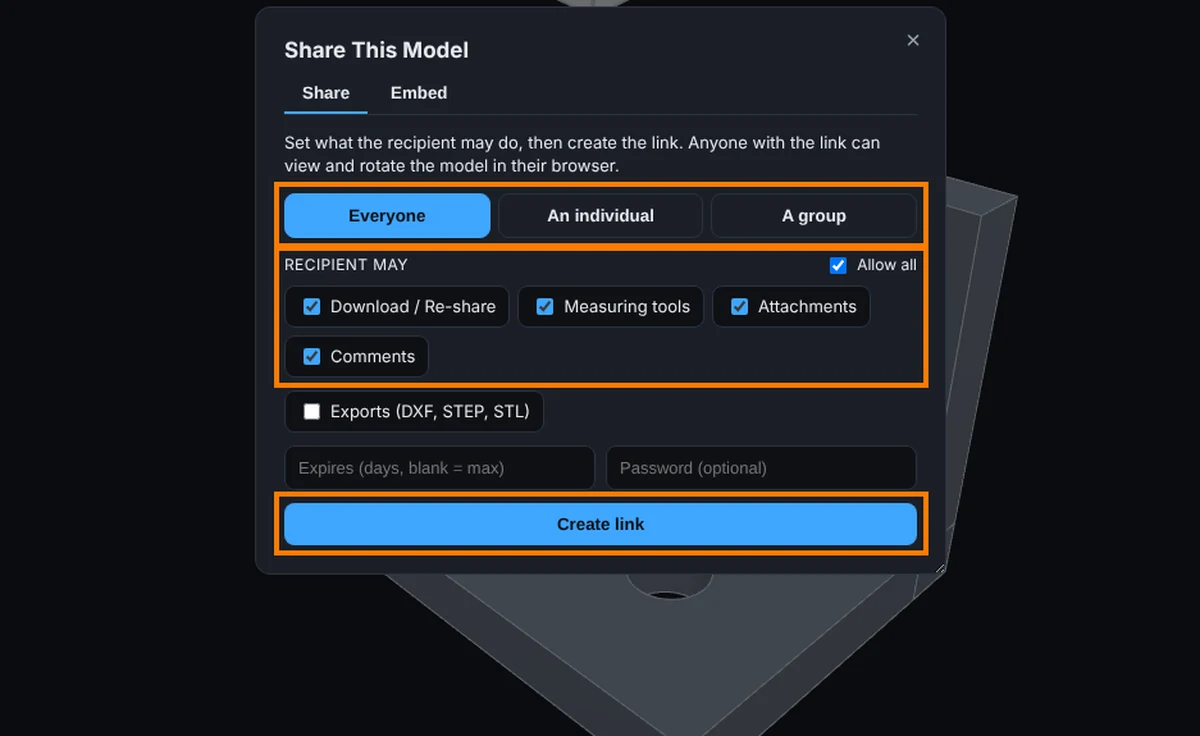
- Pick who it goes to (signed-in users only): Everyone, An individual or A group. See Who It Goes To below.
- Under Recipient may, tick what they can do, or tick Allow all: Download / Re-share, Measuring tools, Attachments, Comments. Exports (DXF, STEP, STL) is off until you tick it.
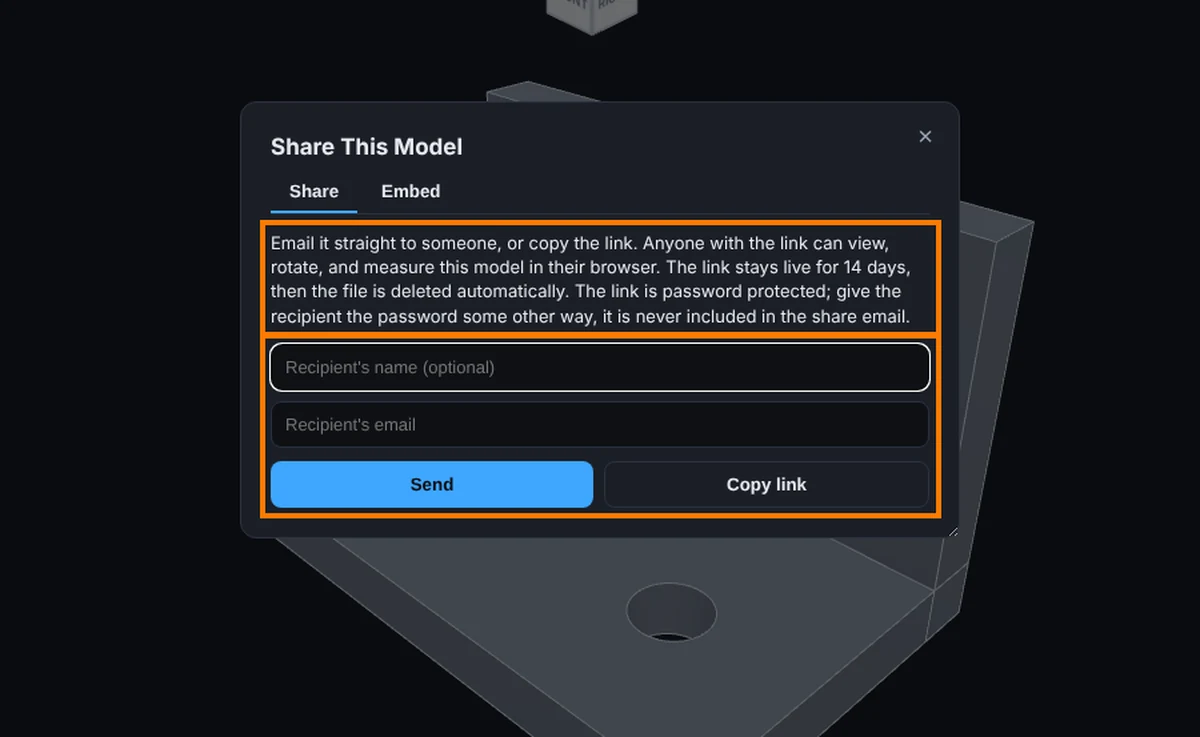
- Choose when it ends and, on plans that have it, a password; see Share Expiry and Password.
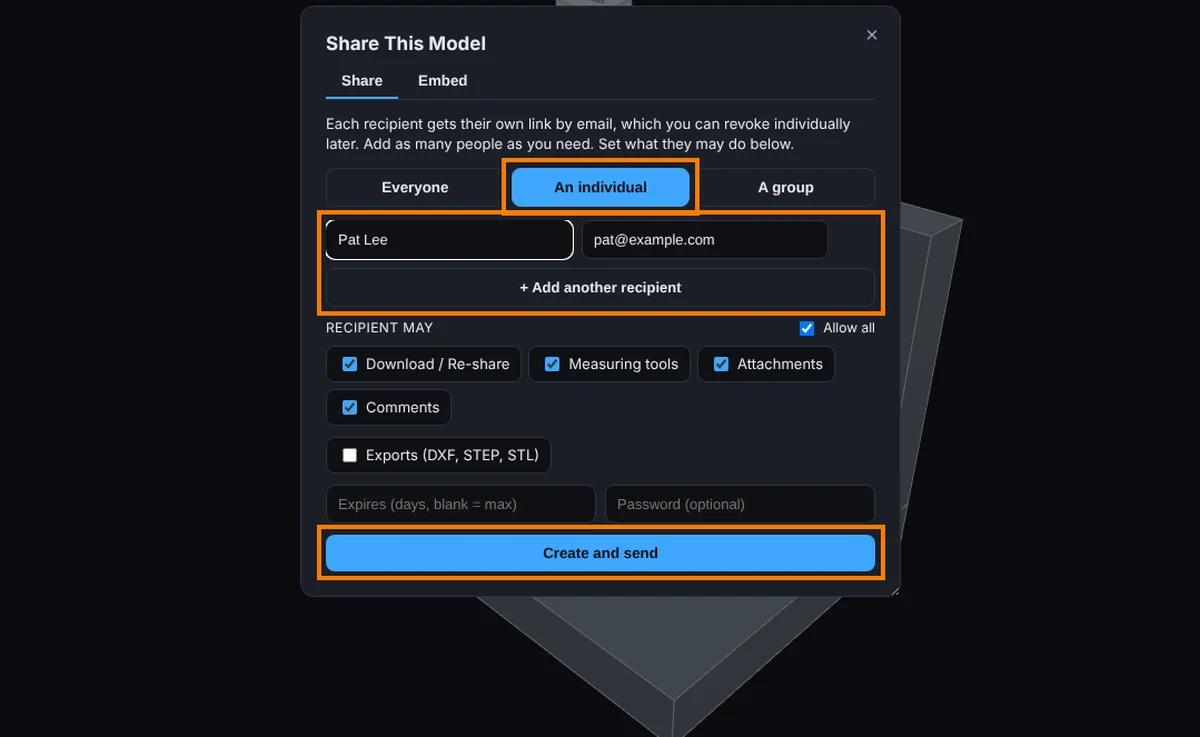
- Click the main button. It reads Create link, Create and send or Share, depending on who it goes to.
- After an Everyone link, type a recipient's name and email and click Send, or click Copy link.
Who It Goes To
- Everyone: one link anyone can open. Creating it again just updates it.
- An individual: type an email and an optional name. Use + Add another recipient for more people. Each person gets their own private link by email, and you can cut off one person without touching the others.
- A group: pick one of your groups. Every active member can open it with their own login; anyone else is turned away.
Good to Know
- Not signed in, sharing is one public link that lasts a short time. The window offers an account for longer links.
- A link shows the version you shared. Press the refresh arrow in Shared with to bring it up to date.
- Without Comments, the recipient cannot use the Discussion. Without Download / Re-share, they can view but not download the file.
- Isolating and exporting parts for a recipient follow your plan (Advanced or higher), and exports also need the Exports box. Recipients never pay.
- Pro plans also see an Embed tab; see The Embed Tab.
- Close the window with the × at the top right, or press Esc.
Common Mistakes and Messages
- "Enter the recipient's email address." You picked An individual and left the email box empty. Type the email, then click Create and send.
- "Check the recipient email addresses." One of the emails is not a real address (a missing @ or dot). Fix it and click again.
- "Pick a group first." You picked A group but no group in the list. Choose one, or make a group first.
- "They can view it but not download the file." This is added to the message when Download / Re-share was unticked. Tick it and create the link again if they need the file.
- "Could not share: ..." The link was not made, for example because the connection dropped. The rest of the message says why; try again.