Make Drawing: Move and Resize the Views
In the Make Drawing window each view sits on the sheet by itself. Click a view in the preview to pick it, drag it to move it, drag a corner to make it bigger or smaller, or type an exact place or Size % under the preview. Dimensions stay true when a view is made bigger, because they read the part, not the picture.
What you get: the Front, Top and Right views (and the isometric, section, detail, auxiliary and projected views) placed where you want them, each at its own scale. A view that is not at the sheet scale says so under its picture, for example SCALE 2.294:1. The DXF, the PDF and the print show the same sheet.
Step by Step
- Open a 3D part. Click the Documents tab, then Make Drawing. The window opens with the views on a sheet (see Make Drawing).
- Click the Front view in the preview. A blue frame with four square corners shows that it is picked, and a bar under the preview names it and shows X, Y and Size %.
- Press on the picked view and drag. The view follows the pointer and stops at the sheet border. The other views stay where they are.
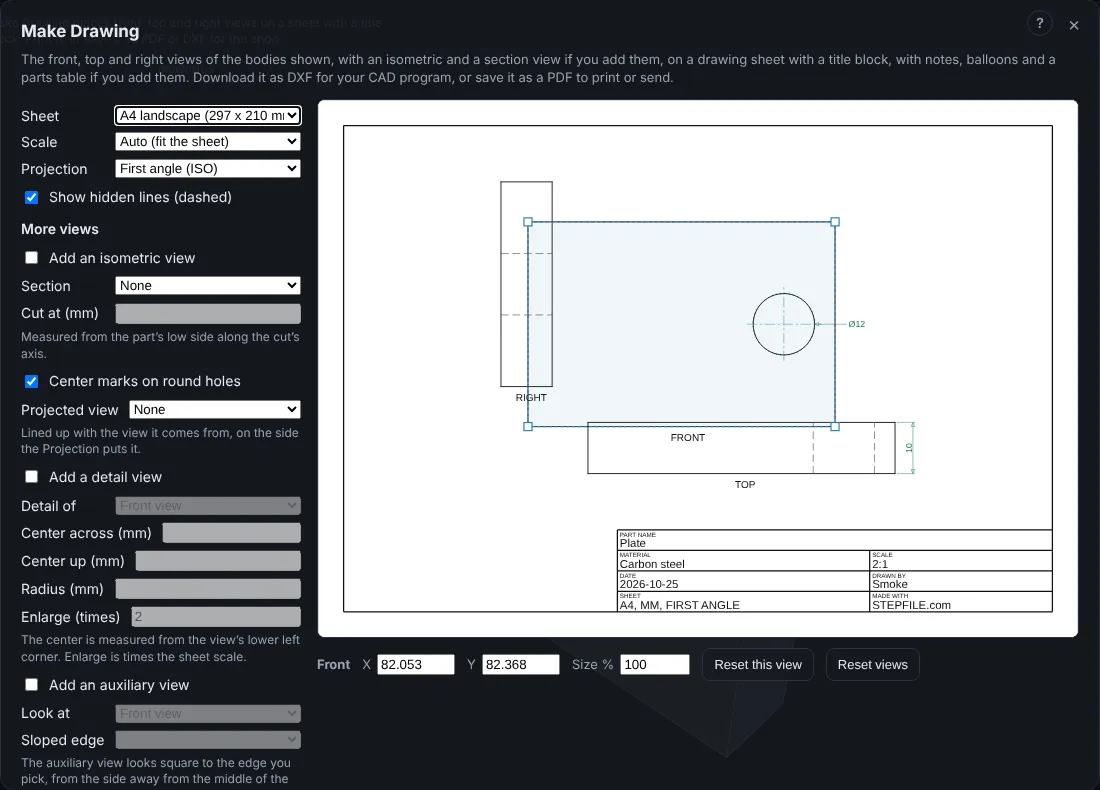
- Drag a corner square to make the view bigger or smaller. The opposite corner stays still. The view's own scale shows under it, and the sizes on the sheet are still the true sizes of the part.
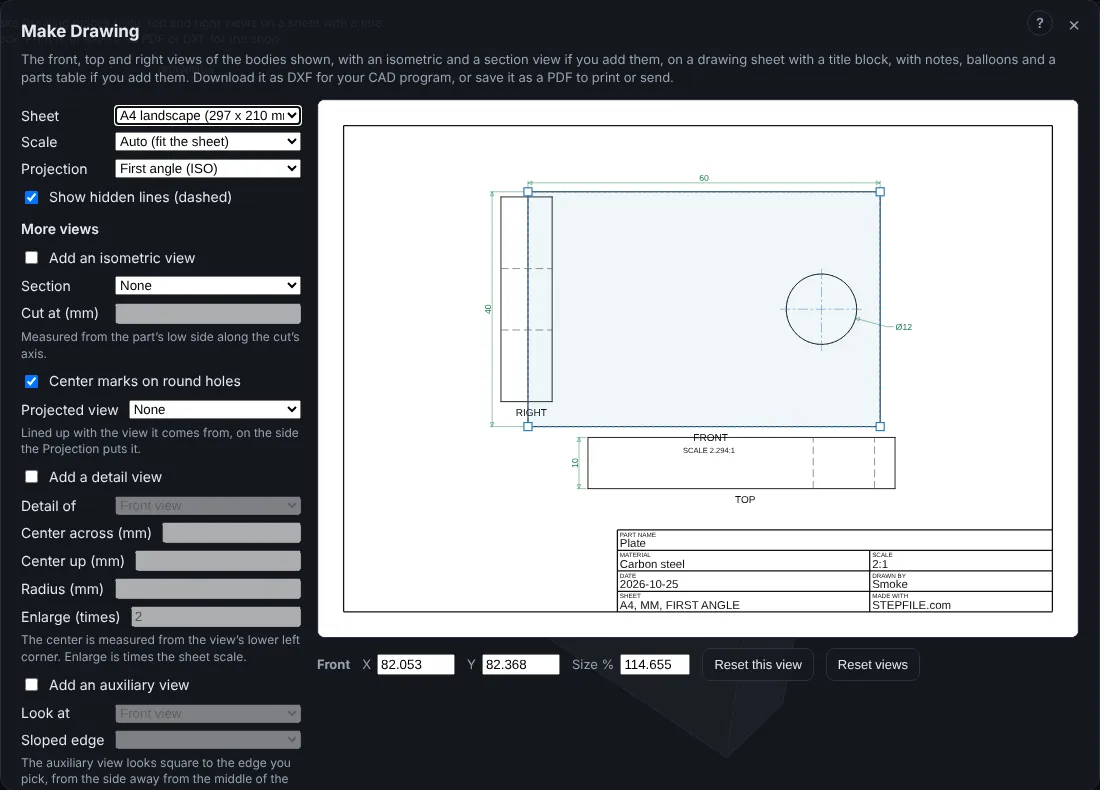
- To place a view exactly, type numbers in X and Y (the lower left corner of the view on the sheet, in the sheet's unit). To set a size exactly, type a number in Size % (100 is the sheet scale, 200 is twice as big).
- Click Reset this view to put the picked view back, or Reset views to put all of them back.
- Click Download DXF or Save as PDF. The sheet is saved as you see it.
Options
- X, Y: the lower left corner of the picked view on the sheet.
- Size %: how big the picked view is, as a share of the sheet scale. It is kept between 10 and 1000.
- Reset this view and Reset views: back to the automatic places and the sheet scale.
- Changing the Sheet, Scale or Projection takes the places away but keeps each view's own size.
Common Mistakes and Messages
- The view will not move. A weld symbol waits for a click on a line, and while it waits a press does not start a drag. Finish or cancel the weld symbol, then drag.
- A view jumps back. A view stops at the sheet border. Make the sheet bigger or the view smaller.
- The scale words say SCALE 2.294:1. That is the view's own scale after a corner drag. Type 100 in Size % to put it back at the sheet scale, or click Reset views.
- A break along an axis is on. A broken view keeps its automatic place until you turn the break off.
Limits
- The views are placed on one sheet. Several sheets for one part are on the Sheets list.