Gear Mate
Ties the turns of two round parts together by a ratio, the way two meshing gears turn. Add a carrier as a third pick and the gears turn relative to the carrier, so a planet gear can roll round a sun gear or inside a fixed ring gear.
What you get: the turns of the two gears tied by the ratio you type, and one mate in the Mates folder named with it, such as Gear1 (20:40).
When to Use It
- Link two gears by their tooth counts
- Turn one shaft with another
- Show how a gear train moves
- Show a planetary set: a planet gear on an arm (the carrier) that turns about the sun
Step by Step
- Open an assembly (assemblies need the Pro plan) with at least two components in it. See Assemblies: Start and Insert Parts.
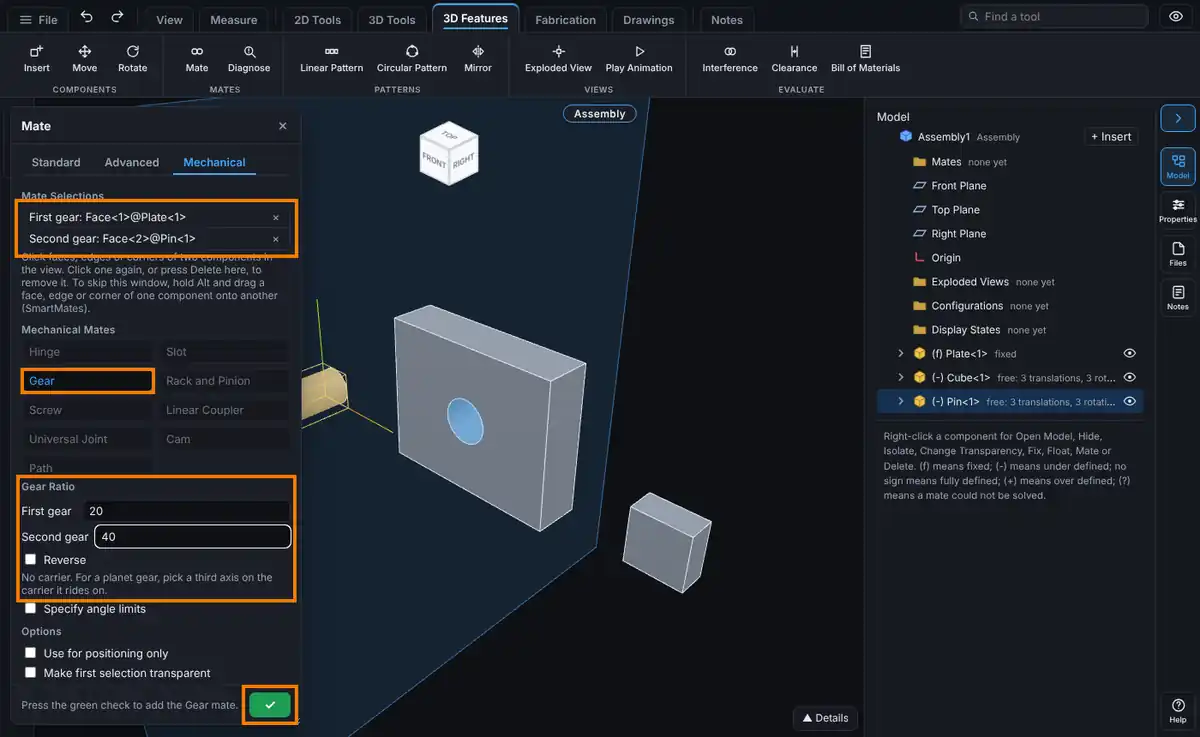
- Click Mate on the Assembly tab (or right-click a component and choose Assembly tools, Mate...), then click the Mechanical tab at the top of the window.
- Click a round face, circular edge or axis on the first gear. It shows as First gear. For a planetary set the first gear is the sun or the ring gear.
- Click the same kind of pick on the second gear, on a different component. It shows as Second gear. For a planetary set this is the planet.
- For a planet gear only: click a round face, circular edge or axis on the carrier, a third component. It shows as Carrier, and the line under the ratio names it. Skip this step for two gears on fixed shafts.
- Click Gear.
- Under Gear Ratio type the First gear and Second gear values, for example the tooth counts 20 and 40. They start at the two radii when both picks are round (the same as the tooth counts when the gears have the same tooth size), otherwise at 1 and 1.
- Tick Reverse only if the gears should turn the same way (a gear inside a ring). With a carrier, Reverse starts ticked when the planet sits inside the other gear.
- Click the green check. The message names the mate and its ratio, such as "Gear1 (20:40) added."
Planet Gears and the Carrier
A planetary set has a sun gear in the middle, planet gears around it, often a ring gear with teeth on the inside, and a carrier: the arm or plate that holds the planets and turns about the sun's axis.
- Hold the carrier on the sun's axis with a Hinge mate, and each planet on its pin in the carrier with another Hinge.
- Add a Gear mate for each pair of gears that touch: pick the sun (or the ring), then the planet, then the carrier.
- For the sun and a planet leave Reverse clear. For the ring and a planet tick Reverse.
What you get, with the carrier turned by an angle:
- Sun held still, sun of 20 teeth, planet of 10: the planet turns 3 times the carrier's angle (1 plus 20 over 10).
- Ring held still, ring of 40 teeth, planet of 10: the planet turns 3 times the carrier's angle the other way (1 less 40 over 10).
- Ring held still and the sun turned instead: the carrier follows at a third of the sun's turn (20 over 20 plus 40) and the planet turns once the other way for each turn of the sun.
Options
- First gear and Second gear: numbers above 0 and at most 1,000,000, and neither more than 1,000,000 times the other. Type tooth counts or pitch diameters; only their ratio counts.
- Reverse: turn the same way round. Without it, two outside gears turn opposite ways.
- Carrier (the third pick): a round face, circular edge or axis on a third component, on the carrier's own center hole or shaft. The carrier must turn about the axis of the first gear (the sun or the ring), and the second gear (the planet) must sit away from that axis. The same rule is checked when the mate is made, when the assembly opens and when it is saved.
- Use for positioning only and Make first selection transparent work as on the Standard tab.
Tips and What to Expect
- A Gear mate ties the turns only. It holds no position. Also mate each gear to its shaft with Concentric or a Hinge.
- Drag the carrier, the sun or a planet and the others follow by the ratio. Collision Detection in the Move Component window stops the drag where parts touch, as for any drag.
- To watch the planets roll, in Animation Settings tick Turn a component first and pick the carrier as the Component. Axis from set to Automatic turns it about its own axis, the one picked for the Gear mate.
- Without a carrier the turns are counted in the assembly, so a planet meshed with a fixed ring and no carrier cannot turn at all. Pick the carrier as the third selection.
- The tree shows the ratio, for example Gear1 (20:40), and Gear2 (40:10, reverse, on a carrier) for a mate with a carrier.
- Flip Mate Alignment is not available for a Gear mate.
- Two planetary sets joined by a plain Gear mate follow each other. Turn the first set in steps that turn each gear between them less than half a turn at a time.
- Up to 300 Gear mates with a carrier are worked out together in one assembly. With more, each still holds, but a planet set a long way round in one step may come back the short way; turn it in smaller steps.
- Edit Feature (right-click the mate) shows the three picks. Click the carrier pick to remove it, or pick a new one.
Common Mistakes and Messages
- "A gear mate needs the two axes on different components." Pick the second gear on another component.
- "A gear mate with a carrier needs the two gears and the carrier on three different components." The carrier pick is on one of the gears. Pick an axis or a round face of the arm or plate instead.
- "The two gears and the carrier must turn about parallel axes." A carrier works with gears whose shafts are parallel. For bevel gears leave the carrier out.
- "The carrier must turn about the axis of the first gear. Pick the sun or the ring gear first, then the planet, then the carrier's own center hole or shaft." The carrier pick is the pin a planet sits on, or the planet was picked first. Start again: the sun or ring, the planet, then the carrier's center hole or shaft.
- "The second gear (the planet) must ride on the carrier, away from the carrier's axis." The two gears both sit on the carrier's axis (a sun and a ring). Mesh each of them with a planet instead.
- The planet does not move when the carrier turns. Check that the planet is held to the carrier with a Hinge and is not fixed.
- Every button is grey. The picks do not fit any mate on this tab. The status line says what is missing, for example "Pick more entities." Remove a pick (click it again or press Delete in Mate Selections) and try again.
- "Collapse the exploded view to add mates." Mates cannot be added while the assembly is exploded.
- The Over defined prompt appears. The new mate conflicts with the ones already there. See Mates: Fixing Mate Problems.