Using Help
Help is a list of pages, one for each tool, window and button. It sits at the foot of the right rail, below Notes. Every window has a ? beside its X, and F1 opens the page of what you are doing.
What you get: the page that teaches the tool or window in front of you, open beside it, so you can follow its steps and finish the job.
When to Use It
- Find out what a button does before you press it
- Look up the steps for a tool you have not used
- Search for a word, such as "scale" or "mirror"
Step by Step
- Click Help on the rail. If a window is open (Make Drawing, Export as STL, Equations, Settings, an assembly window and the rest), Help opens on that window's page. Otherwise, if a tool's panel is open, it opens on that tool's page; otherwise it shows the index of every page, grouped.
- Type in the box at the top to narrow the list. A page whose title is exactly what you typed comes first, then pages with the word in the title, then in the keywords, then in the text. Press Enter to open the first one.
- Click a page to read it. Click Back at the top of a page to return to the page you came from, or to the index.
- Click Help again to close the panel. The model stays on screen beside it.
Help Inside a Window or Tool
- Open the window or tool you need help with, for example Used Parts on the Assembly tab of an open assembly.
- Click the ? at the top right of the window, beside the X. Or press F1 on the keyboard.
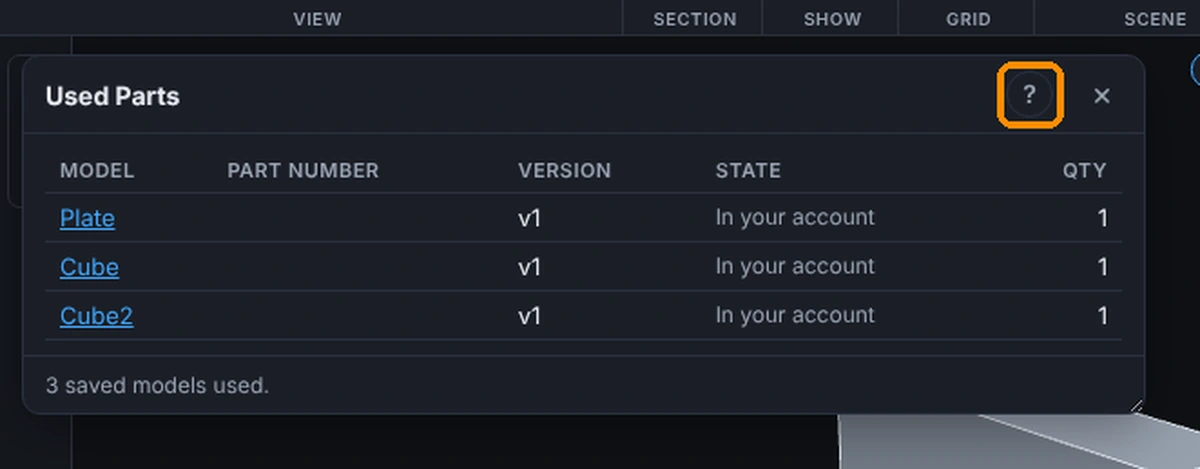
- The Help panel opens on the right, on that window's page. The window stays open, so you can follow the page's numbered steps as you go.
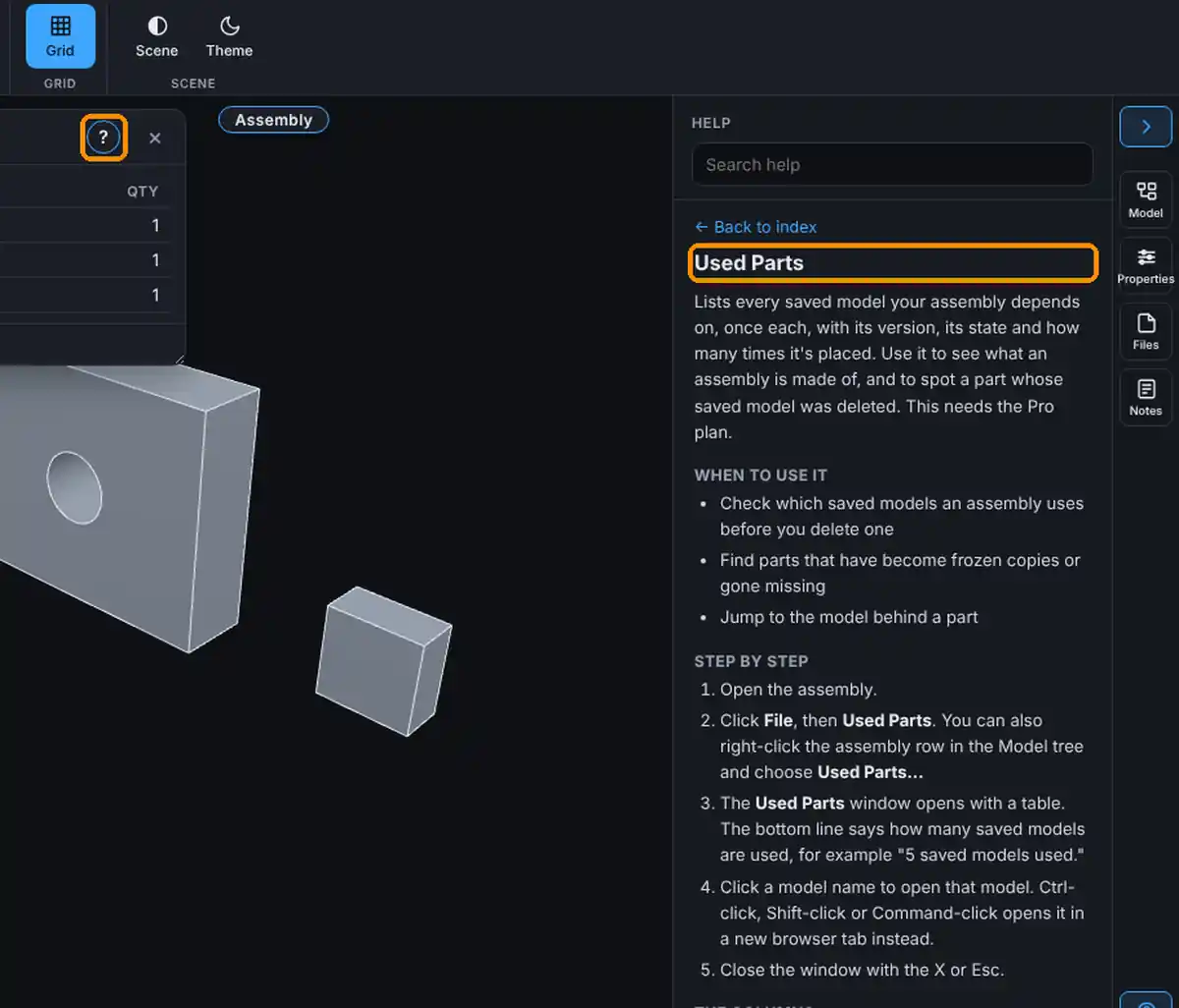
- Click Help on the rail again to close the panel when you are done.
F1 picks the page in this order: the window on top; else the tool whose panel is open, or a measuring or drawing tool that is armed; else the button or box that has the keyboard focus; else the index. On the older classic page, F1 and the ? open the page in the new interface in another browser tab.
Help on Any Button
Right-click a button, a tab, a menu entry, a rail button or a row in the Model tree. A small menu appears with Help on and the name of the thing; click it and its page opens here. On a keyboard, focus the button and press Shift+F10 or the menu key. On a touch screen, press and hold the button for half a second.
- Esc, a click anywhere else, or scrolling closes the menu without opening anything.
- Rows in the Model tree already have a menu (Edit, Rename, Delete and so on); Help on is added at its foot.
- Right-clicking the model itself still opens the model's own menu.
- On the older classic page there is no Help panel, so Help on opens the page in the new interface in another browser tab.
Common Mistakes and Messages
- F1 does nothing. You are typing in a text box, so F1 is left alone. Click an empty part of the window or the view first, then press F1. F1 also does nothing for Help when Settings, Shortcuts gave the F1 key to a tool: then F1 runs that tool. Give the tool another key to have F1 open Help again.
- Help opens the index, not the page I wanted. Nothing was open in front of the view. Open the tool or window first, then click Help or press F1. You can also right-click the button and choose Help on.
- "Help could not load. Close it and try again." The help file did not arrive. Check the connection, close Help and open it again.
- "Nothing matches. Try another word." No page holds every word you typed. Use fewer words, or another word for the same thing.
Tips
- A link inside a page (shown in blue) opens that page, and Back returns to the one before.
- Some pages have a Walkthrough with every step of one task.