Animate Explode and Collapse
Animate Explode and Animate Collapse play the steps of an exploded view as a moving picture: the parts slide apart, or come back together, one step after another. The Animate window gives you Reverse, Pause and Play, a speed list and a slider. Anyone who views the assembly can use it. Nothing in the assembly changes: the real place of every part stays as it was.
What you get: the exploded view played in motion, which you can stop, run backward, speed up or slow down, and scrub to any step.
Step by Step
- Open an assembly that has an exploded view. See Assemblies: Exploded Views to make one.
- In the Model tree, open the Exploded Views folder and right-click a view.
- Choose Animate Explode to watch the parts come apart, or Animate Collapse to watch them go back together.
- The Animate window opens and the parts start to move. The line under the slider says what is happening, for example "Exploding: step 1 of 2".
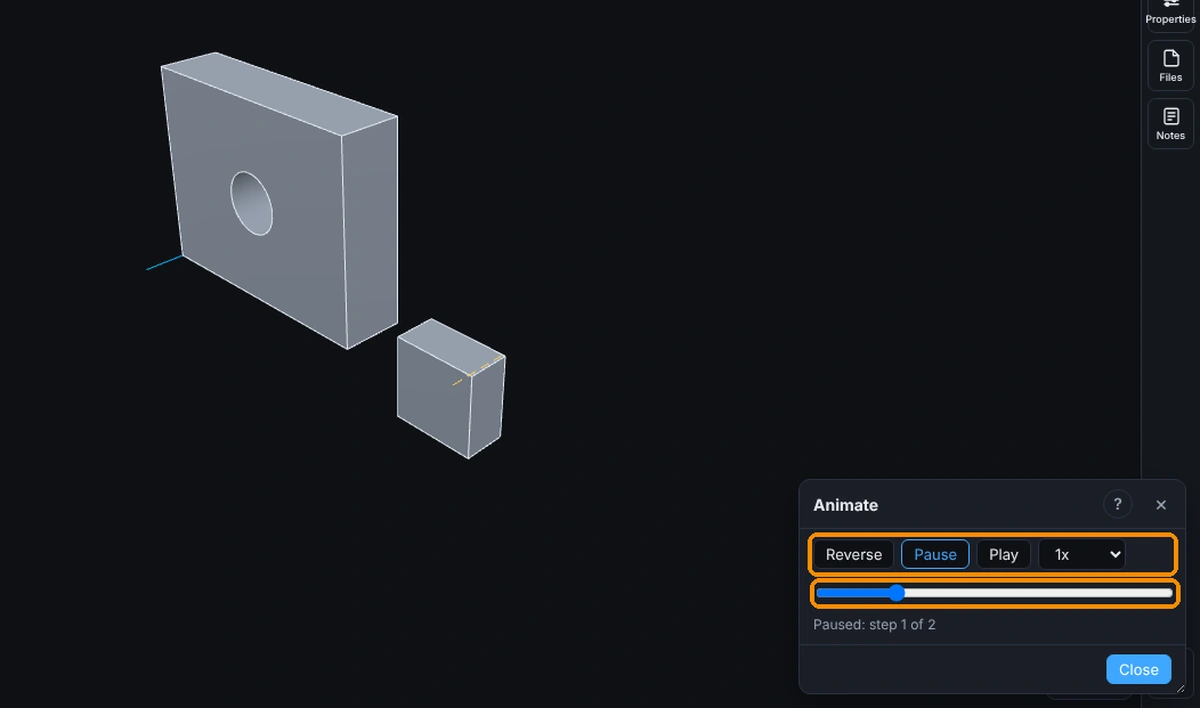
- Click Pause to stop where you are. The line says "Paused" and the step.
- Click Play to carry on exploding, or Reverse to run back toward collapsed. The button that is running is lit.
- Pick a speed in the list: 0.25x, 0.5x, 1x, 2x or 4x. 1x plays each step in its own time.
- Drag the slider to go to any point in the steps. The animation pauses while you drag, and the parts follow the slider.
- Click Close, the X or press Esc when you are done. If the parts were fully collapsed, the view collapses. Otherwise they stay where the animation left them, shown as the exploded view, until you collapse it.
Options
- Reverse, Pause, Play: run backward, stop, run forward.
- Speed: 0.25x to 4x. 2x plays twice as fast as each step's own time from the Exploded View editor, 0.5x half as fast.
- Slider: every step from collapsed (left) to fully exploded (right).
- ?: at the top right, beside the X. Opens this page.
Common Mistakes and Messages
- "Close the Explode window first." The Exploded View editor is open. Click Done or the X in the editor, then animate.
- "This exploded view has no steps to play." Every step of the view is suppressed, or it has none. Open the view in the editor and add or turn on a step.
- "Wait for the video to finish, or cancel it." Export Video is making a file from the animation. Wait for it, or cancel the video.
- The camera does not move and the gears do not turn. Animate only moves the parts along the steps. For a camera that moves, a part that turns first and the times set in Animation Settings, use Play Animation, which opens the Animation Controller.
- I cannot move a component or add a mate afterwards. The assembly is still exploded. Right-click the view and choose Collapse, then move or mate.