Mirror Entities
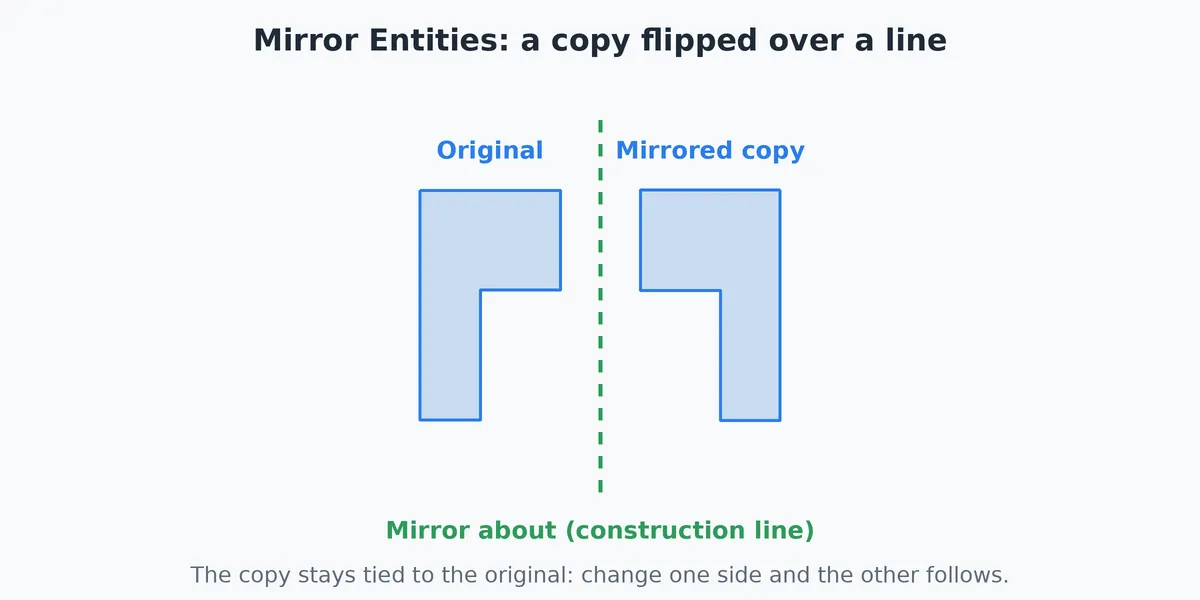
Mirror Entities flips sketch pieces over a line. You pick the pieces, pick the line, and get mirrored copies that stay tied to the originals. It works on the 2D sketch. To mirror solid features, use Mirror on the Features tab.
When to Use It
- Draw half of a symmetric bracket or plate and mirror the other half
- Make left and right hand parts from one sketch
- Keep two sides matched so a change to one changes the other
Step by Step
- Open a sketch and draw the pieces to mirror (see Lines, Circles and Rectangles).
- Draw the line to mirror about. A construction line is best (Line, then Construction line), since it never cuts. An ordinary single line also works.
- Click Mirror on the Sketch tab. The panel opens with two steps. Step 1 is lit.
- Click each piece to mirror. Each click adds one, and a click on a chosen piece drops it. Or drag a box round them (a drag on empty space draws a selection box here). The step line counts the pieces chosen.
- Click the 2. Mirror about button, then click the line. It turns green. A construction line or a single straight line is required, and anything else gives a message.
- Decide on Keep originals (below).
- Click Mirror. The button names how many pieces it will mirror.
- Press Esc or the X on the panel when finished. You can mirror again from step 1.
To have pieces mirrored as you draw them instead, use Draw mirrored about the line at the foot of the panel (see Dynamic Mirror).
Options
- Keep originals (ticked by default): the originals stay and mirrored copies are added. Each copy is held Symmetric to its original about the line, so changing an original moves its copy.
- Keep originals unticked: the pieces themselves flip over the line. No copy is made and no tie is kept.
- Mirror is greyed until at least one piece and the line are chosen.
Tips
- The line itself is not mirrored, even if it was part of the selection.
- Pieces that are part edges of the model (grey) cannot be mirrored.
- Only pieces that can hold relations keep the Symmetric tie. A combined outline is copied but not tied; break it apart first if you want the tie (see Select).
- Sketch Text cannot be mirrored (it would read backwards). A message says so. Mirror the finished letters with Mirror Features instead.
- One Undo takes back the whole mirror.
- The prompt at the bottom of the view says "press 2" for the second step. Click the 2. Mirror about button in the panel to move to it.
Common Problems
- Click the line and nothing is chosen: the message says to click a construction line or a single straight line. A circle or a combined outline cannot be the mirror line.
- Mirror stays grey: a piece or the line is missing. The two step lines say which.
- The copies did not follow when I changed the original: the original was a combined outline, or Keep originals was unticked.
Related Tools
- Dynamic Mirror (mirror as you draw)
- Sketch Corner and Sketch Mirror
- Select
- Relations
- Mirror