Straight Slot
Draws a slot: two straight sides joined by a half circle at each end. You click the centers of the two round ends, then set the width. Slots are common in plates for adjustable bolts and tabs.
What you get: a closed slot of two lines and two half circles, tied together by relations, that Extrude or Cut takes as one profile.
When to Use It
- A slotted hole for adjustment
- A rounded bar, a tab or a track
- Any pill shaped profile for Cut or Extrude
Step by Step
- Open a sketch on a plane or a face (see Planes and Faces). Sketching is part of modeling, which comes with the Pro plans.
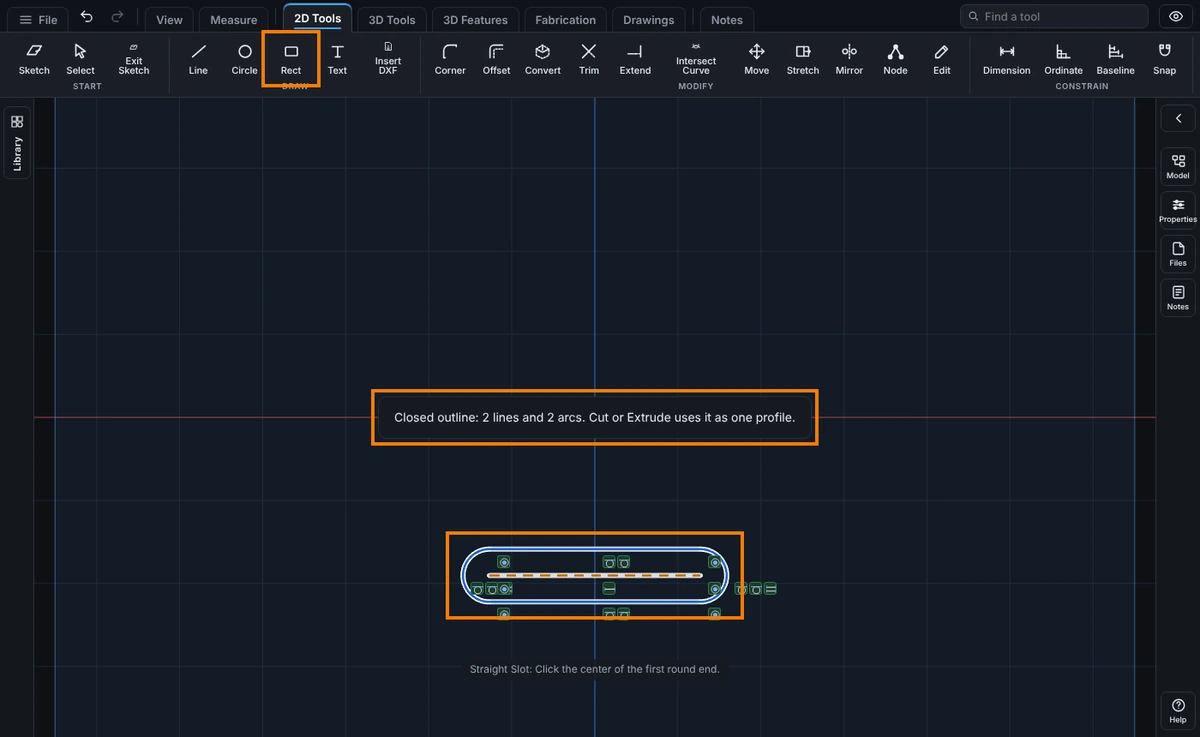
- On the Sketch tab, click Rect. In the flyout, click Straight Slot.
- Click the center of the first round end.
- Click the center of the other round end. Hold Ctrl to lock the angle to 15 degree steps. A dashed line shows the centers while you move.
- Move the mouse out to the edge of the slot. A preview shows the full slot. Click to set the width. The distance from the center line to your click is the radius of the round ends, so the slot is twice that wide.
- The slot is placed and a message says "Closed outline: 2 lines and 2 arcs. Cut or Extrude uses it as one profile."
Options
- Construction Geometry: tick the box at the bottom of the Rect flyout first and the slot is drawn as dashed construction geometry. The closed outline message then does not appear, since a construction slot is not a profile.
Tips and What to Expect
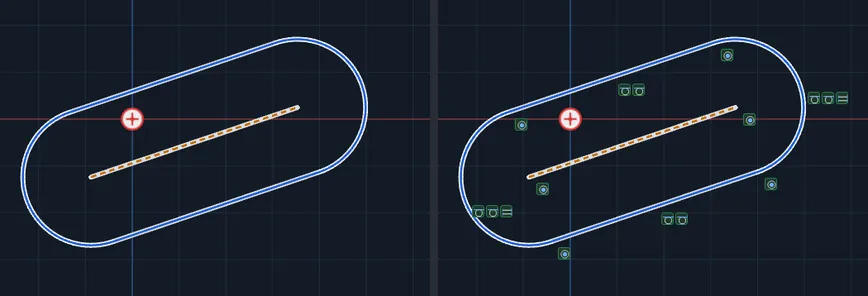
- The slot is two lines and two arcs, with a dashed construction line between the two arc centers. The arcs are tied to the lines with Tangent relations, the ends are joined with Coincident, and the two arcs are made Equal, so the slot stays a true slot when you change it. Drag the end of a side and the whole slot follows; a drag that would squash a round end to nothing is refused and the slot stays as it was. See Relations.
- To set the size exactly, use Smart Dimension on the pieces. See Dimensions and Units.
- Esc after the first or second click cancels the slot. One Undo takes back all five pieces and their relations together.
- Cut a slot through a plate: with the slot as the profile, use Cut (see Features: Extrude and Cut).
Common Mistakes and Messages
- "Click away from the line to set the width." The third click landed on the line through the two centers, so the slot would have no width. Move the mouse out to the side and click.
- The slot is the wrong size. The second click sets the length between the two round ends' centers, and the third click sets half the width. To get exact sizes, add a Smart Dimension to a side (the length between centers) and a Radius dimension to a round end.
- No closed outline message, and the slot does not cut. Construction Geometry was ticked at the bottom of the Rect flyout, so the slot is a dashed guide. Untick it and draw the slot again.
- The slot came out at a slant. The second center was not level with the first. Undo, and hold Ctrl while you place the second center to lock the angle to 15 degree steps.
Related Tools
- Arc Slot, a slot that follows an arc
- Tangent Arc
- Center Rectangle
- Midpoint Line
- Relations