Perspective
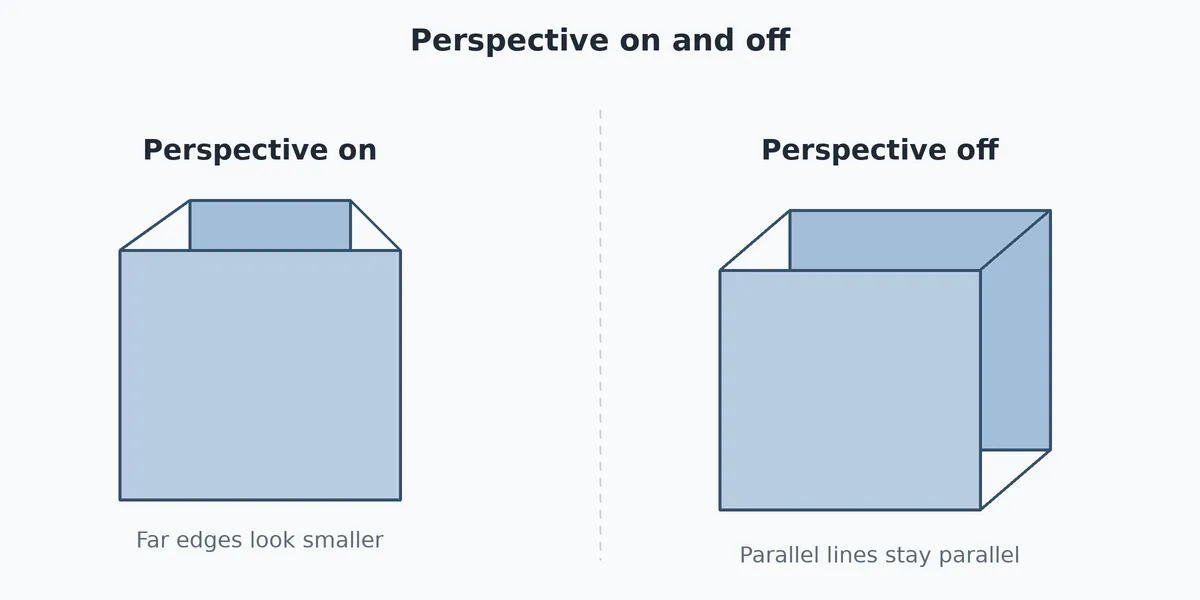
Perspective switches between two ways of drawing the model.
- Perspective on: things farther away look smaller, as they do to your eyes. Good for getting a feel for the part.
- Perspective off (the flat parallel view): every part of the model is drawn at true scale, however far away. Lines that are parallel on the part stay parallel on screen. Good for checking shapes and for sketching.
How to Start It
Click Perspective on the View tab of the ribbon, or press P (not while typing in a box). The button stays lit while perspective is on. It is also the Perspective (3D depth) item in the Scene drop-down, shown when advanced controls are on.
Step by Step
- Open a model. A 3D model opens with perspective on.
- Click Perspective. The button goes dark and the view flattens.
- Click it again to bring the depth back.
- The view refits each time you switch, so the part stays on screen. See Fit.
What to Expect
- A flat DXF drawing always opens in the flat parallel view, because it has no depth.
- A saved model remembers the choice. Open it later and it comes back the way you left it.
- Measurements read the same in both views. Perspective changes only how the part is drawn.
- In the flat view, scrolling zooms in and out without moving the camera closer.
Tips and Common Problems
- Lines look like they are converging. That is perspective. Press P for the flat view.
- A tall thin part looks distorted close up. Turn perspective off, or move the camera back.
- The part jumped when I switched. The switch refits the view. It is the same effect as pressing Fit.