Share Expiry and Password
Two boxes in the Share window control how long a link lives and who can open it.
What you get: a link that stops working after the number of days you typed, and, on Advanced and higher, asks for a password before it shows the model.
Step by Step: Set the Days and a Password
- Click Share, then Share this model.
- Set who it goes to and what they may do, as usual.
- In Expires (days, blank = max), type the number of days, for example 14. Leave it blank for your plan's longest time.
- In Password (optional), type a password.
- Click Create link (or Create and send). The message under the tabs says how many days the link lives and that it is password protected.
- Give the person the password another way, such as a phone call or a text.
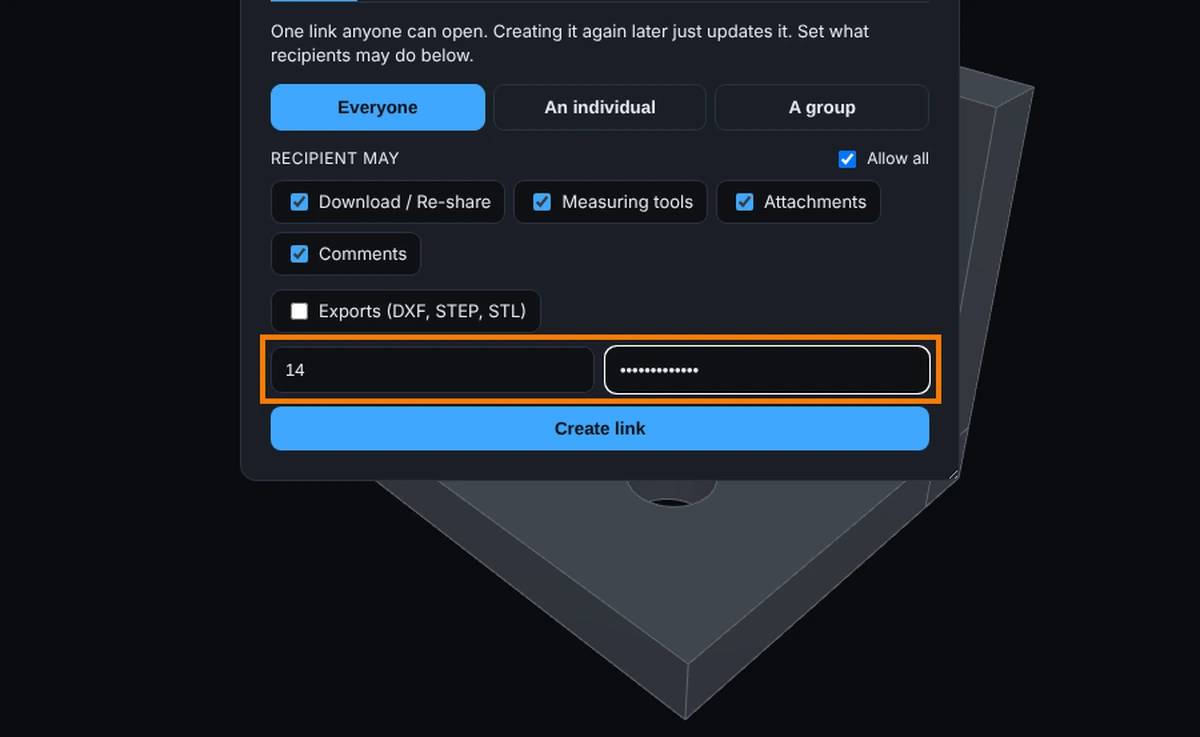
Expiry
Expires (days, blank = max) shortens how long the link lives. Leave it blank and your plan's longest time is used. Your saved sharing defaults can fill it in. A number smaller than your plan's maximum is used as typed; you cannot go over the maximum.
After the time is up the link stops working and the visitor sees that the shared model has expired.
Password Protected Models
On the Advanced plan and higher, a Password (optional) box sits beside the expiry box. Type a password and create the link. The visitor sees This model is password protected, types the password and clicks Open model. A wrong password says so and lets them try again.
- The password is never put in the email. Give it to the person another way.
- It has a minimum length set by the site, and a message tells you if yours is too short.
- A password is never a saved default, so you type it for each link.
- You never need your own password to open your own link.
- On a Free plan, or signed out, the box is not shown.
Turning a Link Off Early
Open Share, find the link under Shared with and click the X. See Shared With.
Common Mistakes and Messages
- "The link password needs at least ..." The password you typed is too short. Type a longer one and create the link again.
- "That password did not match. Try again." The visitor typed the wrong password. Check it with them; you can also make a new link with a new password.
- "This shared model has expired" The days ran out. Make a new link, with more days or the box blank for the longest time.
- There is no Password box. Passwords are on the Advanced plan and higher, and only when you are signed in.