File, Documents
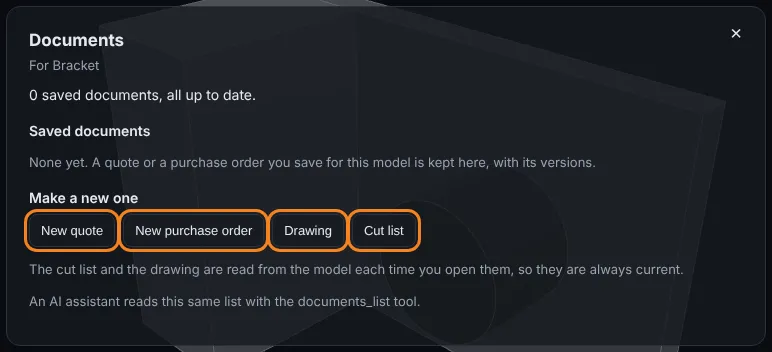
Shows everything you have made from one saved model in a single list: its quotes and purchase orders, and which of them are out of date because the model changed after they were saved. It also holds the buttons to make a new one.
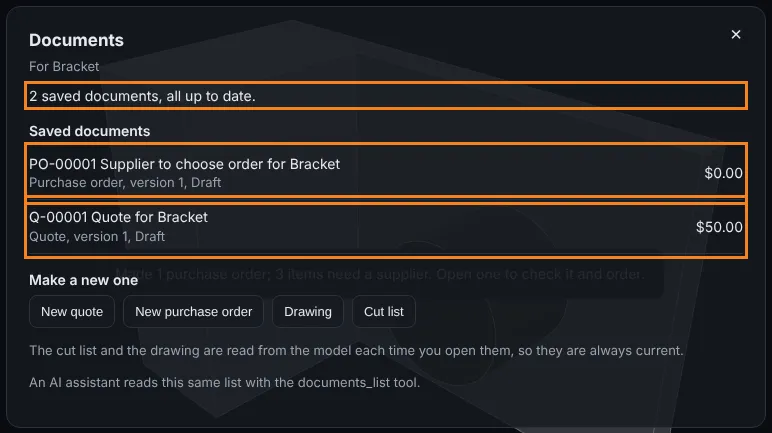
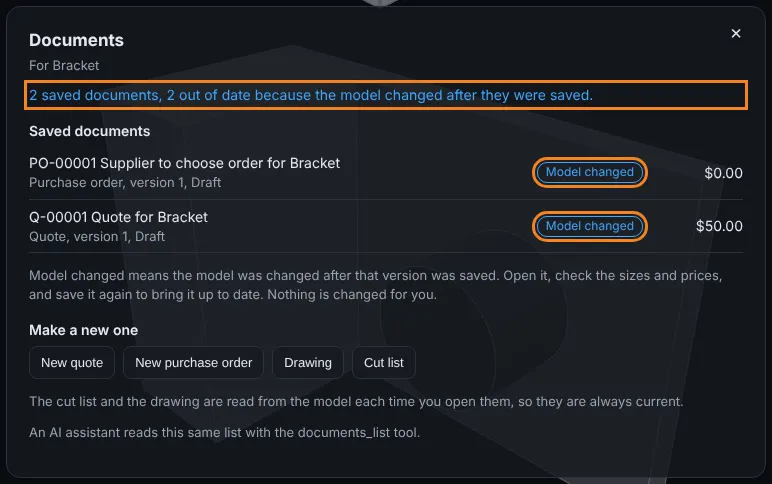
What you get: one window per model. Each saved document has its number, title, kind, version, status and total. A document marked Model changed was saved before the model was last replaced, so its sizes or prices may be wrong.
Step by Step: Find a Document
- Open the part or assembly. It has to be a saved model, so a model that has never been saved shows no Documents item.
- Click File, then Documents.... The window Documents opens with the model's name under the title.
- Read the line under the name. It says how many documents are saved and how many are out of date, for example 2 saved documents, all up to date.
- Click a row. The Quote window or the Purchase Orders window opens on that document, and the Documents window closes.
Step by Step: Bring an Out of Date Document Up to Date
- Open File, then Documents... after the model was replaced. The line under the name now says 2 saved documents, 2 out of date because the model changed after they were saved. and each affected row carries Model changed.
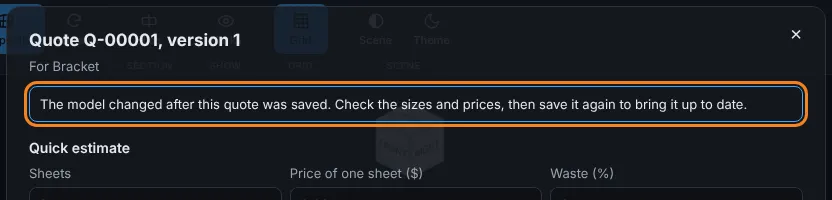
- Click the marked row. The window opens with a note at the top: The model changed after this quote was saved. Check the sizes and prices, then save it again to bring it up to date.
- Check the lines. Click Save quote (or Save in a purchase order). The note goes away and the row is no longer marked.
Nothing is changed for you. The old version stays in the version list, so you can go back to it.
Step by Step: Make a New Document
- In the Documents window find Make a new one.
- Click New quote or New purchase order to open that window. For a part the other buttons are Cut list and Drawing. For an assembly they are Bill of materials and Drawing.
- Save what you make. It shows up in the list the next time you open Documents.
What Is Marked and What Is Not
- Quotes and purchase orders are marked. Each remembers the model as it was when you last saved it.
- A purchase order made from a quote takes the quote's mark, so it is out of date when the quote is.
- Receiving goods on a purchase order does not clear the mark. Only saving the order again does.
- The bill of materials, the cut list and the drawing are never marked. They are read from the model every time you open them, so they are always current. The window says so.
- A purchase order with no model is never marked.
Your AI Assistant
An AI assistant reads the same list with the documents_list tool and gets the same words, the same marks and the same buttons. It opens a quote or an order with quote_get or po_get.
Tips
- Open Documents before you send a customer a quote on a model you changed this week.
- A mark is a reminder, not an error. If the change did not touch the parts you quoted, save the document again and the mark clears.
Common Mistakes and Messages
- There is no Documents item in File. The model has not been saved yet. Save it first, then open File again.
- No model with that id in this account. Documents belong to the account that owns the model. You are looking at a model that belongs to someone else. Open your own copy.
- I saved the quote and it is still marked. The model changed again after you saved. Save once more.
- I do not see my bill of materials in the list. It is not saved. It is made from the assembly each time, so click Bill of materials in the window.