Opening a File
STEPFILE.com opens a model straight in the browser. No install, no plugin. This page takes you from an empty screen to your model on screen.
What you get: your model in the 3D view, fitted to the window, ready to turn, measure, slice and share.
Step by Step: Open a File From Your Computer
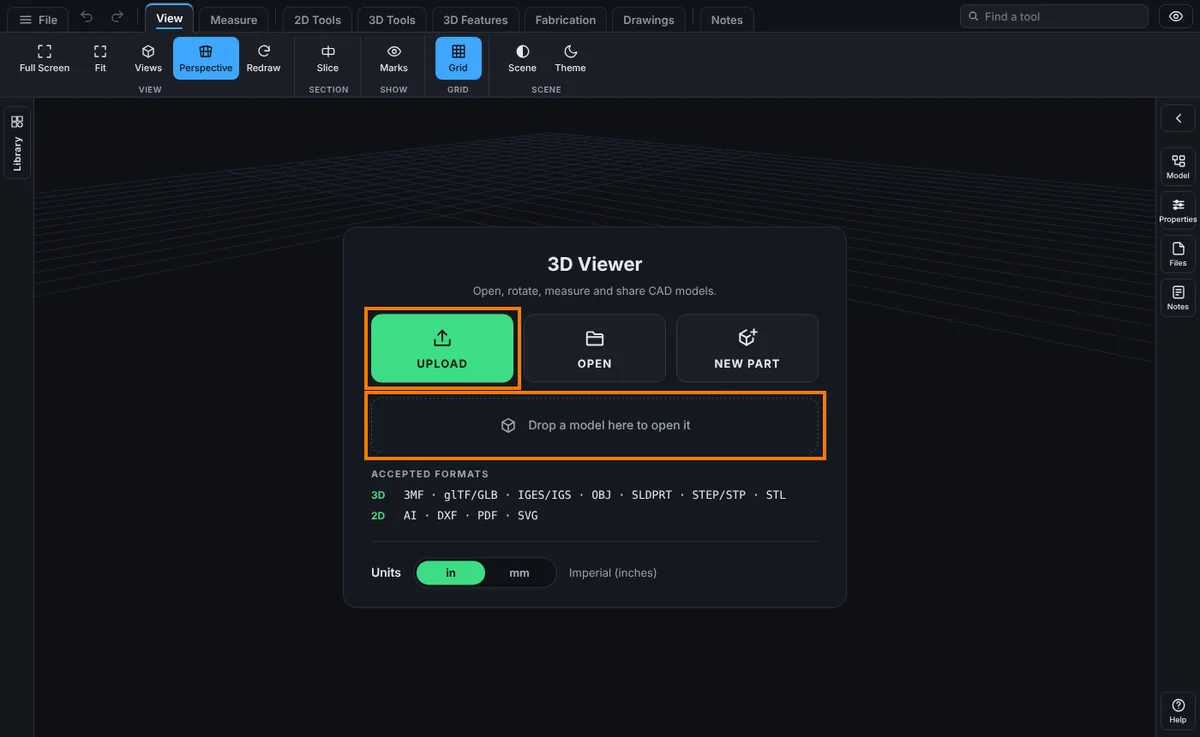
- Open the viewer. With nothing open you see the start card, titled 3D Viewer, with three buttons: UPLOAD, OPEN and NEW PART (NEW PART shows for a paid account).
- Click UPLOAD, or click the dashed area that says Drop a model here to open it. Your computer's file picker opens. Pick the file and click Open. You can also drag the file from your desktop and drop it anywhere on the window. With no file at hand, click No file handy? Try a sample part under the dashed area to open a small bundled bracket.
Step by Step: Wait for It, Then Look Around
- Wait while it loads. A loading screen shows a spinner, a progress bar and a line of status text, such as Opening with the file name (and its size for a big file), then for a STEP or IGES file Parsing the geometry..., then Building the view....
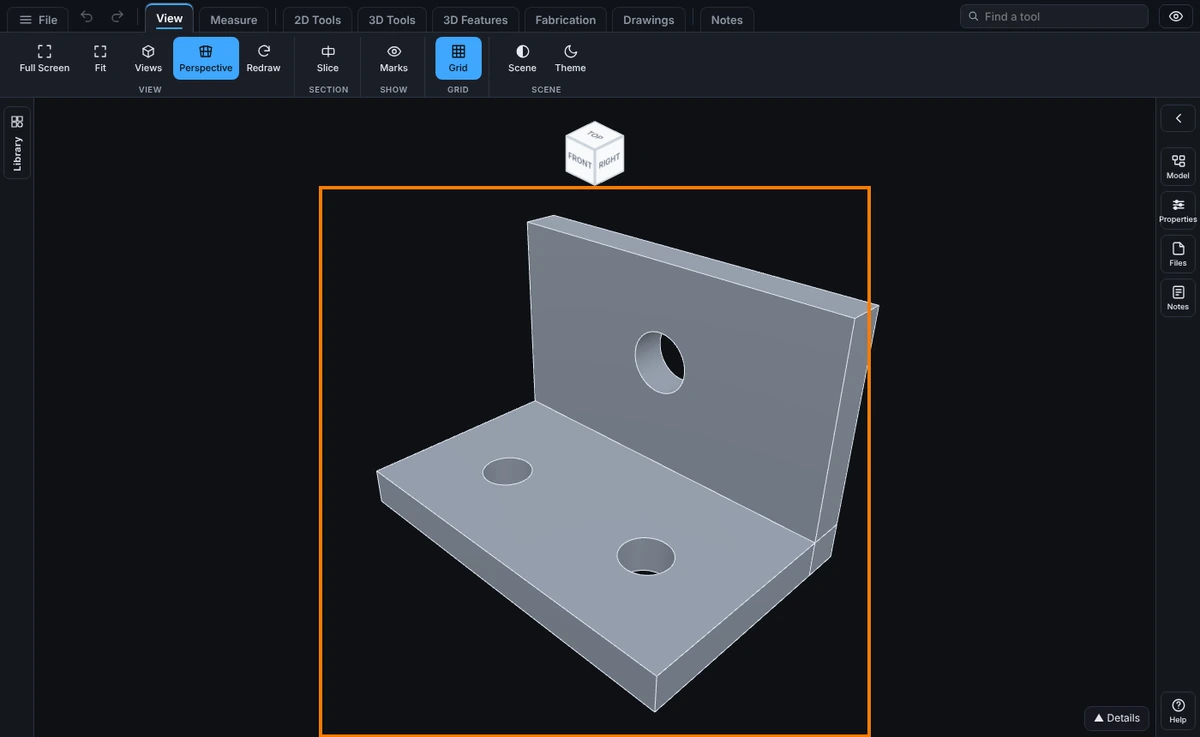
- The model appears, fitted to the window. The start card is gone, the ribbon of tabs runs across the top (View, Measure, Sketch and the rest) and the right rail (Model, Properties, Files, Notes and Help) sits on the right.
- Drag on the model to turn it, and pinch or roll the mouse wheel to zoom. See Full Screen, Fit, and Views for the rest.
Step by Step: Open Another File, or One You Saved
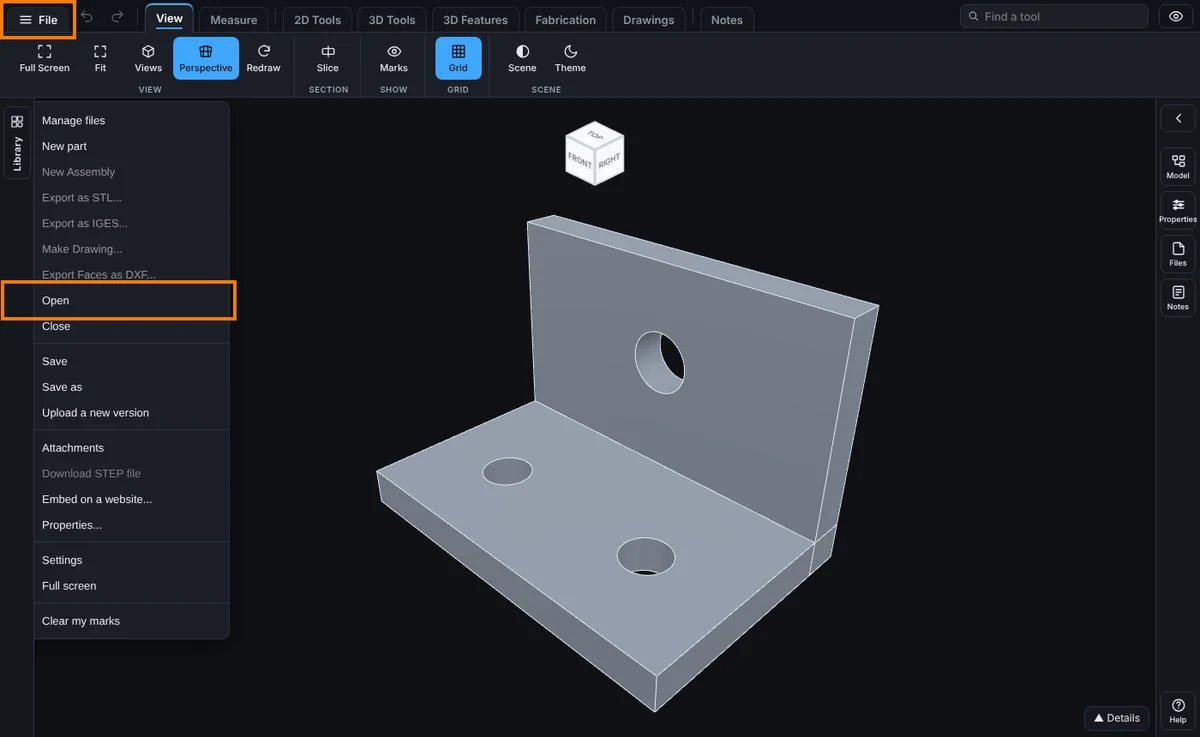
- Click File at the top left, then Open. The Open a file window opens.
- Signed in, the window shows your saved models (folders, search, the same list Manage Files uses) with its own upload area. Click a model to load it into the viewer, or use the list's upload area to bring in a file from your computer.
- Signed out, the window shows Upload a file and a dashed drop area instead. Click Upload a file to pick a file from your computer, or drag one onto the dashed area.
- A STEP file with several components opens as an assembly. Tick Open as one part first if you want it as one part.
The OPEN button on the start card goes straight to your saved models. Signed out, it asks you to sign in.
How to Open a File
Drop a file onto the start screen, or click it to browse your computer. Signed in, File, Open also shows your account's saved models (folders, search, the same list Manage Files uses); pick one to load it into the viewer.
Supported formats: STEP (.step, .stp), IGES (.iges, .igs), STL (.stl), OBJ (.obj), 3MF (.3mf), glTF (.glb, .gltf), and DXF (.dxf, a flat 2D drawing shown in its own 2D view, not a 3D model). SolidWorks parts (.sldprt) open too: see Opening SolidWorks Parts.
A signed-in, paid account can also start New Part, an empty model with nothing loaded, and sketch a first feature from scratch on the Top, Front, or Right plane. If a model is already open, File, New, Part starts the new part in a new tab (see Tabs: Several Files at Once).
The start card's ACCEPTED FORMATS list also names AI, PDF and SVG: these flat drawings open in the same 2D view as a DXF.
While It Loads
A loading overlay shows a spinner, a progress bar, and a line of status text while the file parses. A large STEP assembly can take a while: the bar keeps moving so you know it is still working.
After It Opens
The model fits to the window automatically. The screen switches from the start card to the full viewer: the ribbon appears across the top, the right rail appears on the right, and the model sits in the 3D view between them. See The Screen for a tour of each part.
Big Models: Save Once, Open Fast
A model you saved to your account opens fast, even at 50 MB or 1,000 parts. When you save, the site prepares the triangles once. The next time you open it, the viewer shows that picture first, in about a second on a modern laptop (measured on a 50 MB STEP file), and the file finishes arriving behind it. While the picture is up the model is read only: Download is grey, Save and Upload a new version answer The file is still opening., and editing starts when the file has arrived.
A big file that was never saved is different. The browser has to read the whole STEP file itself, so a 50 MB file can take from about 15 seconds to a minute, depending on your computer. It keeps working while the bar moves. To make the next open fast, click File, then Save once. Saving needs an account and a plan whose upload limit fits the file (Free allows 25 MB). The site makes the prepared picture just after the upload, so a model you saved a moment ago may still open the slow way once.
Viewing stays free at any size. You do not need a paid plan to open a big model.
Recent and Versions
A signed-in account keeps a Recent list (File menu) of the last several models opened, and any model saved to your account keeps its version history (see Files).
Common Mistakes and Messages
- "Could not load: Unsupported .xyz" (with your file's ending in place of xyz): that kind of file cannot be opened. Save or export it from your CAD program as STEP (the best choice), IGES, STL, OBJ, 3MF or glTF and open that.
- "Could not load: OpenCascade could not parse the file." The STEP or IGES file is damaged, cut short, or is not really a STEP or IGES file. Export it again from your CAD program and open the new copy.
- "This SolidWorks part is larger than 200 MB, which STEPFILE.com cannot open yet. Upload a STEP instead." Export a STEP from SolidWorks and open that. See Opening SolidWorks Parts.
- "Exit Edit Part first, then open another model." You are editing a part inside an assembly. Finish or leave Edit Part, then open the file.
- "No saved projects yet." Nothing is saved to your account yet. Open the file with Upload a file, then save it with File, Save.
- "Starting a part from nothing needs a paid account. Anyone can open a file." New Part is for paid accounts. Anyone can still open a file with UPLOAD.
- OPEN asks me to sign in. Saved models belong to an account. Sign in, or use UPLOAD for a file on your computer.
- The bar is moving but nothing shows yet. A big STEP file that was never saved can take up to a minute. Leave the page open; the bar keeps moving while it works. Save it once with File, then Save, and the next open is quick.
- Download is grey, or Save says "The file is still opening." The picture of a saved model is up and the file is still arriving. Wait a few seconds. If a bar says The file could not be opened. This is a read-only view., click Retry.
- The file picker does not show my file. The picker lists only the kinds of file the viewer opens. Check the file's ending (for example .step or .stl).