File, Purchase Orders
Turns what a job needs into purchase orders, one for each supplier, ready to print, email and tick off as the material arrives. The cut list of a part, the bill of materials of an assembly, or a saved quote becomes the shopping list.
What you get: orders numbered PO-00001, PO-00002 and so on, each with the supplier, the items with their item numbers, a total worked out to the cent, a printable page, and on the paid plans an email to the supplier and a place to record what arrived.
Step by Step: Make Orders From a Quote
- Name your suppliers once. Under Price lists in the Quote window, click Add stock item. Type the name the cut list uses, pick piece, inch or foot, type the price, then type the Supplier and the Item number. Give the list a name and click Save price list.
- In the Quote window, add the cut list or bill of materials with that price list chosen, then click Save quote.
- Click Make purchase orders. The Purchase Orders window opens with that quote chosen.
- Check the Price list, type a Ship to if you want one, and click Preview to see what would be made, or Make purchase orders to make them. The line under the buttons reads like Made 2 purchase orders; 1 item needs a supplier.
- Click an order in the list to open it.
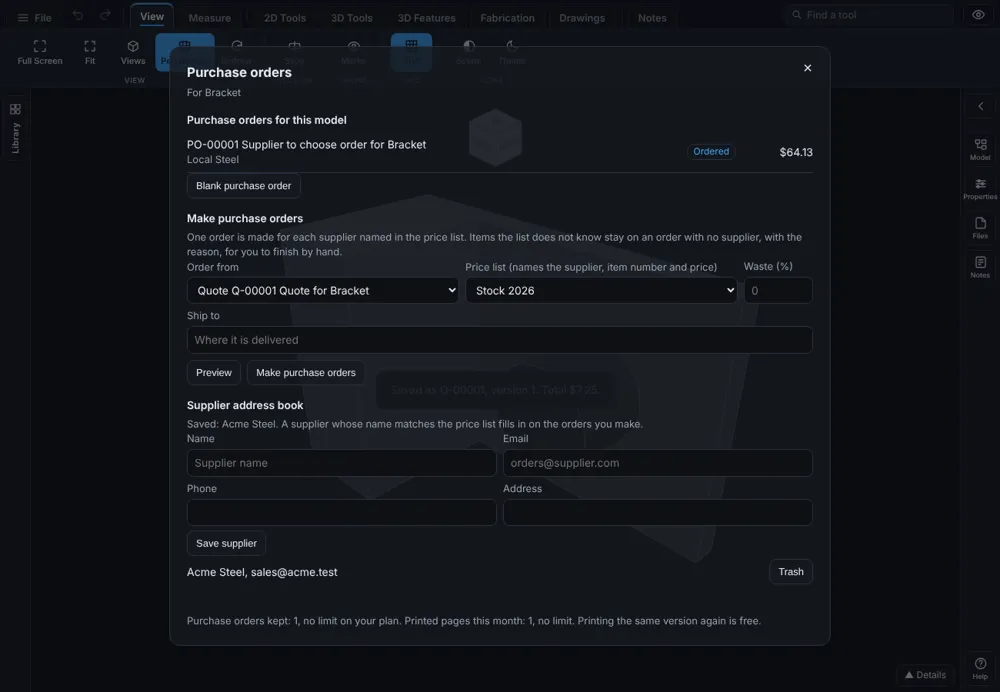
The Quote window's button is the short way. You can also click File, then Purchase Orders..., and pick the quote, the cut list of the open part, or the bill of materials of the open assembly under Order from.
An item the price list does not know goes on an order with no supplier, with its price at 0 and the reason, so no price is ever made up. Open that order, name the supplier and type the prices. Sheet material from the quote's quick estimate is ordered too, as whole sheets with the waste added.
Step by Step: Check It and Order It
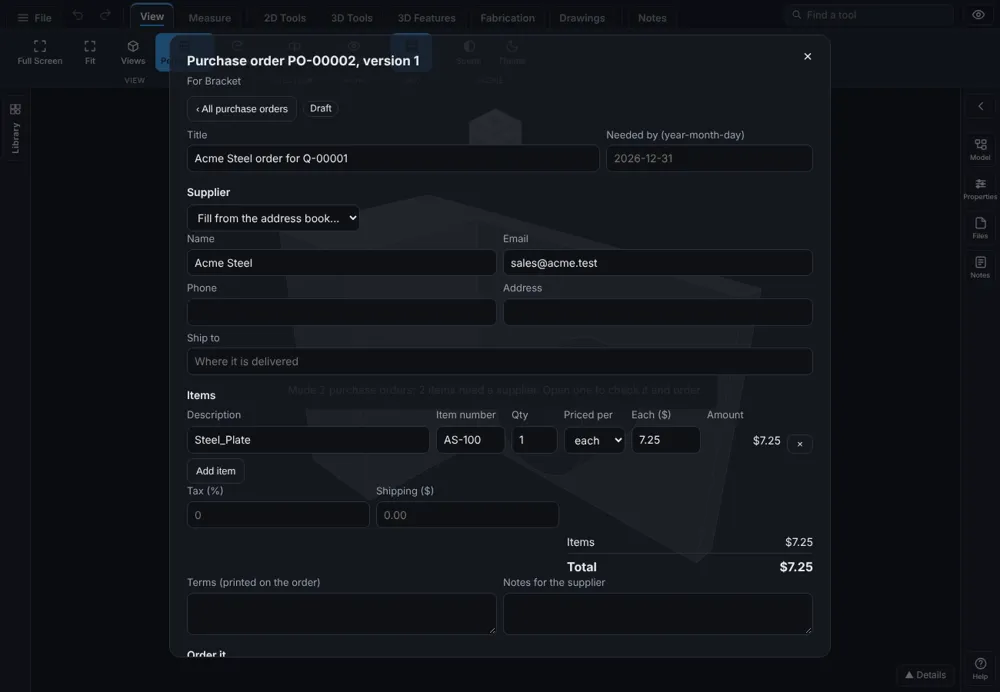
- Open the order. Check the Supplier (with a saved supplier the email and address fill in), the Ship to, the Needed by date, and each item's Qty, Priced per and Each ($). The Total at the bottom changes as you type. Tax and shipping go in their own boxes.
- Click Save. The line under the buttons reads Saved as PO-00002, version 2. Every save is a new version.
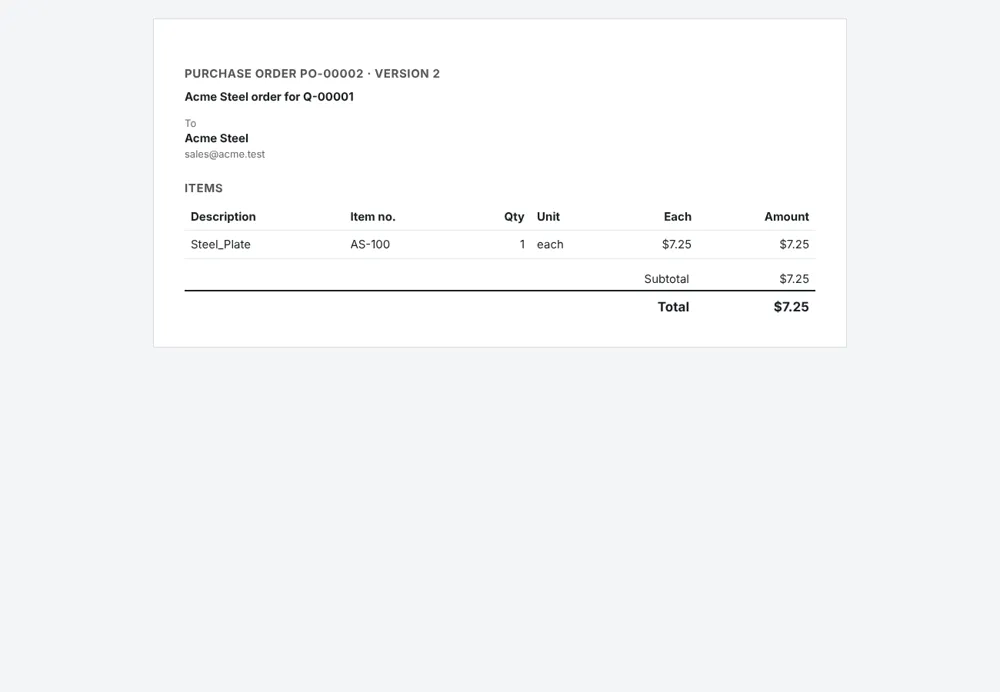
- To send it yourself, click Save as PDF. The order comes down to your downloads as a PDF with the order number, supplier, lines, totals and page numbers. When you have placed the order by phone, by email or on the supplier's site, click Mark as ordered. No email is sent.
- On the paid plans, type the supplier's email next to Email the order to and click Send. The supplier gets a message with only a link, and you get a copy. The supplier sees the order on a page, with no account and no buttons.
Step by Step: Record What Arrived (Paid Plans)
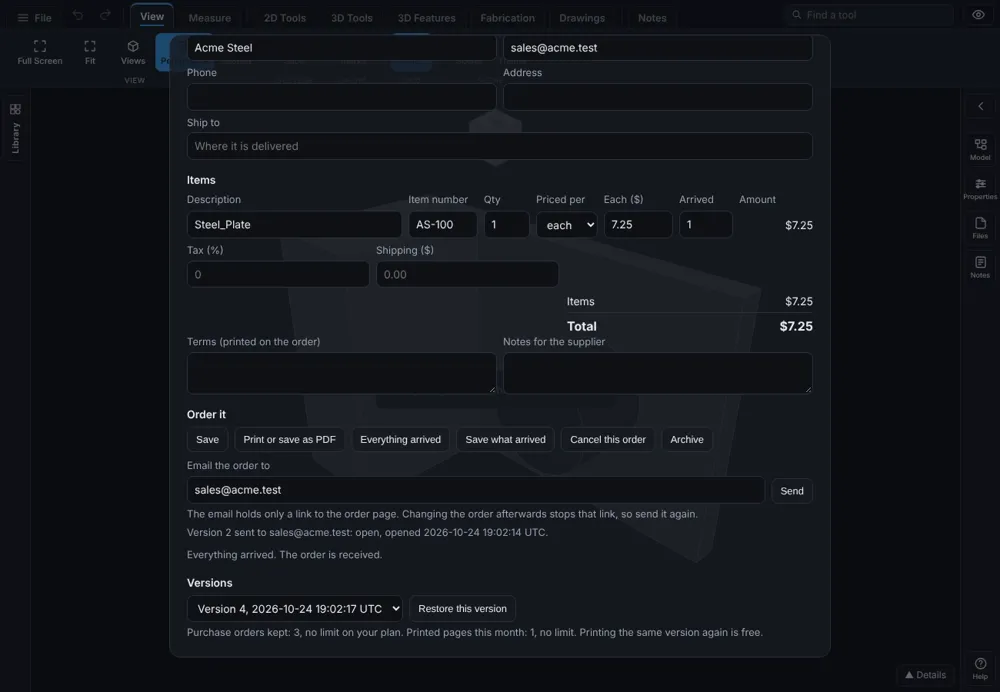
- Open an order that has been ordered or sent. A column named Arrived appears next to each item.
- Type how many of each item came in, then click Save what arrived. The order shows Partly received until every item has arrived.
- When everything came, click Everything arrived. The order shows Received.
- Counted wrong? Type the right numbers and click Save what arrived again. The counts are the totals so far, not additions.
Other Buttons
- Cancel this order stops its supplier links. Reopen brings it back to what it was.
- Archive hides it from the list. Open it from Archived (N)... at the top of the list and click Unarchive.
- Restore this version (paid plans) brings an older version back as the newest. The others are kept.
- Blank purchase order starts an order you type yourself.
- Supplier address book (paid plans) keeps each supplier's name, email, phone and address. Use the same name as the Supplier on your price list and the orders fill them in.
What Is Recorded
- Changing an order after you sent it stops the link the supplier has, because the supplier must not read a version you have replaced. Send it again to give a new link. Recording what arrived does not stop the link.
- Your AI assistant can do everything the window does: make the orders, change them, send them, record what arrived and take each step back.
- The free plan keeps a few orders at a time and a few printed pages each month. Printing the same version again does not use up another one. The numbers are at the bottom of the window.
Tips
- Save one price list for each supplier, with their item numbers, so each order is complete when it is made.
- Press Preview first on a big job. It saves nothing.
- Press Save before Send, so the supplier gets the version you meant.
Common Mistakes and Messages
- There is no Purchase Orders... on the File menu. Orders belong to a saved part or an open assembly. Sign in, save the part, then open the File menu again.
- Every item landed on an order with no supplier. The price list has no row named like the item, or no list was chosen. Check the spelling in the stock item, choose the list, and make the orders again.
- The window says emailing is on the paid plans. Print the order or save it as a PDF, send it yourself, then click Mark as ordered.
- A message says that makes more orders than the plan keeps. Archive the orders you finished with, or choose a paid plan under Plans.
- The supplier says the link stopped working. You changed the order after sending it, or cancelled it. Send it again.
- Mark as ordered asks for a supplier. Type the supplier's name and add at least one item first.