Edit Part (Edit Component)
Opens one component of the assembly in the modeling tools, right where it sits, so you can change it while you see the parts around it. When you leave, the part is saved as a new version and every copy of it in the assembly takes the change. This needs the Pro plan and the modeling tools.
What you get: the part changed in place and saved as a new version when you click Exit Edit Part, with every copy of it in the assembly updated; leaving with no change makes no new version.
When to Use It
- Make a hole bigger so a bolt fits
- Trim a part that was too long
- Fix a part without leaving the assembly
Step by Step
- Open the assembly. Click the component in the view or in the Model tree.
- Right-click it and choose Edit Part, or click the Assembly tab, then Edit Part.
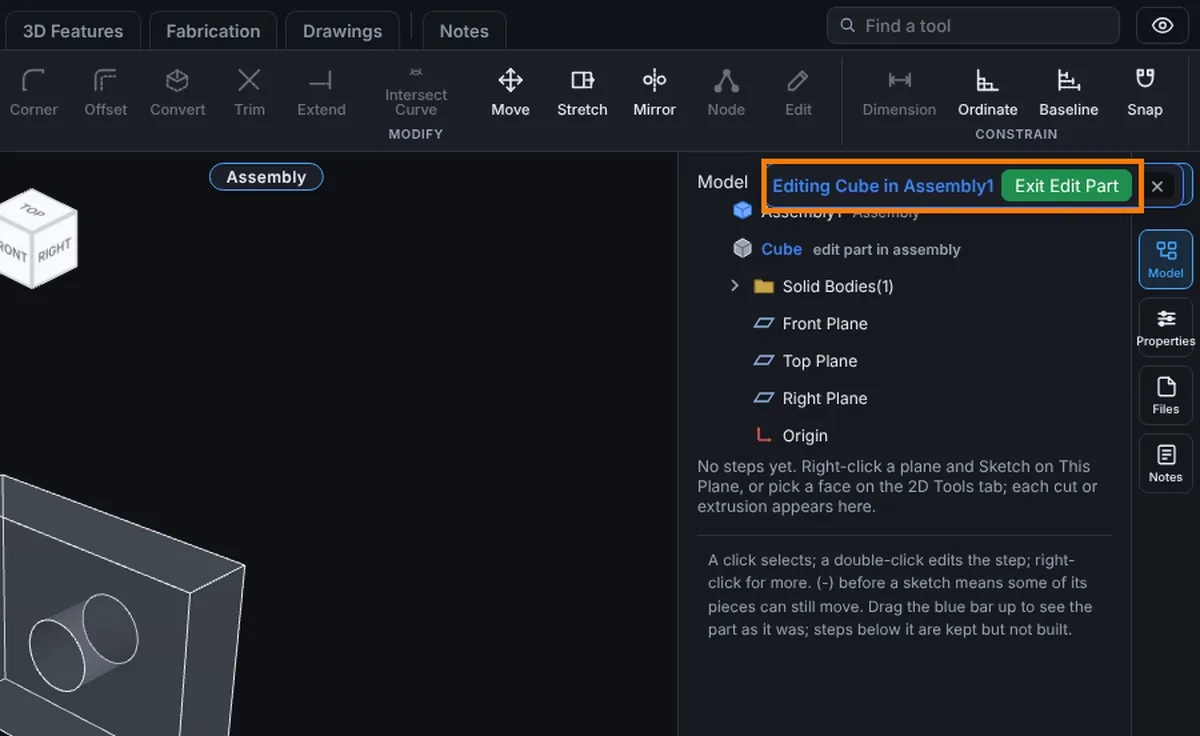
- The rest of the assembly turns see-through, the part's name turns blue in the tree, and the modeling tools open. A bar at the top right reads "Editing <part> in <assembly>", for example Editing Cube in Assembly1, with Exit Edit Part and an x beside it.
- Sketch, extrude, cut, add holes or rounds the way you do on any part. See Extrude and Cut and Hole.
- Click Exit Edit Part in the corner bar, or click the Assembly tab, then Edit Part again. The part is saved as a new version and you are back in the assembly.
- A message says "Saved <part> as version N" and, if there is more than one copy, "all N instances are updated." With no changes it says "No changes to Cube." (your part's name) and no version is made.
To leave without saving, click the x in the corner bar. If you changed something, it asks "Leave without saving?" with the note "The changes to <part> are thrown away." Click Yes to throw them away or No to keep editing. Without changes it says "Left <part> without saving."
Options
| Control | What it does |
|---|---|
| Edit Part (right-click a component) | Starts editing the picked component. |
| Edit Part on the Assembly tab | Starts editing the picked component. To leave and save, press Exit Edit Part in the corner. |
| Exit Edit Part (corner bar) | Saves a new version and returns to the assembly. |
| x (corner bar) | Leaves without saving. |
Tips
- There is no autosave while you edit. Nothing is saved until you click Exit Edit Part.
- Every copy of the part keeps its place and its mates. If a mate used a face that no longer exists, it turns red. Right-click the mate, choose Edit Feature and pick a new face. See Mates: Fixing Mate Problems.
- If you exit with no changes, it says "No changes to <part>." and no new version is made.
- Other assemblies that use the part show the "Parts changed" bar next time they open. See Assemblies: Saving, Updates and Sharing.
- Ctrl+Z after leaving undoes the mate repairs, when there were any.
- Only one part can be open at a time.
Common Mistakes and Messages
- "Pick a component to edit first." Nothing is picked.
- "A part is already open for editing. Exit Edit Part first."
- "Editing a part needs the modeling tools, which your plan does not include."
- "Collapse the exploded view before editing a part."
- "This part is a frozen copy (its saved model was deleted), so it cannot be edited. Replace it with a saved model first." See Replace Components.
- "This part belongs to another account, so it cannot be edited here."
- "This assembly is shared with you to look at. Its parts are frozen copies that you do not own, so they cannot be edited."
- "Edit Part works on assemblies built from saved parts. This assembly was opened from a STEP file..." Save the parts as models and build an assembly from them.
- "Using another part as a reference is not available yet. Pick a face of ..., the part you are editing." While editing, only the part you are editing can be sketched on.
- "... was saved, but could not be read back... Reload the assembly to see the new version." Reload the assembly to see the new version.
- "The part could not be saved, so it stays open. Your changes are still here." Try Exit Edit Part again.
- "The modeling tools are busy. Try again in a moment."