Subassemblies
A subassembly is a saved assembly used as one component inside another assembly. Use it to keep a big build tidy, or to reuse a group of parts such as a hinge set or a motor mount. Assemblies need the Pro plan.
What you get: a subassembly row such as Subassembly1<1> in the Model tree that holds the parts you picked, saved in your account as an assembly of its own, rigid to begin with.
When to Use It
- Place a whole saved assembly into a bigger one
- Group parts you already placed into one unit
- Make a unit rigid so it moves as one piece, or flexible so its parts can still move inside it
Step by Step: Place a Saved Assembly
- Open an assembly and click + Insert on the assembly row of the Model tree (see Insert Components).
- Find the saved assembly in My models. It shows an assembly icon and the word assembly under its name.
- Click it, then click in the view to place it. It is rigid to begin with.
Step by Step: Form a Subassembly from Parts You Placed
- In the Model tree, click a component, then Ctrl-click or Shift-click more rows to pick several. Only rows directly in this assembly count.
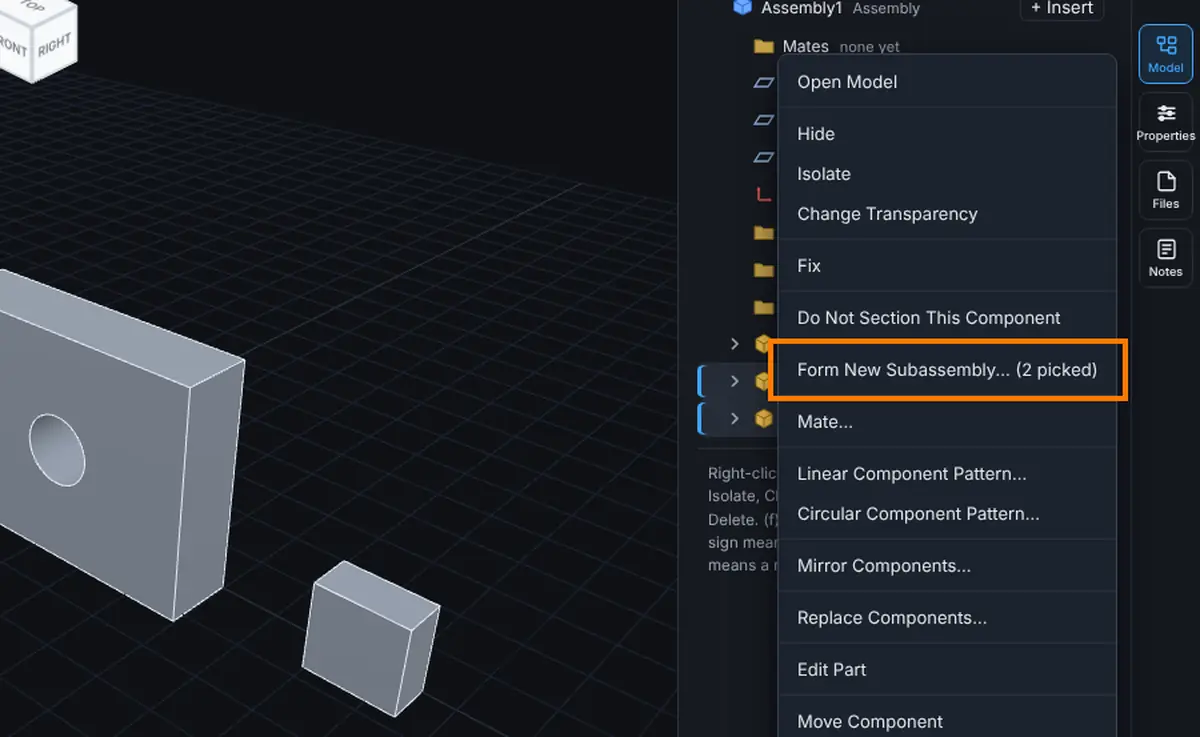
- Right-click one of the picked rows and choose Form New Subassembly... The menu shows how many are picked, for example "(2 picked)".
- Type a name in the box (it starts as Subassembly1) and click Form. The question reads "Name the new assembly. It is saved in your account, and the N picked components are replaced by it here."
- A message says, for example, "Formed Subassembly1<1> from 2 components. It is also saved in your account." When mates moved into it, it also says how many. The picked rows are replaced by one row, Subassembly1<1>, marked rigid.
Mates between the picked parts move inside the new subassembly. Mates that tie a picked part to something outside stay in the main assembly. The parts don't move.
The Subassembly Menu
Right-click a subassembly row in the Model tree for:
| Item | What it does |
|---|---|
| Open Assembly | Opens the saved assembly itself. |
| Hide or Show | Switches the whole unit off or on (the small eye does the same). |
| Isolate | Hides everything else. Needs the Advanced plan or higher. See Isolate and Show All Components. |
| Change Transparency or Remove Transparency | Makes the unit see-through, or solid again. |
| Fix or Float | Locks the unit in place, or lets it move. |
| Make Subassembly Flexible or Make Subassembly Rigid | Flexible: "Its components can move inside it." Rigid: "It moves as one body." |
| Form New Subassembly... | Groups the picked rows into a new unit. |
| Dissolve Subassembly | Puts its parts and mates back into this assembly at the same places. The saved assembly is not touched. |
| Move Subassembly... | Opens the Move Component window for the unit. Grayed for a flexible subassembly. |
| Delete | Takes it out of this assembly after you confirm. The saved assembly is not touched. |
Open a subassembly row in the tree to see its parts. A Mates folder inside it lists the mates saved in it. To change those, use Open Assembly.
Tips
- A subassembly is linked. When the saved original changes, the assembly offers an update (see Assemblies: Saving, Updates and Sharing).
- If the original is deleted, the subassembly stays as a (frozen copy) with a lock icon.
- Parts inside a subassembly can't be deleted one by one from the outer assembly. Open the assembly, or dissolve the subassembly.
- The Bill of Materials can show a subassembly as one row or open it up. See Bill of Materials.
Common Mistakes and Messages
- "An assembly cannot contain itself, not even through another assembly." Pick a different assembly.
- "Subassemblies can be nested up to 8 levels deep."
- "An assembly can hold up to 500 components, counting everything inside its subassemblies."
- "Pick the components for the new subassembly in the Model tree first." Click rows in the tree before you choose Form New Subassembly.
- "... is inside a subassembly. Pick components of this assembly itself." Form only works on rows directly in this assembly.
- "Only a subassembly directly in this assembly can be dissolved."
- "The new assembly could not be saved." Forming saves a new assembly to your account. Check you are signed in and try again.
- "This assembly is shared with you to view only." A shared assembly can't be changed.