Bill of Materials
Lists the parts of the assembly with a quantity for each, ready to copy or save as a spreadsheet. Assemblies need the Pro plan.
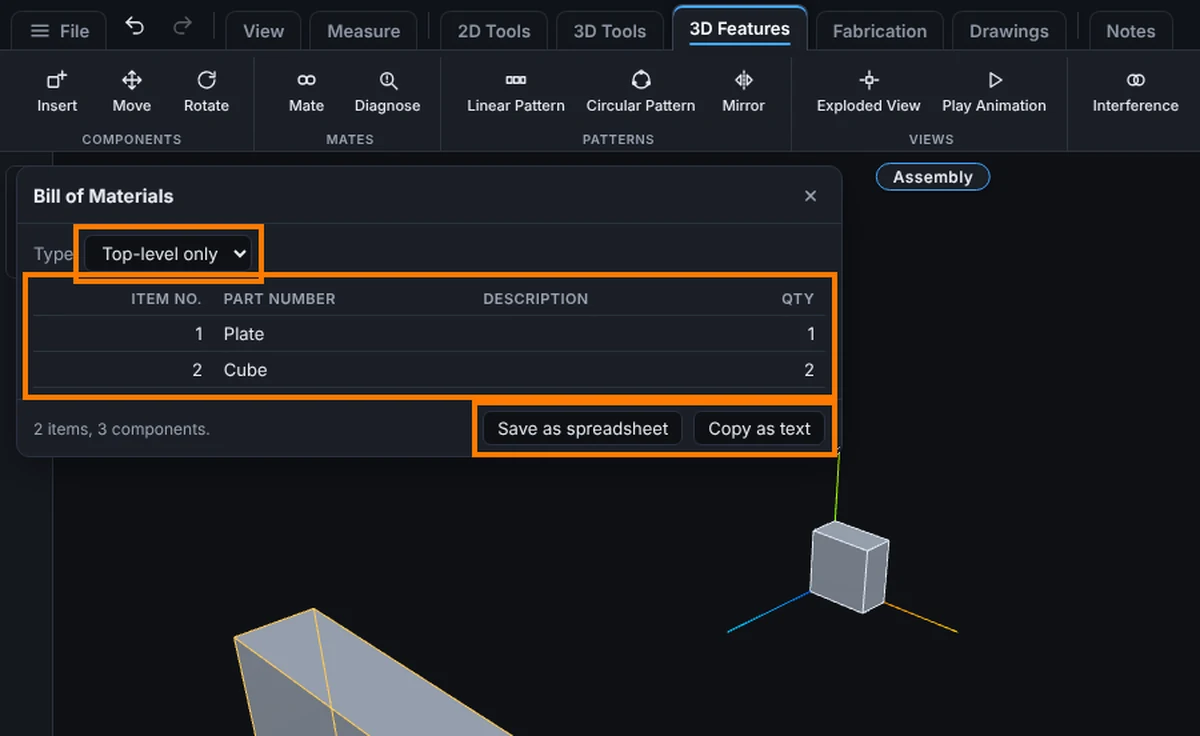
What you get: a table of ITEM NO., PART NUMBER, DESCRIPTION and QTY for the open assembly, a count under it such as "2 items, 3 components.", and a CSV file or text to paste.
When to Use It
- Get a parts list with quantities
- See what each subassembly contains
- Send a parts list to a supplier or a spreadsheet
Step by Step
- Open the assembly.
- Click Bill of Materials on the Assembly tab (Evaluate group). The window opens.
- Choose a Type in the list at the top: Top-level only (the default), Parts only, Indented or Flattened.
- For Indented, choose the numbering: Detailed numbering (1, 1.1, 1.2), Flat numbering (1, 2, 3) or No numbering. Tick Show subassembly as one row when collapsed to keep each subassembly on one row.
- Read the table. The columns are ITEM NO., PART NUMBER, DESCRIPTION and QTY. A NOTE column appears when a part is a frozen copy or missing.
- Click Save as spreadsheet for a CSV file, or Copy as text to paste it elsewhere. Save as PDF saves a PDF and Excel (paid plans) saves an Excel file; see Save a Bill of Materials or Cut List as PDF or Excel.
- Close the window with the X or Esc.
Options
- Top-level only: what is directly in the assembly; a subassembly is one row.
- Parts only: every part with its quantity, with subassemblies opened up and their quantities multiplied through.
- Indented: the tree, with each subassembly's parts indented under it.
- Flattened: one list with no indent: each subassembly row followed by the parts inside it.
Tips and What to Expect
- The part number comes from the model's Part Number property. When that is empty the model name is used.
- Item numbers count 1, 2, 3 in the order each part first appears in the tree.
- Pattern instances are counted.
- If copying is not allowed in your browser, the message tells you to use Save as spreadsheet instead.
Common Mistakes and Messages
- A part number shows a model name. Its Part Number property is empty. Set it in the part's properties.
- A NOTE says "Frozen copy" or "Missing". The saved model was deleted. See Saving, Updates and Sharing.
- "Copying is not allowed here. Use Save as spreadsheet instead." The browser refused to copy. Click Save as spreadsheet and open the file instead.
- A quantity looks too low. You are on Top-level only, where a subassembly is one row. Choose Parts only to count every part inside.