Sketch Corner and Sketch Mirror
Both are on the Sketch tab and both work on the flat 2D sketch, not on the solid part. (Round or Chamfer on the Features tab works on the part's edges instead: see Round or Chamfer.)
What you get: with Corner, a sharp sketch corner rounded or cut to the size you typed; with Mirror, a flipped copy of the pieces you chose, held symmetric about the line, and a message such as "Mirrored 1 piece; the copies stay symmetric to their originals about the line."
Which Page Do I Need?
- Corner rounds or cuts the point where two sketch pieces meet. It has two tools, each with its own page: Sketch Fillet rounds the corner with an arc, and Sketch Chamfer cuts it with a straight line.
- Mirror makes a flipped copy of sketch pieces about a line. Its page is Mirror Entities.
Step by Step: Corner in Four Steps
- Open a sketch and draw two lines that meet at a corner (see Lines, Circles and Rectangles).
- On the Sketch tab, click Corner. The Corner panel opens under the button.
- Choose Sketch Fillet or Sketch Chamfer, and type the size (any unit after the number works, like
1/8 inor3mm). - Click the corner. The sharp point is replaced by an arc or a straight cut of that size. Click another corner to keep going. Press Esc or the X on the panel to end the tool.
Step by Step: Mirror in Five Steps
- Draw the pieces you want to flip, and a line to mirror about. A construction line is the usual choice (Line, then Construction line).
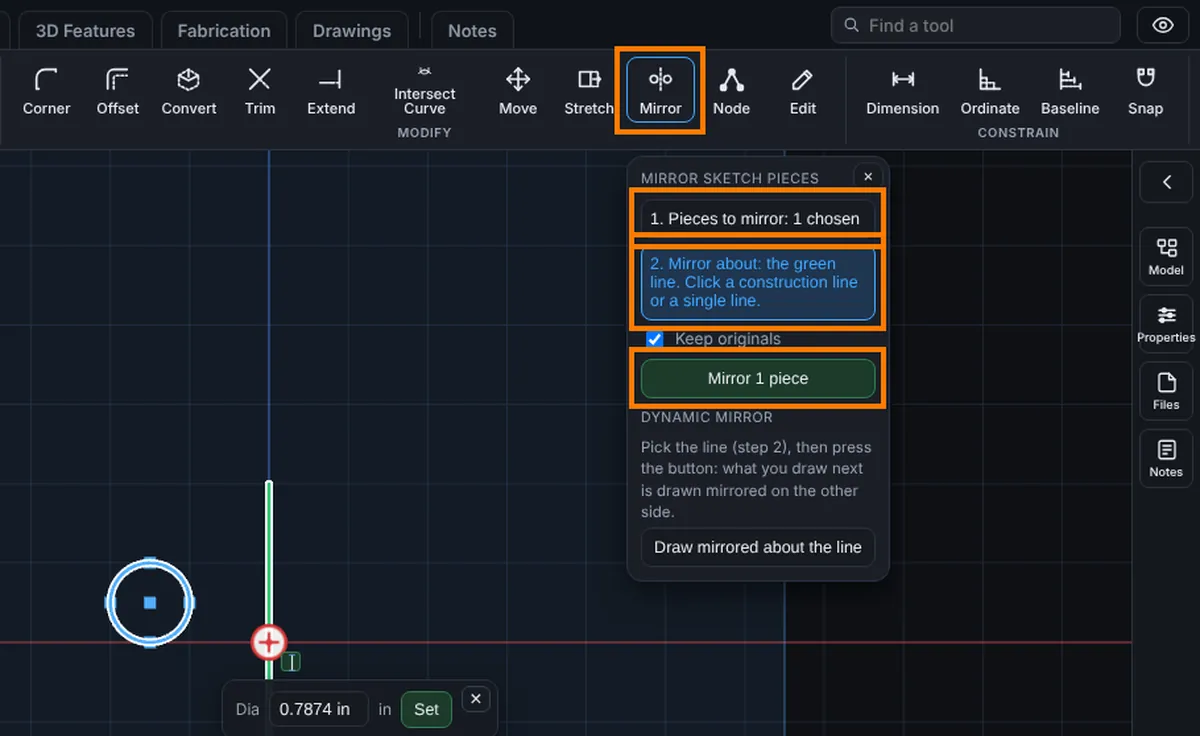
- Click Mirror on the Sketch tab. The Mirror panel opens.
- Click each piece to mirror, or hold the mouse down and drag a box round them. Each click adds a piece, and a click on a chosen piece drops it.
- Click the 2. Mirror about button, then click the line.
- Leave Keep originals ticked to add a copy, or untick it to flip the pieces themselves, then click Mirror.
Tips
- The copies are held symmetric to their originals, so changing an original also changes its copy. Untick Keep originals and the pieces are flipped in place and no tie is made.
- The mirror line can be a construction line or any single straight line.
- Sketch Text cannot be mirrored. Mirror the finished letters with Mirror Features instead (see Mirror).
- One Undo takes back a whole mirror.
Common Mistakes and Messages
- Mirror stays grey. The pieces or the line to mirror about are not chosen yet. Click the pieces, or drag a box round them, then click 2. Mirror about in the panel and click the line. Mirror turns on once both are chosen.
- "Click a construction line or a single straight line to mirror about." The click was on an arc, a circle or empty paper. Click a straight line.
- "That corner cannot hold with the relations already there. Nothing changed." A Corner fights a relation on its corner. Remove the relation first. See Sketch Fillet.