Spline
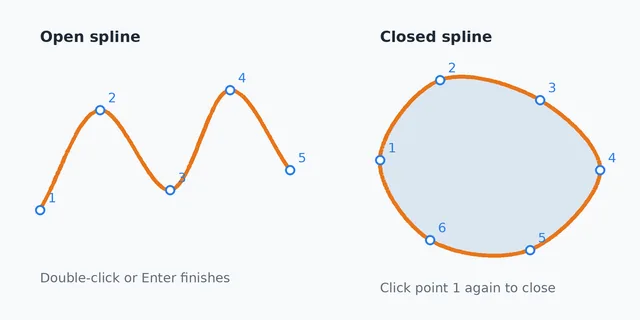
Draws a smooth curve through points you click. The curve passes through every point, in the order you click them, and bends smoothly through each one. A spline can be open, or closed into an outline that extrudes and cuts on its own.
When to Use It
- A free curved edge, such as a handle, a guard or a decorative outline
- A curve that must pass through points you already know
- A closed organic shape to extrude or cut
Step by Step
- Open a sketch on a plane or a face (see Planes and Faces). Sketching is part of modeling, which comes with the Pro plans.
- On the Sketch tab, click Line. In the flyout, click Spline. The prompt says Click the first through point.
- Click the first point. Each click snaps like any other sketch click, so a point can land exactly on an end, a centre, the origin or the grid.
- Click the next points. A preview of the curve follows the mouse.
- Finish an open spline by double-clicking, pressing Enter, or clicking the last point again. To close it, click the first point again (once three or more points are placed), or tick Closed spline on the flyout before you finish.
- The spline is placed and selected. A message says Spline placed.
Options
- Closed spline: the curve runs from the last point back to the first, making a closed outline.
- Construction Geometry: draws the spline dashed. It is then a guide only and never cuts.
Changing a Spline
- Drag a point: with Node, drag a through point. The curve follows.
- Add a point: with Node, click on the curve between two points.
- Remove a point: with Node, click a point and press Delete. An open spline keeps at least two points and a closed one at least three.
- Type where a point goes: with Select, rest on the spline and click one of its points. Properties shows its position across and up; type a new value and press Enter. Properties also shows the start of the spline (and the end of an open one) when the whole spline is selected.
- Move, turn, scale or mirror it with Move, Rotate and Scale or Mirror Entities.
Relations and Dimensions
- A through point placed exactly on a point of the sketch is tied to it with a Coincident relation, so the two stay together.
- The through points take point relations: select two or more points for Coincident, Horizontal or Vertical, or one point for Fix. With Smart Dimension, click a through point and another point to dimension the distance between them. See Relations and Dimensions and Units.
- The curve itself has no length or radius to dimension, and line relations such as Tangent or Parallel do not apply to it. Clicking the curve with Smart Dimension says A spline has no length or radius to dimension.
Tips and What to Expect
- A spline takes up to 200 through points.
- The curve is cut into short straight steps, fine enough that no step is more than about 1/50000 of the size of the spline away from the true curve. A spline is cut into at most 4096 steps, shared out where the curve bends most, so a long spline with many sharp bends can be a little coarser than that. Every through point is exactly on the outline.
- A closed spline that crosses or touches itself is refused with A closed spline cannot cross or touch itself. Move a point so the outline does not cross. The points placed so far stay, so you can move on or press Esc.
- A closed spline can still come to cross itself after it is placed, for example when a relation pulls one of its points. It is then drawn red and is not used by Extrude or Cut, and Properties says This closed spline crosses or touches itself, so it will not extrude or cut. Move a point so the outline no longer crosses. A saved sketch or an Undo step never loses a spline for this.
- A closed spline extrudes and cuts on its own, like a circle. An open spline joins lines and arcs whose ends meet its ends into one closed outline, like a line does.
- Trim, Extend, Offset Entities and Rib do not work on a spline yet. Each one says so when you use it on a spline.
- Esc cancels while you are placing it. One Undo takes it back.