Measure Point
Point measures the straight-line distance between two spots you pick on the model. It does not change the model.
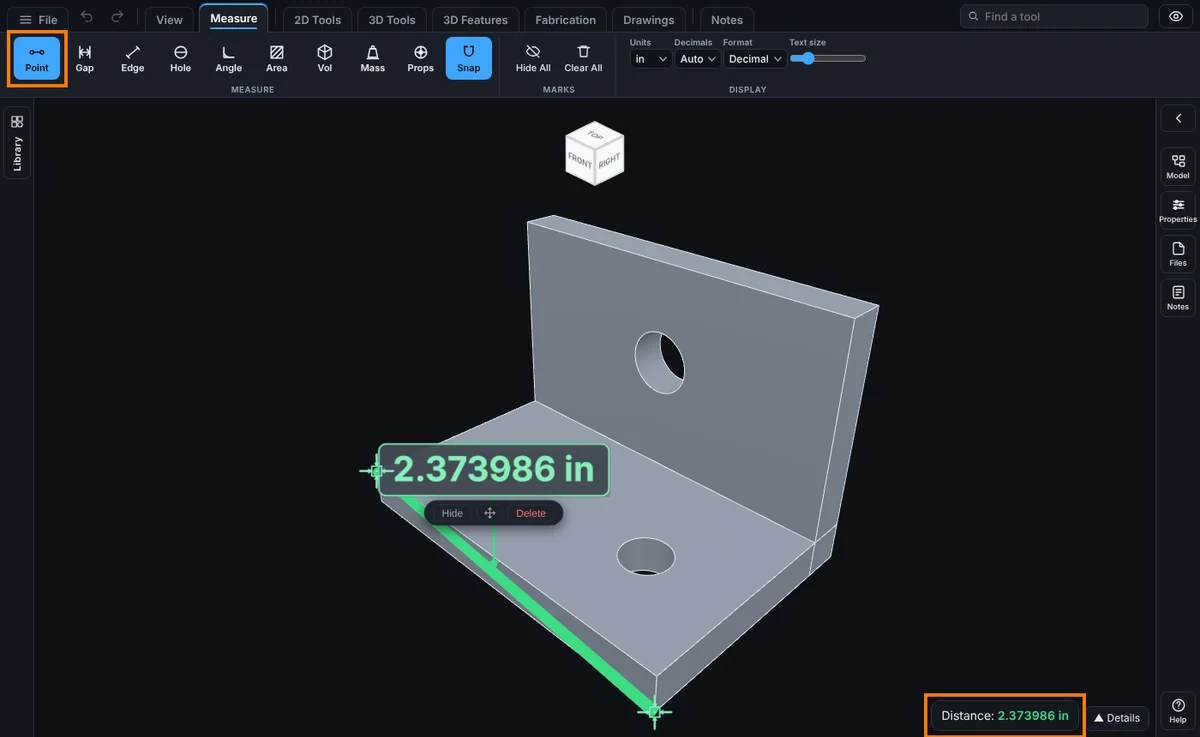
What you get: a green line between the two spots with the distance written on it, the same number in the readout at the bottom right, and the measurement kept on the model.
Step by Step
- Click the Measure tab, then Point. Opening the Measure tab does not pick a tool for you; click Point to start. The readout line says "Tap the first spot, then the second."
- Click the first spot on the model. A marker appears. If Snap caught something, the readout says what, like "Snapped to a corner. First spot set, tap the second."
- Click the second spot. A green line joins the two spots and the distance is written on it, and in the readout as Distance.
After You Measure
- The measurement stays on the model with its number. Click a new first spot to start another one. See Kept Measurements.
- To get rid of it, click the red Delete button under the number, or press Clear All on the Measure tab to remove every measurement.
What You Get
- The distance is the direct straight line in 3D, not the distance along a surface and not along one axis. Two corners of a 2 in by 3 in by 4 in block, opposite each other, read about 5.385 in.
- The number uses the units and decimals you chose on the Measure tab (inches, feet, millimeters and so on). With inches or feet and Format set to Fraction, it reads as the simplest fraction within 1/64 in, like 3/4 or 49/64.
Options and Variations
- Snap: the Point tool is the one tool that snaps. By default a pick jumps to a nearby corner, midpoint, circle center, quadrant point, edge or the model origin. Change what it catches with Measure Snap. With every kind turned off, the pick lands on the exact spot of the surface under the cursor.
- Inside a sketch: while you sketch, Point also snaps to points of the sketch, and says so in the readout.
- Flat drawings: on a DXF drawing the same two clicks give the distance between two spots on the drawing.
Common Mistakes and Messages
- The pick landed a little off. Zoom in before you click, or leave Snap on so the pick jumps to the exact corner or midpoint.
- I want the gap between two faces, not between two spots. Use Measure Gap, which reads straight across from one face to the other.
- I want an edge length. Use Measure Edge; one click gives the whole length.
- A third click starts over. After the second spot the measurement is kept, so the next click is a new first spot. Your earlier one stays on the model until you delete it.
- Nothing happens when I click. The click must land on the model. A click on empty space is ignored.
- The number is in the wrong units. Change Units, Decimals or Format on the right of the Measure tab. Every measurement on the model is written again in the new units.