Trim to Closest
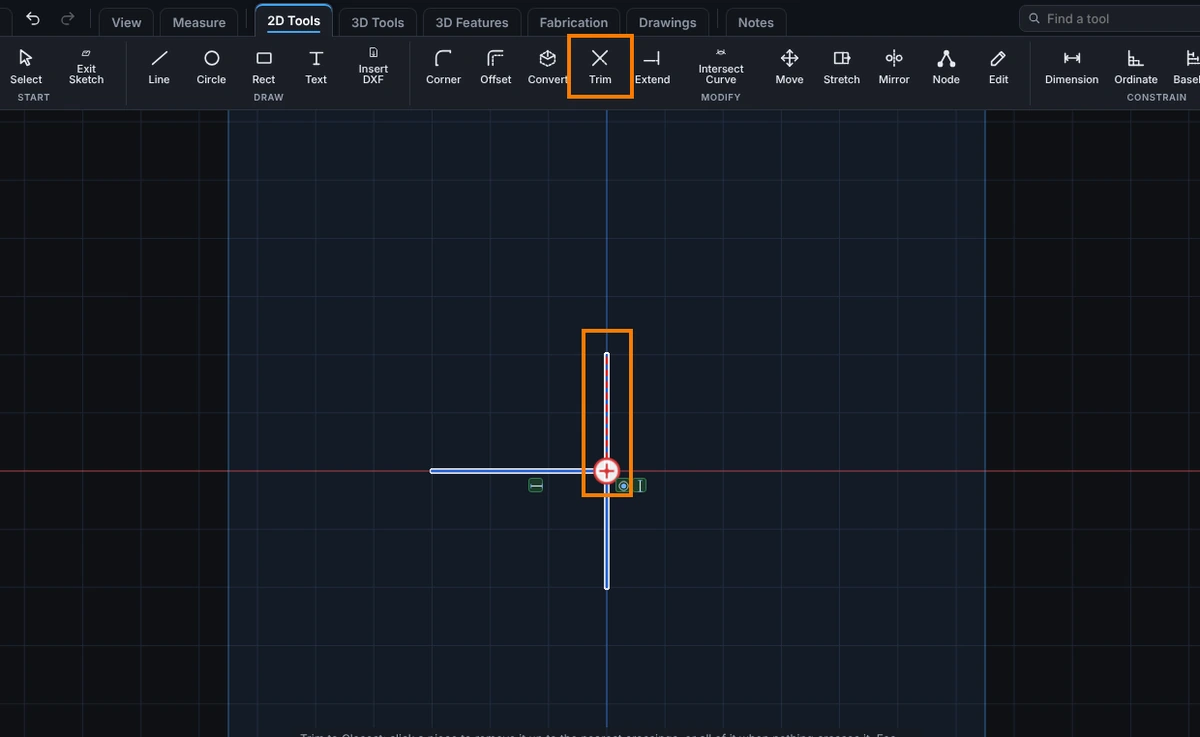
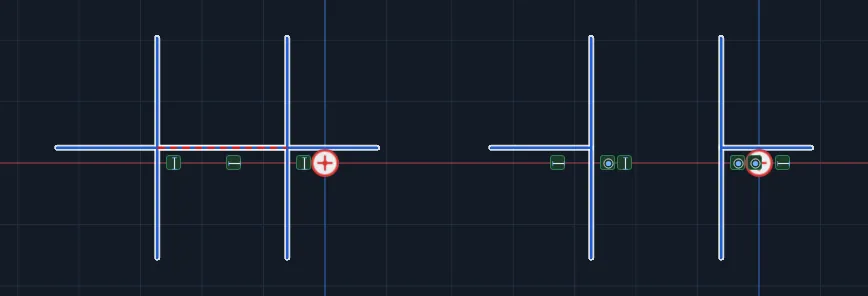
Click a piece and the stretch you clicked goes: from the nearest crossing on one side to the nearest crossing on the other. A piece with no crossing goes whole. Use it when you want to take away one piece at a time and see what will go before you click.
What you get: the stretch you clicked is gone, from crossing to crossing, the new ends tied to the pieces that cut them, and a message such as "Trimmed."
When to Use It
- Remove the part of a line between two other lines, such as a gap for a slot
- Cut a stub off at the nearest line
- Take part of a circle away to leave an arc
- Delete a short piece without selecting it first
Step by Step
- Open a sketch on a plane or a face (see Planes and Faces). Sketching is part of modeling, which comes with the Pro plans.
- On the Sketch tab, click Trim. In the flyout, click Trim to Closest.
- Move the mouse over a piece. The stretch that would go is shown in red.
- Click. That stretch goes, and the rest of the piece stays.
- Click the next piece, or press Esc to end the tool.
Options
- Power Trim is the other mode on the same flyout: drag across many pieces at once. See Power Trim.
- Lines, arcs and circles all trim. A circle with two or more crossings becomes an arc on the same center and radius, on the side you did not click. A circle with fewer than two crossings goes whole.
- Rectangles and other shapes with several sides are split into single sides, tied end to end, when you trim one of them, so only the side you clicked is shortened.
Tips and What to Expect
- Where the piece is cut, its new end is tied to the piece that cut it, so the corner stays closed as the sketch changes. See Relations.
- Relations and sizes on the stretch that went are removed with it. Horizontal, Vertical, Parallel and similar relations that hold at any length stay on what is left. A typed length is dropped, since the piece is now shorter. Relations that sat on a point of a cut piece, such as a line standing on it, follow the point to the stretch it is on. A message after the cut says how many sizes or relations it let go.
- One Undo takes back the trim and its new ties together. Redo puts them back.
- Click on empty paper and a message says Nothing there to trim.
- Press Help while Trim to Closest is armed to open this page.
Common Mistakes and Messages
- "Nothing there to trim. Click a line, arc or circle." The click was on empty paper. Move the pointer until the stretch shows red, then click.
- "Trimmed, but 1 of the new ties were refused: they would over define the sketch." The trim was made, but a new end was left free. Add the relation by hand if you need it.
- The whole piece went. A piece with no crossing goes whole. Press Ctrl+Z, draw a line across it where it should end, and trim again.
- A circle went whole. A circle needs two or more crossings to become an arc. Draw a second piece across it first.