Slice
On the View tab of the ribbon, the X-ray view button (older names: Section View, Slice). X-ray view cuts the model with one flat plane so you can look inside it. The plane can be square to the Side, Up or Front axis, or lie on a flat face of the model or on a reference plane. It is a view only. It changes nothing in the model, the Model tree or a saved file.
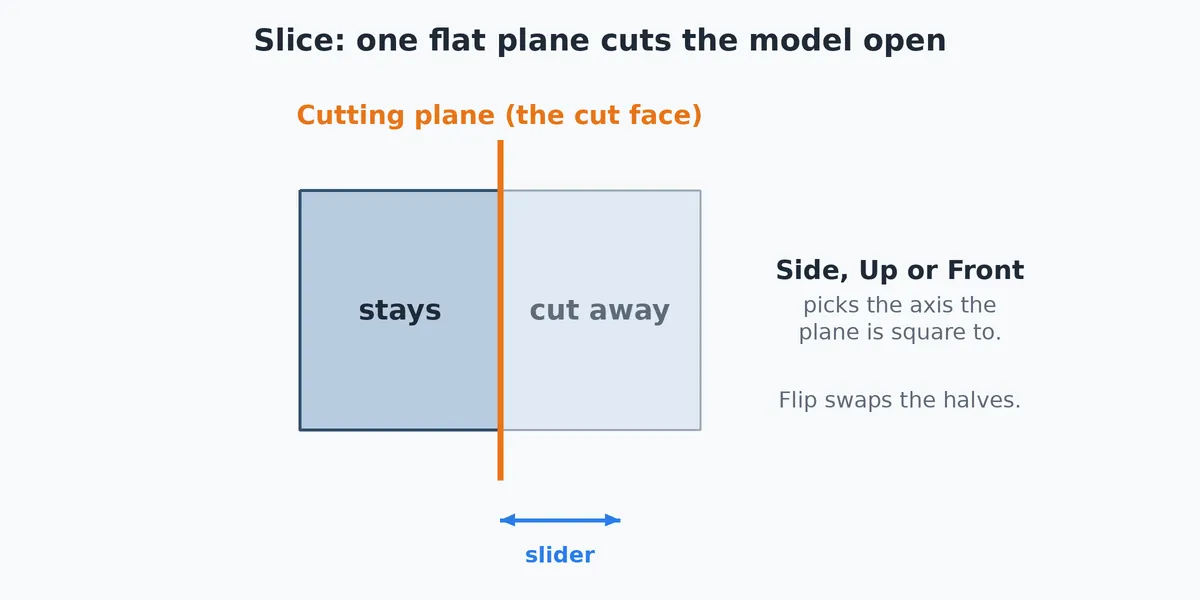
What you get: the model cut open on one plane, with the cut outline drawn, so you can see wall thickness, ribs and holes inside. Click Slice again and the whole model is back.
How to Start It
Click Slice. It arms a section across the middle of the model along the Up axis. Click it again to turn slicing off. The button is lit while a slice is on, and is grayed out when there is no 3D model open (a flat DXF drawing has nothing to slice).
Step by Step
- Open a 3D model.
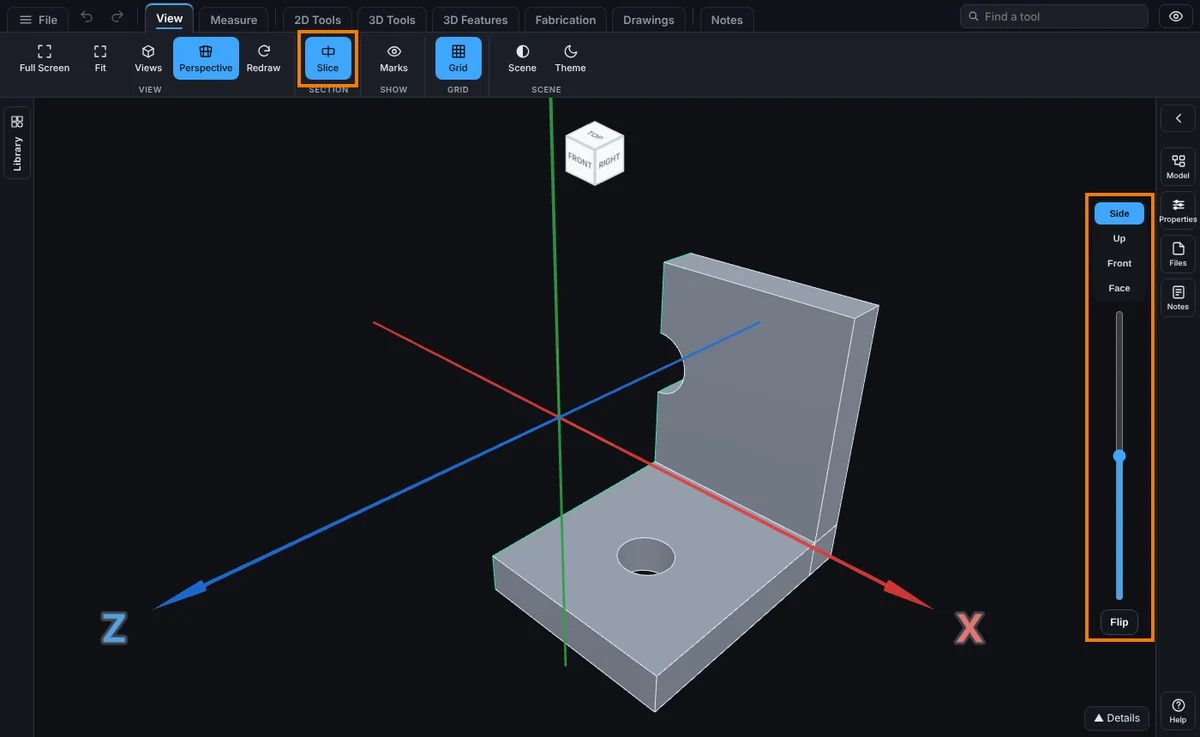
- Click the View tab, then Slice. A small control bar appears (Side, Up, Front, Face, a slider and Flip), and half of the model is cut away.
- Pick the direction with Side, Up or Front. These are the axes the cutting plane is square to.
Step by Step: Move, Flip and Finish
- Drag the slider to move the plane through the model, from one side to the other.
- Click Flip if you want the other half. Flip swaps which half is cut away.
- Look at the cut faces and the outline where the plane meets the part. This shows wall thickness, ribs and bores that a solid view hides.
- Click Slice again to finish. The full model is back at once.
Section on a Face
- With Slice on, click Face in the bar. The button lights up.
- Click a flat face of the model. The cut plane lies on that face, and the part on the far side of it is cut away.
- Drag the slider to move the plane along the face's direction, or type an Offset in the box under the slider and press Enter. 0 is on the face and
-0.5 inis half an inch into the part. A plus value such as12 mmmoves the plane out from the face, which works only where that is still inside the model (on an outside face it is refused, because the plane would cut nothing). Any unit works. - Click Flip to keep the other side instead.
- Click Side, Up or Front to go back to a plain axis section.
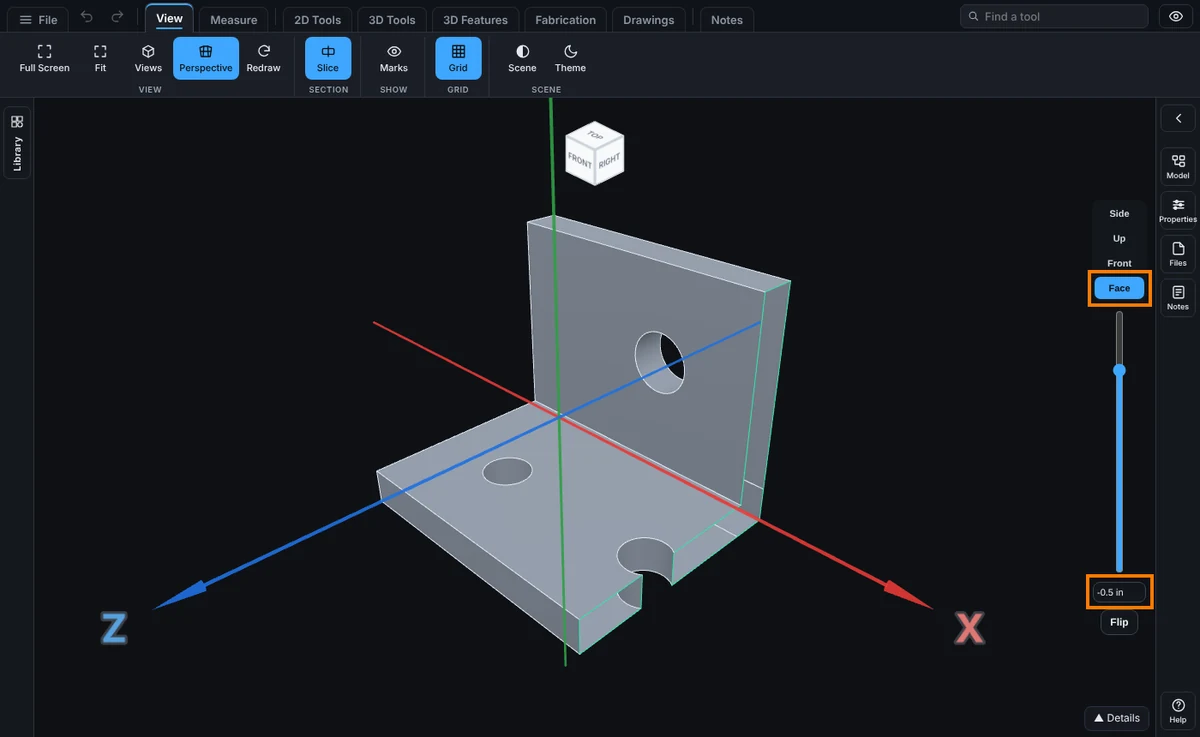
You can also right-click a flat face and choose Section on this face. Slice turns on by itself.
Section on a Reference Plane
While a model is open for modeling and it has reference planes, the bar shows a Plane... list. Choose a reference plane in it and the section lies on that plane. The slider, the Offset box and Flip work as they do for a face.
The Controls
- Side / Up / Front: which axis the plane is square to.
- Face: click it, then click a flat face to section on that face. Click it again, or press Esc, to stop waiting for a face.
- Slider: moves the plane along its direction, across the whole model. For an axis it starts in the middle; for a face it starts on the face.
- Offset: shown for a face or reference plane section. How far the plane is from the face, in your units. A minus offset goes into the part.
- Plane...: shown when the open model has reference planes. Pick one to section on it.
- Flip: swaps the cut-away half and the half that stays. It is lit while flipped.
- Not cut: shown only with an assembly open. See below.
Components Not to Cut
With an assembly open, the bar has a Not cut button. It opens a short list of the components. Tick the ones you want to see whole while the rest are cut, or press Pick and click a component in the view. A ticked component is drawn complete, and the cut outline skips it. Clear puts every component back into the cut. The choice is kept for the session, and it is saved with the section when you save the assembly. It works on a shared assembly you are only viewing too. Press Esc or the X to close the list.
What Is Remembered
The slice (axis or face plane, slider position, flip) is saved with a model you save to your account, so it comes back when you reopen it. A face section keeps its plane and its offset, so the cut comes back at the same distance from the face even if the model has changed size. A new file opens unsliced.
Common Mistakes and Messages
- The button is gray. There is no 3D model open, or it is a flat drawing.
- I see nothing cut. The slider may be at one end. Drag it toward the middle. A face section on an outside face starts with nothing cut: type a minus offset, such as
-0.25 in, to move into the part. - "That face is curved. A section needs a flat face: click a flat face, or choose a reference plane." Click a flat face, or use a reference plane.
- "No face there. Click a flat face of the model, or press Esc to stop." The click missed the model.
- "That offset puts the plane outside the model, so it would cut nothing." The message goes on to give the range that still cuts the model. Type an offset inside it.
- "Type the offset as a length, like -0.5 in or 12 mm. A minus sign moves the plane into the part." Type a number with or without a unit, such as
-1/2 inor12 mm. - "Plane1 does not pass through the model, so it would cut nothing. Pick a face of the model, or a plane that crosses it." The reference plane you chose lies wholly beside the model. The section stays as it was.
- I cannot see the inside of a bore. Pick another axis, or press Flip.
- Combine Slice with Measuring to check an inside size you could not otherwise reach.
- Hidden parts stay hidden. Show them first in the Model tree.
- "Section views are for 3D models." A flat drawing (DXF, AI, PDF or SVG) has nothing to slice.