File, Properties
Keeps a list of your own properties on the part, such as Customer, Job number, Finish, Ship date or Inspected. Each one has a name, a type (Text, Number, Date or Yes/No) and a value. They are saved with the part and come back when you open it again.
What you get: your properties in a table on the part, saved with it, shown in the Cut List and Mass Properties, and written into the header of the STEP files you export, with the count of how many you have used out of 50.
Step by Step
- Open the part you want to describe. A STEP file, a part you drew here or a saved model all work.
- Open File and click Properties....
- At the bottom, type a Name, pick a Type and type or pick the Value.
- Click Add (or press Enter in the name box). The property joins the table above.
- To change one, click in its name or value and type, then press Enter or click away. To change its type, use the Type box on its row. To delete it, click the x at the end of the row.
- Click Close (or press Esc).
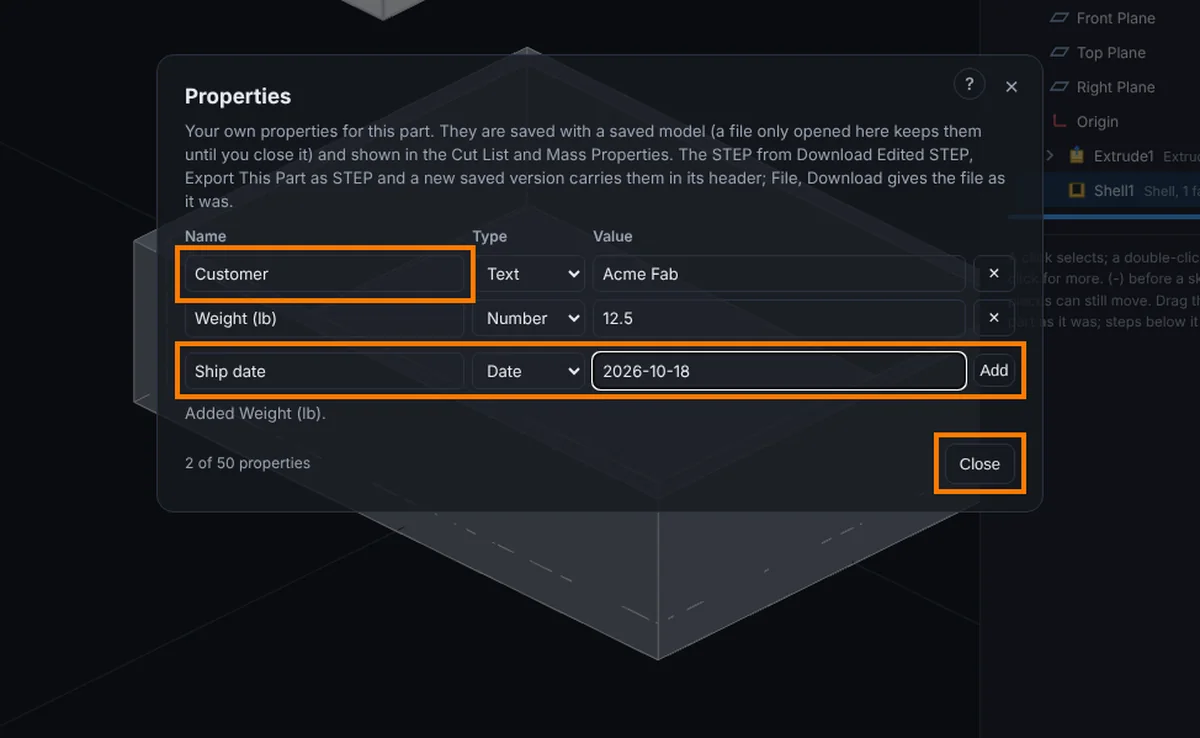
Options
- Name: up to 40 letters. A name cannot be empty, cannot hold =, < or >, and cannot match another property on the part (capital letters do not count: Finish and finish are the same name).
- Text: up to 200 letters on one line.
- Number: digits only, such as 12.5, -3 or 2e3. No commas and no unit: put the unit in the name, like Width (mm), or use Text. The largest number is 1,000,000,000,000,000 and the smallest above zero is 0.000000000001. It is kept in its plainest form, never with an exponent (1.50 becomes 1.5 and 1e-7 becomes 0.0000001).
- Date: year-month-day with a real day, such as 2026-10-18.
- Yes/No: a choice of Yes or No.
- Limit: 50 properties on one part. The window shows how many you have used.
Where the Properties Show
- Cut List: a Part properties table under the cut list, and the same rows at the end of the CSV file.
- Mass Properties: a list headed Custom properties at the end of the readout, and in the text that Copy gives you.
- STEP files: when you use Download Edited STEP, Export This Part as STEP, or save a new version after editing, the properties are written into the header of the STEP, in its description, as lines like Finish (Text) = Black powder coat. Other programs show that description with the file's information. A model with more than one part writes them only into Download Edited STEP and the saved version, because an export of some of the parts would not match. File, Download gives back the file you opened as it was, with no properties, and so does a saved version of a part you did not edit.
- Saved models: the properties are kept in the saved model and are there when you open it again. Each change saves by itself, except while you use Edit Part inside an assembly: they save when you exit Edit Part. A file you only opened here (not saved to your account) keeps them until you close it; use File, Save as to keep them.
Undo and Redo
Every add, rename, edit and delete is one step. Press Ctrl+Z (or the Undo button) to take it back and Ctrl+Y to put it back. Undo takes back your newest change first, whether it was a property, a sketch edit or a step in the History, even with the rollback bar up.
Tips
- Pick short, steady names so a list reads well in the Cut List: Customer, Job, Finish.
- Use Date for a due date and Yes/No for a check such as Inspected, so each one is entered the same way every time.
- Nothing here changes the shape, the material or the mass of the part.
Common Mistakes and Messages
- "Open or start a part first, then open File, Properties." There is no part open. Open one, then try again.
- "Custom properties belong to one part. Leave the assembly, or open the part on its own, then open File, Properties." An assembly is open. Leave the assembly or open the part on its own.
- "You are looking at an older version. Open the newest version to change its properties." An older version cannot be changed. Open the newest version.
- "There is already a property called customer. Pick another name, or change that one." Names cannot repeat, and capital letters do not count. Pick another name, or change the property that has it.
- "The name has ... letters and the most is 40" or "The value has ... letters and the most is 200": shorten it.
- "12,5 is not a number. Type digits like 12.5 or -3, with no commas." A Number holds digits only. Take out the commas and the unit, or use Text.
- "Type a date as year-month-day with a real day, like 2026-10-18." Write it like 2026-10-18, with a day that exists (no 2026-02-30).
- "The value ... does not fit Number" when you change a type: change the value first, or keep the old type.
- "This part already holds 50 properties, the most it can. Delete one first." Delete one, then add the new one.
Problems
- A refused change leaves the table as it was.
- A STEP file written by another route keeps no properties: File, Download gives back the file you opened, as it was.
- A property in an old saved model that cannot be read is left out when the model opens.