Opening SolidWorks Parts
STEPFILE.com opens SolidWorks parts (.sldprt) straight in the browser. No SolidWorks needed, and parts are free on every plan. Assemblies open too, on the Pro plan.
What you get: the SolidWorks part open in the viewer as a STEP model with the same name, in its own colours, ready to turn, measure, slice or sketch on; its custom properties, material and mass under Properties.
Step by Step
- Find a part file saved in SolidWorks 2015 or newer. It ends in .sldprt.
- Drop it onto the viewer, or choose File, Open and pick it.
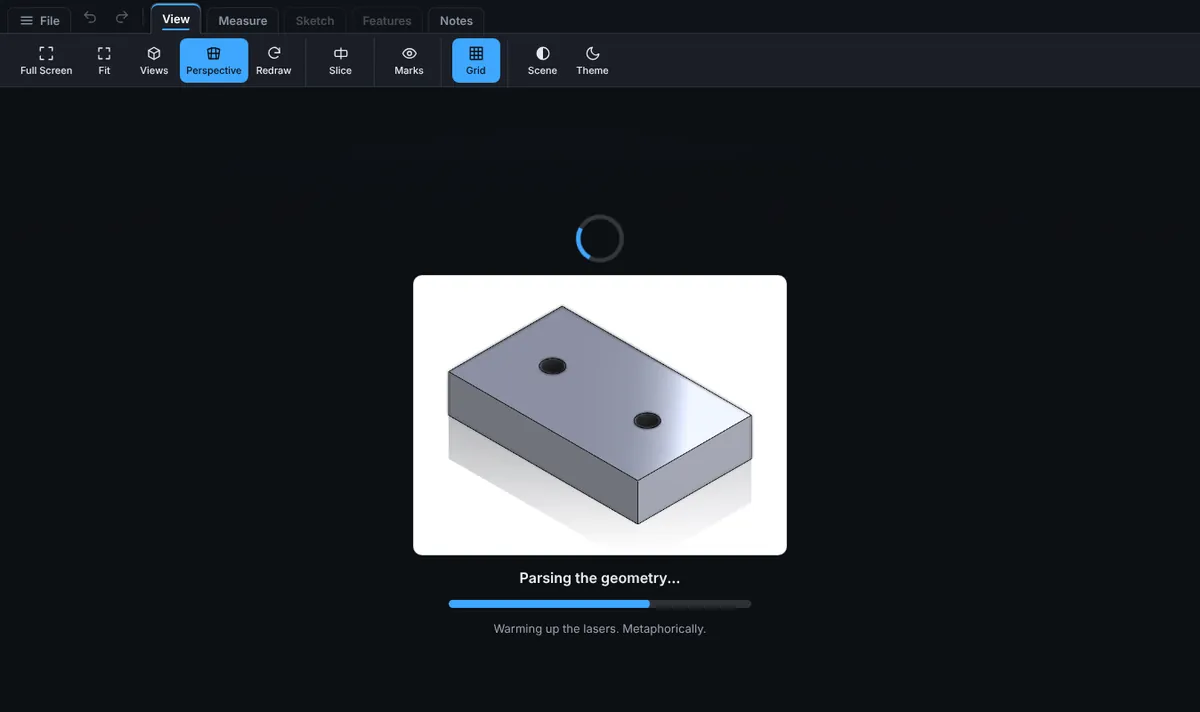
- While the solid is read, the loading screen shows the picture of the part saved inside the file, with a progress bar.
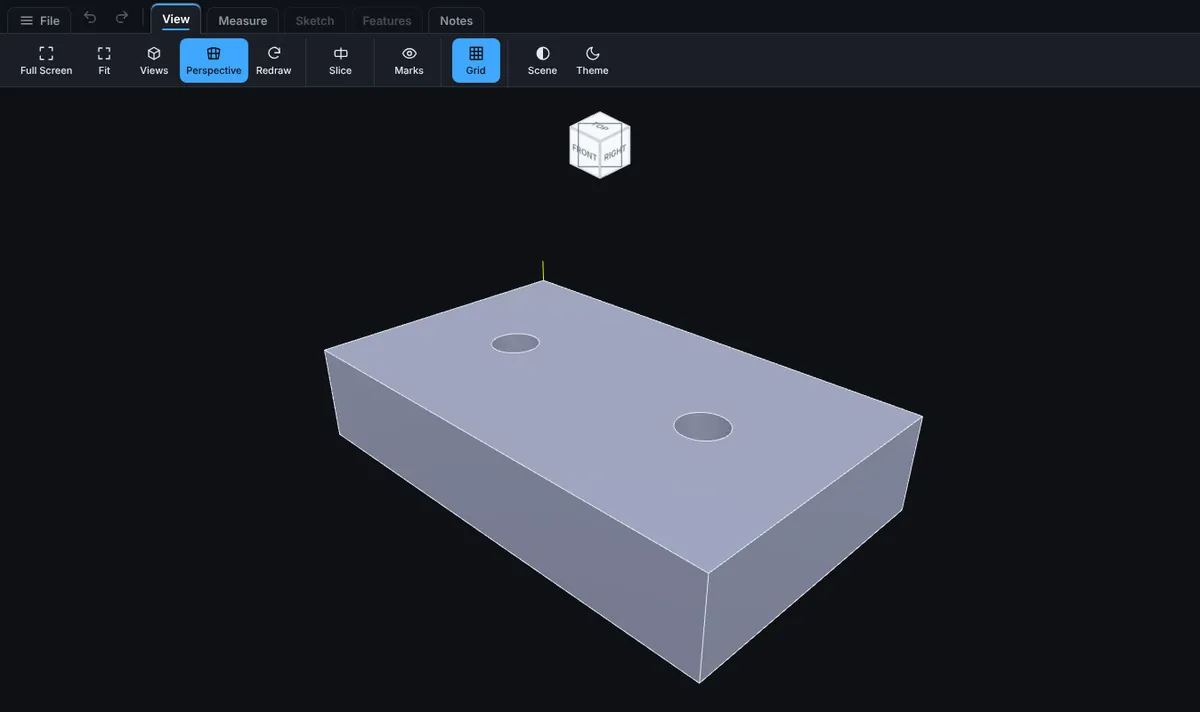
- When the bar finishes, the part opens like any other model. Turn it, measure it, slice it or sketch on it.
What Works
- Parts saved in SolidWorks 2015 and newer.
- Exact geometry: planes, cylinders, cones, spheres, tori, smooth lofted and swept surfaces, holes, fillets and chamfers.
- Rolling ball fillets that SolidWorks stores as a blend surface. A fillet between two flat faces opens as an exact cylinder, a round along a circular edge as an exact torus, and any other constant radius fillet as a smooth surface that follows the true fillet to within a few millionths of a millimetre. So far this is checked on test solids built for the purpose: the SolidWorks parts tested so far store their fillets as plain cylinders and tori, which open exactly. If a fillet edge is stored in a form the viewer cannot place exactly, the part is not opened and the message names the blend surface.
- Colours set on faces and bodies.
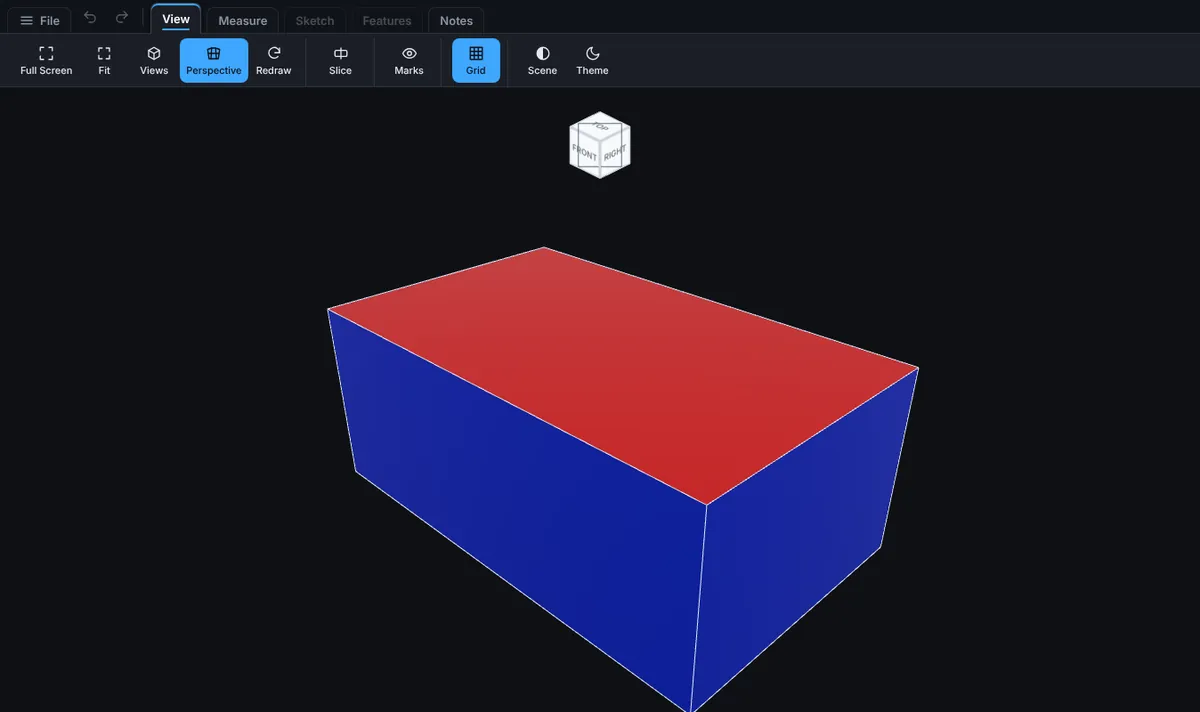
- Parts with more than one body. Each body opens as its own solid.
How to Open One
Drop the .sldprt file onto the viewer, or choose File, Open and pick it. A picture of the part, saved inside the file by SolidWorks, shows on the loading screen while the solid is read. Then the part opens like any other model, with the same measuring, sectioning and sketching.
What Is Read From the File
Besides the shape, STEPFILE.com reads what SolidWorks keeps about the part, for the configuration that opened:
- Custom properties. The ones on the whole file and the ones on the configuration, such as Description, PartNo, Material or Vendor, with their values. A value that SolidWorks works out from an equation shows the result when the file holds it, and the equation when it does not.
- Material and mass. The material assigned in SolidWorks and its density. Mass, volume and surface area are shown as the file stores them when that is precise enough to trust. When it is not (a small part stored as 0.00), the volume and area are computed from the model and say so, and the mass is computed from that volume and the density.
How to See It
- Open the .sldprt file.
- Choose Properties on the right rail.
- Under Model you see the part's own fields. Below them are SolidWorks custom properties, Configuration properties and Material and mass.
The Part number and Description of the model are filled from the file's PartNo and Description, but only when those two fields are empty, so text you typed is never replaced. They are kept with the model when you save it, like any other part number.
The list is shown for the part you opened. It is not saved with the model, so a model opened again from your account shows its own Part number and Description but not the SolidWorks list.
What Is Saved
The part is changed into a STEP file as it opens, and from then on it is a STEP model with the same name. Save it and the file kept in your account is NAME.step. The original .sldprt file is not kept, so keep your own copy.
Opening an Assembly (Pro)
A SolidWorks assembly (.sldasm) keeps its parts in separate files, so the parts must come with it.
- In SolidWorks, open the assembly and choose File, Pack and Go.
- Tick Save to Zip file, pick where to save it, and click Save.
- In STEPFILE.com, drop the .zip onto the viewer, or choose File, Open and pick it. You can also drop the .sldasm together with all of its .sldprt files at once.
- Each part is read and placed where the assembly put it, at the same position and angle. Suppressed parts are left out and hidden parts stay hidden. To stop while it opens, click Cancel or the X on the loading screen, or press Esc; nothing is kept. Opening stops by itself after 15 minutes.
- Nothing is saved to your account yet: look it over first. Leaving it asks before anything is lost.
- To keep it, click Save as you would for any model and pick a folder. Every part is saved first, as its own STEP model in a new folder named NAME parts inside the folder you picked; then the assembly is saved and links to them like any other STEPFILE.com assembly.
If one part cannot be saved (for example your storage is full), nothing is kept: the parts saved before it are moved to your Recycle Bin, a message names the part and the reason, and the assembly stays open so you can try again. If a part cannot be removed, the message names it and the folder it is in. If every part saved but the assembly itself could not be, the message says the parts are in NAME parts; click Save again and the parts are not saved twice. Before you save, Edit Part and Open Part on these parts ask you to save the assembly first.
If a part is not in the zip, a message names it and the rest of the assembly opens without it. The .sldasm and .sldprt files themselves are never kept.
Limits: the zip may be up to 500 MB, hold up to 2000 files, and its SolidWorks files may unpack to 200 MB each and 1 GB together. An assembly opens with up to 500 parts. Drawings and other files in the zip are skipped. Mirrored (opposite hand) copies and an assembly that refers to itself are named in a message and left out.
Configurations
A part saved with several configurations opens on the one that was active when it was saved. When there is more than one configuration to choose from, a button appears at the lower left of the window. It reads Configuration: and the name of the one on screen.
- Click that button. A window lists every configuration by the name it has in SolidWorks. The one on screen says Showing, and the one that was active when the file was saved says so too.
- Click another configuration. The part opens again with that configuration, named after it, as a new STEP model.
- Close the window with its X or the Esc key.
Only configurations whose shape was saved in the file can be shown. SolidWorks saves the shape of the configurations it last worked on, so a configuration that says Not saved in the file is listed but cannot be opened here. Upload a STEP of it instead.
A part with more than 500 configurations lists the first 500 and says how many there are. The original file stays in your browser's memory while its model is open, so that another configuration can be read from it. It is not sent anywhere, and it is let go when you open another model.
Cut List
A weldment lists its cut list in the same window, under Cut list. Each line shows the item name, the quantity, the length and the description saved with it, and the last line adds up the items and pieces. Items that SolidWorks left out of the cut list are not shown, and neither are sheet metal items. Lengths show exactly as they were saved in the file. A quantity is shown in whole pieces. A cut list longer than 2000 items shows the first 2000. A cut list belongs to the configuration on screen, so it changes when you pick another configuration. The button at the lower left also reads Cut list with the number of items.
Common Mistakes and Messages
- "This file was saved in SolidWorks 2014 or earlier. Open and save it in a newer SolidWorks, or upload a STEP." Open the part in SolidWorks 2015 or newer and save it, or export a STEP from SolidWorks and open that.
- "STEPFILE.com could not read this SolidWorks part. Upload a STEP exported from SolidWorks instead." The file is damaged or of a kind not read yet. Export a STEP from SolidWorks.
- "This SolidWorks part is larger than 200 MB, which STEPFILE.com cannot open yet. Upload a STEP instead." Upload a STEP exported from SolidWorks.
- "This SolidWorks part uses a surface type STEPFILE.com cannot read yet (...). Upload a STEP exported from SolidWorks instead." The message names the surface, such as a variable radius fillet. Export a STEP from SolidWorks.
- "Still opening the last file. Try again in a moment." A file is still being read. Wait for it to open, then try again.
- An assembly opens with a part missing. The part was not in the zip. Make the zip again with Pack and Go so every part comes with it.
What Does Not Work Yet
- Mates inside a SolidWorks assembly. Each part opens where the assembly put it, fixed in place; add mates in STEPFILE.com if you need them.
- Subassemblies open with their parts placed correctly, but the Model tree lists them as parts of the top assembly for now; the nesting is kept and shows in a later release. A flexible subassembly is shown as it was saved on its own, and a message names it.
- Parts saved in SolidWorks 2014 or earlier. Open and save them in a newer SolidWorks, or upload a STEP.
- Variable radius fillets and a few other surface types. If a part uses a surface the viewer cannot read yet, it says so and names the surface, rather than showing a model with a hole in it. Upload a STEP exported from SolidWorks instead.
Tips and What to Expect
- Where two surfaces meet along a curved edge, the edge may be drawn as many small straight pieces. A quiet note says when that happened. Sizes and volumes still match the original.
- Large parts take a little longer than a STEP of the same size, because the file is read first and opened second.
- A message about a file closes with its X or the Esc key.
See Opening a File for the other formats.