Move, Rotate and Scale
Move, turn or resize pieces of the sketch by a typed amount. It works on lines, arcs, circles, outlines and Sketch Text.
What you get: the pieces you picked moved, turned or resized by exactly the amount you typed (or copies of them, with Keep original), as one Undo step.
When to Use It
- Shift a drawn shape or a piece of text by an exact distance
- Turn a shape or a label to an exact angle
- Make a shape or a label larger or smaller in proportion
Step by Step
- Open a sketch (see Planes and Faces). Sketching is part of modeling, which comes with the Pro plans.
- On the Sketch tab, click Move. The panel opens with the Select tool ready. To drag a window over the ends of pieces and stretch them instead, click Stretch in the row at the top of the panel (see Stretch).
- Click each piece to change. Each click adds one; click it again to drop it.
- To move: type how far in Across (to the right) and Up, then press Move. A minus sign goes the other way. Any unit works, like
12mmor1/2 in. - To turn: type the Angle in degrees (counterclockwise; a minus sign turns clockwise), then press Rotate. The chosen pieces turn about the middle of the box round them, and a message says "Turned 1 piece. One Undo takes it back." (with the number you picked).
- To resize: type the Factor (2 doubles the size, 0.5 halves it, from 0.01 to 100), then press Scale. The pieces grow or shrink about the middle of the box round them.
- To keep the pieces where they are and make copies instead, tick Keep original first. See Copy Sketch Pieces.
- One Undo takes back one press of a button.
Each button acts at once on the pieces you picked, so set its box first (Across and Up, Angle, or Factor), then press that one button.
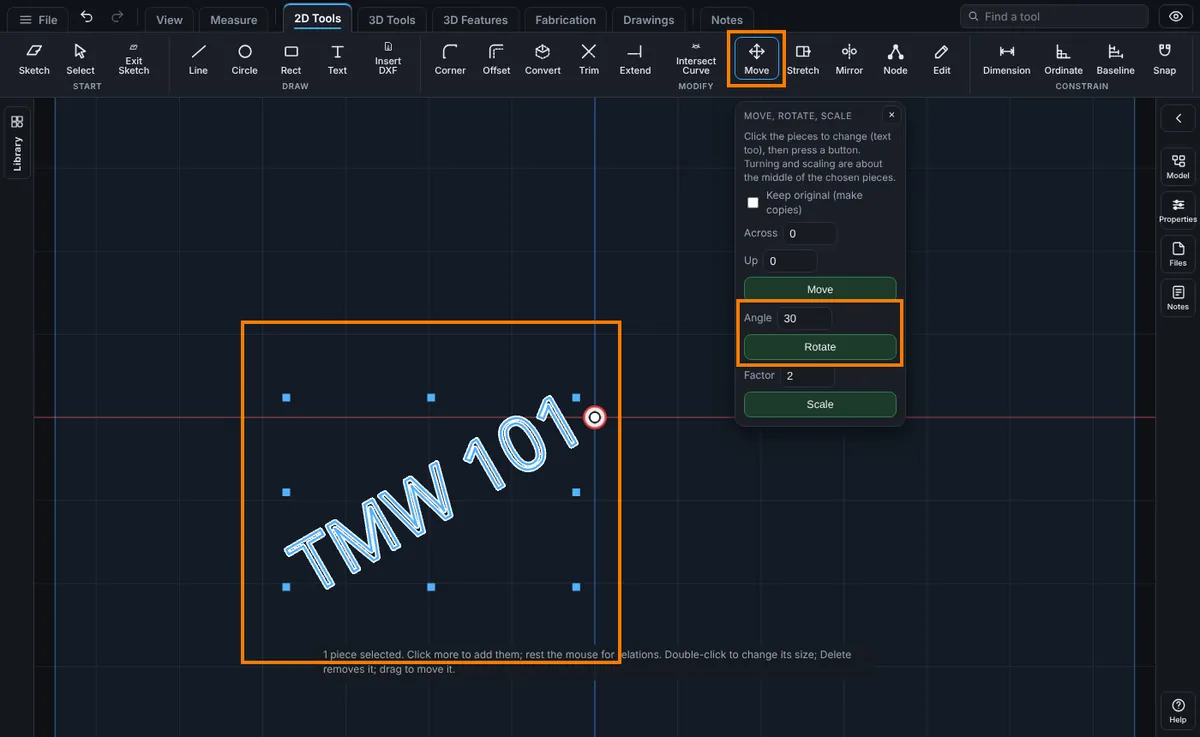
Text
Text moves by its start point, so its words keep their place on the baseline. Rotate adds the turn to the text angle, and Scale makes the text height larger or smaller. Its letter spacing and width stay right, because they are percentages of the letter. You can still change the words afterwards with Edit Text.
Things to Know
- A piece that has a dimension or a relation can be moved, but not turned or scaled yet, because the turn or the size would fight its own dimension. Delete the dimension first, or tick Keep original and turn or scale a copy, which carries no dimension.
- If pieces tied to the ones you move would not follow, nothing is changed and you are told so.
- Typing nothing, an angle of zero or a factor of 1 is refused in plain words and changes nothing.
- Reference pieces taken from the part, and the origin, are left out.
Common Mistakes and Messages
- "Choose the pieces first: click each one in the sketch." Nothing is picked. Click each piece in the sketch (it turns blue), then press the button.
- "Turning is not yet possible for pieces that carry a dimension or a relation. Delete those first, or use Move." The piece has a size or a relation on it, such as a rectangle drawn with typed sizes. Delete its dimensions first, or tick Keep original and turn a copy. Scale says the same with Scaling.
- "Type an angle in degrees that is not zero." The Angle box is empty or 0. Type an angle such as
30or-45. - "Type a scale factor from 0.01 to 100 that is not 1." The Factor is 1, empty or out of range. Type a factor such as
2or0.5. - "Type how far to move, across and up, in any unit." Across and Up are both empty or 0. Type a distance in at least one of them.
- "Pieces tied to these would not follow, so nothing was changed." Other pieces are tied to the ones you picked. Pick those too, or delete the relations that tie them.