Width Mate
Centers a tab between the two faces of a slot. Use it for a tab that sits in a slot with a little room, or to set where in the slot the tab stands.
What you get: the tab held between the two slot faces (in the middle with Centered), and one mate in the Mates folder named with its choice, such as Width1 (Centered).
When to Use It
- Center a tab in a slot
- Keep a plate between two rails
- Set a part a fixed distance or a percent of the way across a slot
Step by Step
- Open an assembly (assemblies need the Pro plan) with at least two components in it. See Assemblies: Start and Insert Parts.
- Click Mate on the Assembly tab (or right-click a component and choose Assembly tools, Mate...), then click the Advanced tab at the top of the window.
- Click the two faces of the slot, both on one component. Each shows as Slot face in Mate Selections. The two faces of a slot face each other, so you can see only one at a time: click the first, then turn the view (the view cube, or Views on the View tab, such as Back) to click the second. Your picks stay while you turn the view.
- Click the two faces of the tab, both on another component. Each shows as Tab face.
- Click Width. It is lit only when the four picks are flat faces, two on each of two components.
- Under Width selections choose Centered, Free, Dimension or Percent. For Dimension or Percent a value box appears.
- Click the green check to add the mate. The message reads "Width1 (Centered) added."
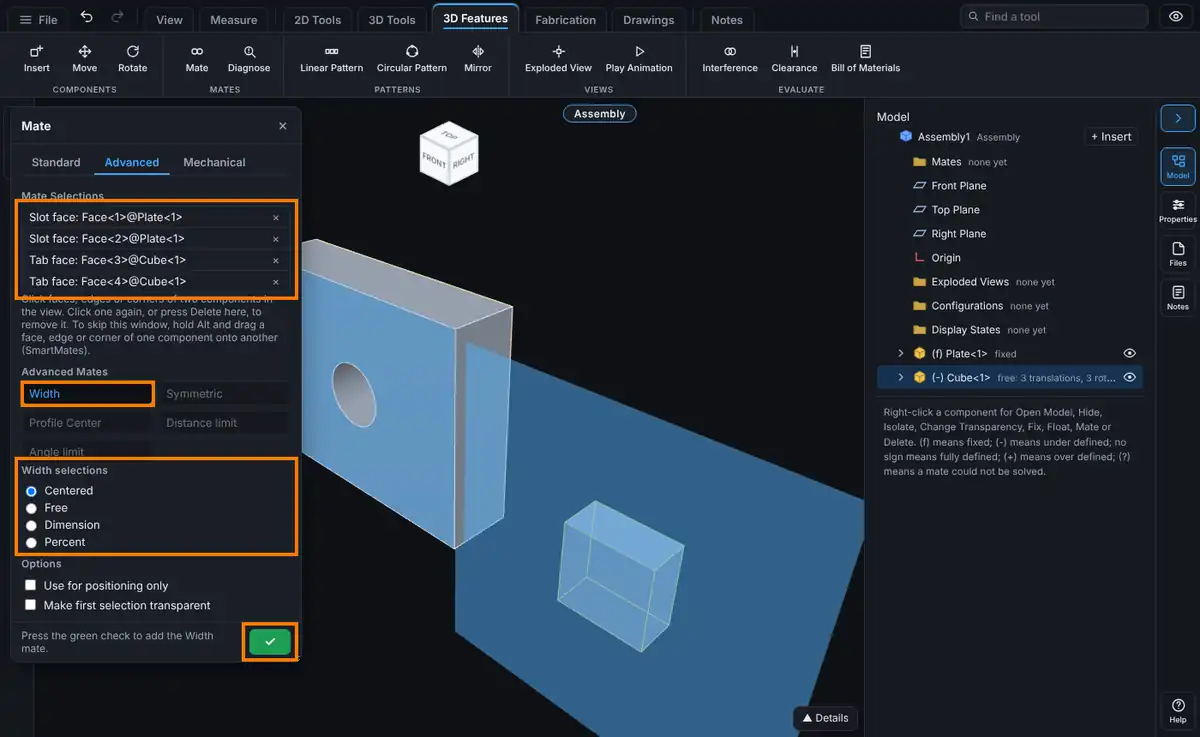
Options
- Centered (the default): the tab sits midway between the slot faces.
- Free: the tab may move anywhere between the slot faces but cannot leave them.
- Dimension: the distance from the first slot face to the first tab face. The box starts at the distance the parts have now.
- Percent: how far across the slot the tab sits, 0 to 100 percent from the first slot face. It starts at 50.
- Width has no alignment choice.
- Use for positioning only and Make first selection transparent work as on the Standard tab.
Tips and What to Expect
- The slot faces must be on one component and the tab faces on another. If not, the window says "Width needs the two slot faces on one component and the two tab faces on another."
- Width centers the tab across the slot. It keeps the tab parallel to the slot but does not stop it sliding along the slot, so add a Coincident mate on a face to finish the job.
- The tree shows the choice, for example Width1 (Centered) or Width1 (Dimension 1/4 in).
Common Mistakes and Messages
- "Width needs the two slot faces on one component and the two tab faces on another." The four picks are mixed up. Remove them and pick both slot faces on one component first, then both tab faces on the other.
- Every button is grey. The picks do not fit any mate on this tab. The status line says what is missing, for example "Pick more entities." Remove a pick (click it again or press Delete in Mate Selections) and try again.
- "Collapse the exploded view to add mates." Mates cannot be added while the assembly is exploded.
- The Over defined prompt appears. The new mate conflicts with the ones already there. See Mates: Fixing Mate Problems.