Revolve
Revolve turns a closed profile around a line in the same sketch and makes a round solid from it: a shaft, a pin, a ring, a cone or a bowl. The solid can be added to the part or cut out of it.
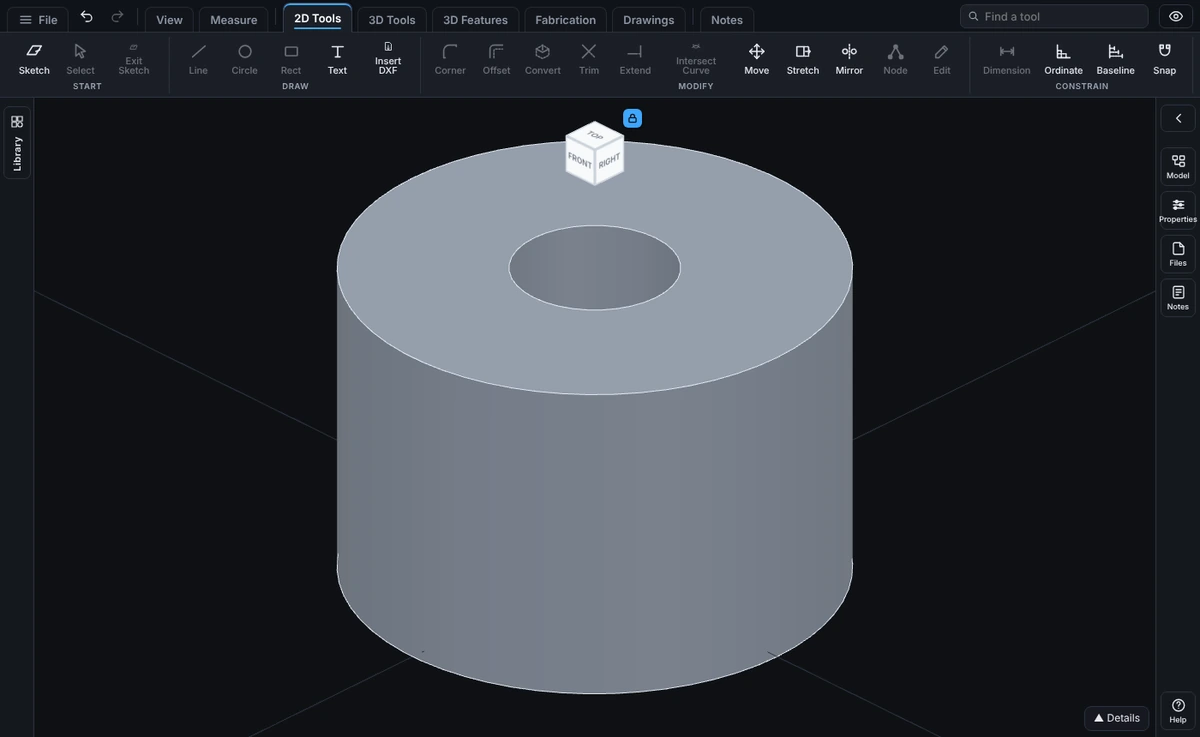
What you get: a round solid (a shaft, a ring, a cone) made by turning your profile around the construction line, added to the part or cut from it, and the message Revolve applied with the new volume.
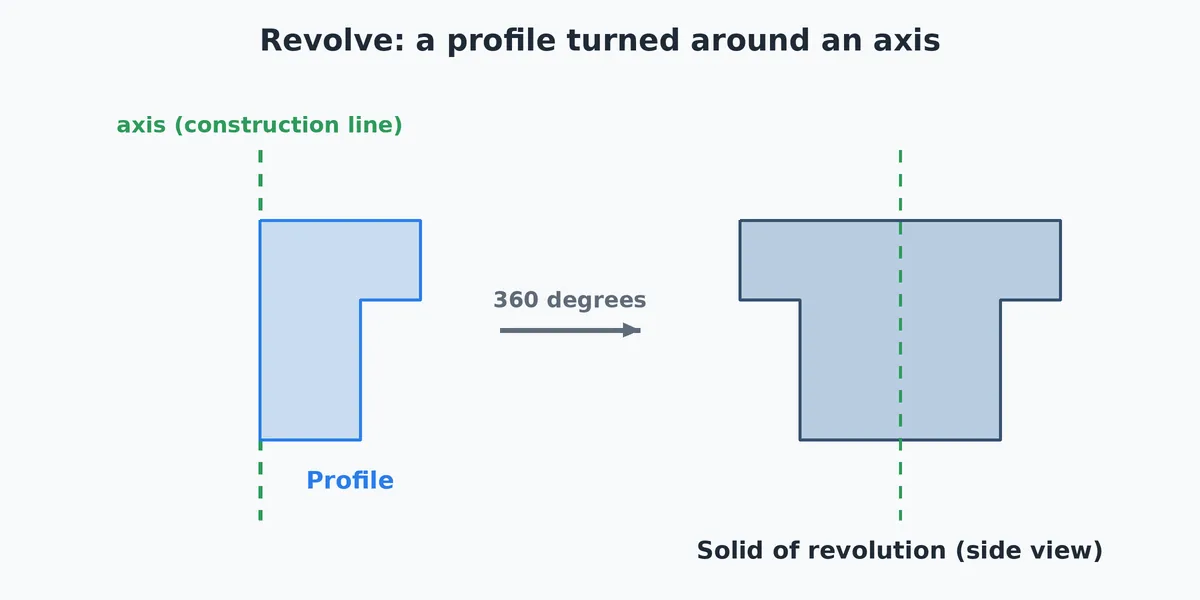
When to Use It
- Make a shaft, pin, knob or washer from one half-section drawing
- Make a cone, a dome or a stepped shaft with one profile
- Cut a groove, a round pocket or a notch that runs right round a part
- Make part of a turn, such as a 90 degree wedge or a curved slot, by typing an angle below 360
Step by Step
- Open a sketch on a plane or a face (see Planes and Faces). Sketching is part of modeling, which comes with the Pro plans.
- Draw the profile as a closed outline, all on one side of where the axis will go. Lines and arcs that join end to end work, and so does a circle. Construction lines are never part of the profile.
- Draw the axis as a construction line in the same sketch: on the Line flyout choose Construction line, or draw any two point line and make it construction (see Line, Circle, Rectangle, Arc, and Construction). The profile may touch the axis. That is how a solid shaft is made. A Length box may open beside the line, when you draw it and again when Revolve picks it as the axis: press Esc to close the Length box (or type a length and click Set).
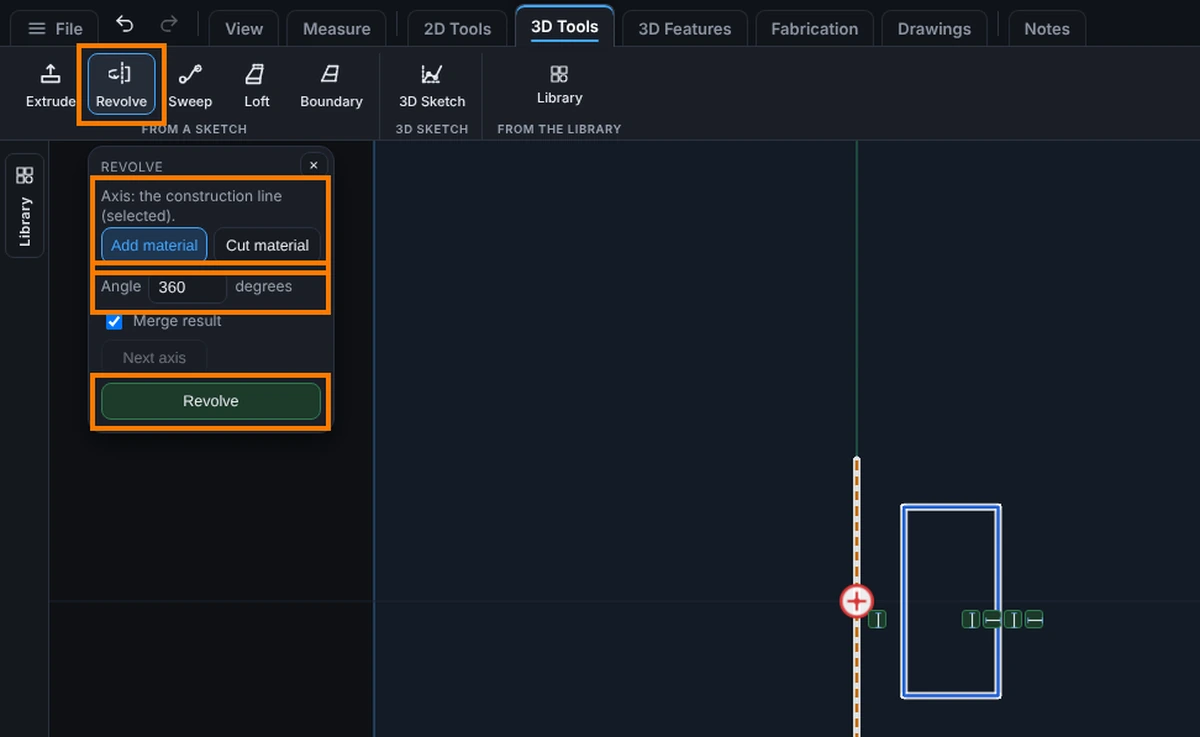
- With the sketch still open, click Revolve on the Features tab.
- Choose Add material or Cut material.
- Type the Angle in degrees. It starts at 360, all the way round.
- For Add material, leave Merge result ticked to join the body the new solid touches, or untick it to keep the solid as its own body.
- Click Revolve. The profile is used up and the construction line stays in the sketch. A message says Revolve applied (or Revolved cut applied) and gives the new volume.
Options
- Add material or Cut material: add the solid to the part, or remove it from the part. A new part can start with an added revolve. A cut needs a solid to cut.
- Angle: more than 0 and at most 360 degrees. The turn runs counterclockwise looking along the axis from the first end of the construction line. A smaller angle turns the profile only that far.
- Merge result (Add material only): ticked joins the body it touches, unticked makes a separate body, saved as its own part.
- Next axis: with more than one construction line in the sketch, the line used as the axis is the newest one. The panel says which: Axis: construction line 2 of 3 (selected). Click Next axis to move to the next line, and again to come round to the first. The chosen axis is highlighted in the sketch.
- Bodies to cut (Cut material only, parts with more than one body): choose which bodies the cut works on, or leave Cut every body it touches ticked. See Extrude and Cut.
If the sketch holds more than one closed outline, each one is revolved around the same axis as its own step.
Edit It Later
Open the Model tree and right-click the step, then choose Edit Feature. You can change the Angle and Merge result. Edit Sketch reopens the profile and the axis. The step is named Revolve, or Cut-Revolve for a cut, and its row reads like Revolve, 90 degrees.
Tips and What to Expect
- A 2 in wide profile whose edge sits on the axis makes a solid 4 in across. A profile 1 in away from the axis makes a ring with a hole 2 in across.
- The profile has to stay on one side of the axis. To make a hollow shaft, draw the wall only, not the hole.
- For a full turn the seam is hidden, so the solid has no line where it started.
- The axis stays in the sketch as a guide. It is not part of the solid.
- Undo takes the step back, and the profile comes back into the sketch.
Common Mistakes and Messages
- "Draw a construction line for the axis first (Line, Construction line)." The sketch has no construction line yet. Draw one, then click Revolve again.
- "Type an angle more than 0 and at most 360 degrees." Fix the Angle box.
- "The shape crosses the axis. A revolve needs the whole shape on one side of its axis." Part of the outline is on each side of the axis. Move the axis to the edge of the profile, or redraw the profile. A circle that crosses the axis gets the same message.
- "The shape lies on the axis, so revolving it makes nothing." Move the profile off the axis.
- "Sketch at least one closed profile first. Construction lines do not cut." Only a closed outline can be revolved. If the lines do not meet, the message says to join the ends so every corner meets exactly two pieces (snap to the points).
- "Tick at least one body under Bodies to cut, or tick Cut every body it touches." A cut in a part with several bodies needs to know which bodies to cut.