Offset Entities
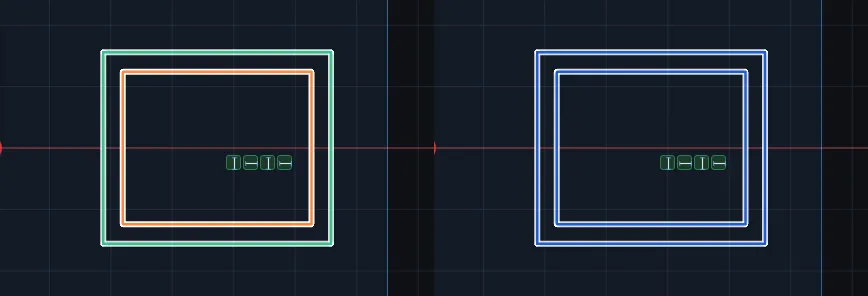
Makes a copy of sketch pieces a set distance away, like the line you would draw along the outside of a part to leave a wall or a gap. Click a line, arc, circle or shape, type how far, and press Apply. A connected run of pieces is copied whole, and the corners of the copy stay joined.
What you get: a copy of the pieces at the distance you typed, joined at its corners, as plain sketch pieces you can extrude or cut, and the message "Offset made: 1 piece. They are plain pieces; dimension them as you like. Ctrl+Z puts it back."
When to Use It
- Leave a wall of 1/8 in around a pocket or a boss
- Draw a clearance outline a set distance outside a part
- Make a second profile for a groove, a gasket or a rim
- Copy a run of connected lines and arcs without redrawing each one
Step by Step
- Open a sketch on a plane or a face (see Planes and Faces). Sketching is part of modeling, which comes with the Pro plans.
- Draw the pieces you want to copy, such as a rectangle or a line with an arc on the end.
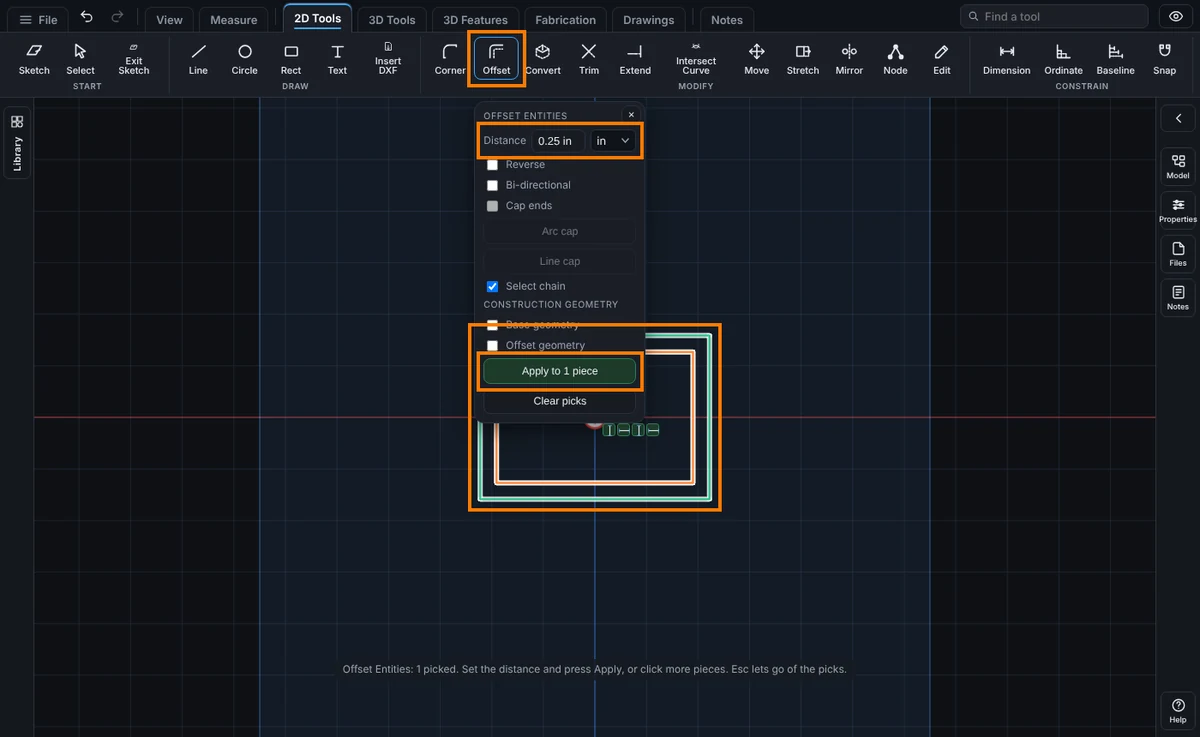
- On the Sketch tab, click Offset. The panel opens and the tool is armed.
- Type the Distance, such as
0.25or1 3/8. Add a unit to override the sketch units, like6mm. - Click the piece to copy. A dashed preview shows where the copy will go. Click more pieces to add them, or click a picked piece again to let it go.
- Press Apply. The copy is made and the tool stays armed for the next one.
Options
- Reverse: put the copy on the other side. A closed shape goes outside by default, and Reverse takes it inside. For an open line or arc, the side you click is the side the copy goes to.
- Bi-directional: make a copy on both sides at once.
- Cap ends: for an open chain made on both sides, close the two ends with an Arc cap (an arc about each end) or a Line cap (a straight line across each end).
- Select chain: on by default, a click takes every piece that meets the one you clicked, end to end. Turn it off to copy only the piece you clicked.
- Base geometry: turn the pieces you copied into construction geometry (dashed, never extruded).
- Offset geometry: make the copies construction geometry.
Tips and What to Expect
- The corners of a copied chain stay joined. Where the copy goes outside a corner the two lines run on to meet. Where it goes inside a corner they are cut back to meet. A line that meets an arc stays joined on the arc.
- The copies are tied end to end to each other, but not to the originals. They are plain pieces: change the original later and the copy stays where it is. Dimension the copy yourself if you need its distance to stay fixed. See Dimensions and Units.
- A distance that would take a shape away, such as 3 in inside a 2 in wide rectangle, is refused and nothing changes. A message says so. A distance of zero is refused too. A round piece that shrinks to nothing drops out and its neighbours meet, and a message says so. An offset that would cross itself or turn inside out is refused.
- A circle grows or shrinks about its own center. An arc keeps its center and its ends line up with the originals.
- One Undo takes back the whole offset, every piece of it. Press Esc to let go of the picks, and Esc again to end the tool.
- Press Help while Offset is armed to open this page.
Common Mistakes and Messages
- Apply stays grey. Nothing is picked yet. Click a piece of the sketch, and Apply turns on.
- "Type a distance more than zero, like 0.25 or 1 3/8." The Distance box is empty, zero or not a number.
- "Offset did not work: a side of the shape turns round at that distance." The distance is too large to go inside the shape, such as 3 in inside a 2 in wide rectangle. Type a smaller distance, or press Reverse to go outside.
- "The offset cannot hold with the relations already there. Nothing changed." The copy fights relations on the pieces. Remove the relation that fights it, or offset fewer pieces.