New Assembly and Make Assembly from This Model
These two items under File, New start an assembly. New Assembly begins with nothing in it. Make Assembly from This Model begins with the saved model you have open already placed as the first part. Assemblies need the Pro plan.
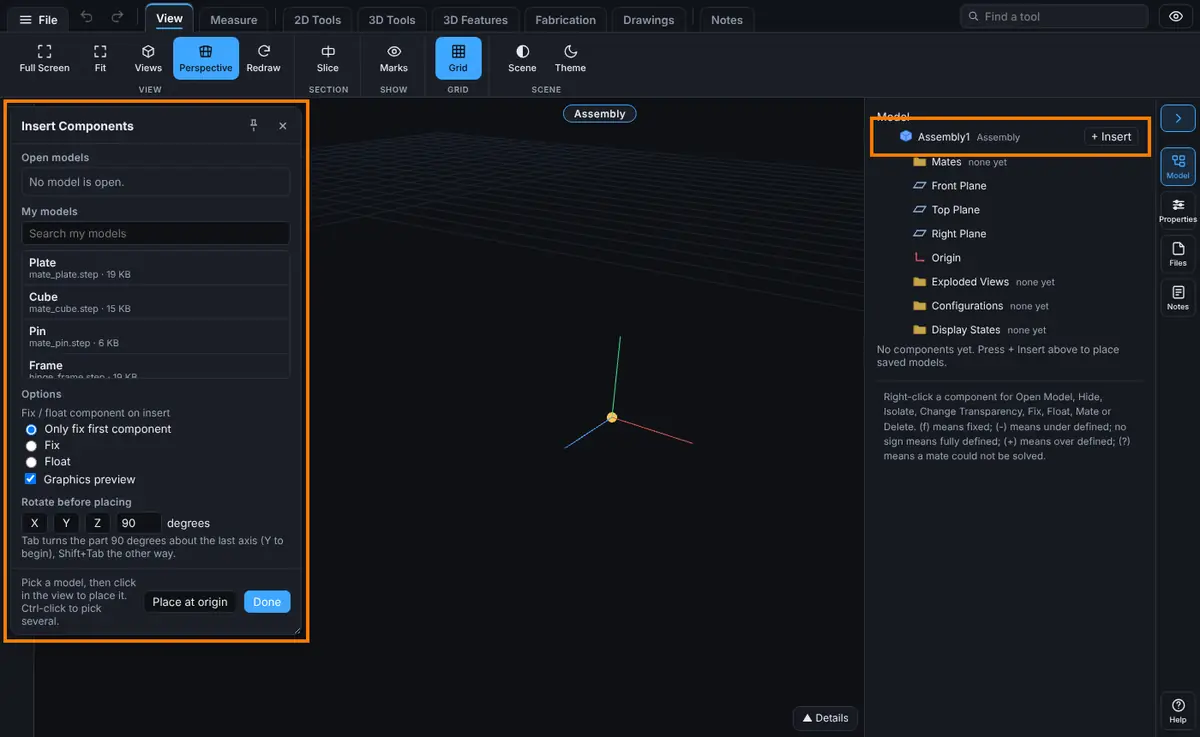
What you get: a new assembly named Assembly1 with the Model tree open and the Insert Components window ready to place parts; with Make Assembly from This Model, your model is already in it as the first, fixed component.
When to Use It
- Put several saved models together and mate them
- Start an assembly around a part you already have open
- Begin from nothing and add parts one at a time
Step by Step: New Assembly
- Click File, point to New (or click it), then click Assembly.
- The view clears and the Model tree opens. The assembly is called Assembly1.
- The Insert Components window opens by itself. Pick a model and click in the view to place it. See Insert Components for every option.
- The window closes after each placement. To add the next part, click + Insert on the Assembly1 row of the Model tree (or Insert on the Features tab). To place several in a row, click the pin at the top of the window first, then Done when you have the parts you need.
Step by Step: Make Assembly from This Model
- Open a saved model (see File, Open). It has to be the current version of a model in your account.
- Click File, point to New, then click Assembly from This Model. The item only shows when a saved model is open.
- The window says "Reading <name>..." while the model loads.
- The model becomes the first component, with its origin on the assembly origin. With the default setting (Only fix first component) it is fixed, so the parts you add have something to hold on to.
- The Insert Components window opens so you can add the rest.
Options
| Item | What it does | Shows when |
|---|---|---|
| New Assembly | Starts an empty assembly | Always under File, New (a plan without assemblies is told so when you click it) |
| Make Assembly from This Model | Starts an assembly with the open model as its first part | A saved model is open |
There are no boxes to fill in. Everything else happens in the Insert Components window and the Model tree.
Tips
- The model you had open is closed in this tab. It stays saved in your account, and it is already the first component when you use Make Assembly from This Model.
- If the model you had open has unsaved modeling changes, you are asked to confirm: "Starting a new assembly will discard N unsaved modeling change(s). Save as new version or Download STEP first to keep them. Continue anyway?"
- Starting a new assembly while another one is open closes the first one. A saved assembly saves itself and goes. One that was never saved asks "Leave this assembly?" with the note "It is not saved yet." Answer No to stay.
- Save the assembly with File, Save to keep it. An unsaved assembly stays open only as long as its tab does. See Saving, Updates and Sharing.
- Opening a STEP file that holds several components also opens it as an assembly, but one you can only move around. See STEP Assemblies.
Common Mistakes and Messages
- "Assemblies are on the Pro plan." Making or changing an assembly needs the Pro plan or higher.
- "Exit Edit Part first." A part is open for editing in place. Leave it, then start the assembly.
- "Open a saved model first." Make Assembly from This Model needs a model that is saved in your account.
- "An older version is showing. Go back to the current one first." Open the latest version of the model, then try again.
- "Could not read ..." followed by the model's name: the model could not be loaded. Try again in a moment.
- "Could not start an assembly. Reload the page and try again." The assembly tools did not load.