Make Drawing: Save as PDF and Projected View
Two more things in the window that Make Drawing (on the Documents tab) opens: Save as PDF saves the drawing sheet as a PDF file you can print, email or send to the shop, and Projected view adds one more standard view (the left, bottom or back of the part), lined up with the view it is projected from.
What you get: a PDF file of the sheet, named after the model and ending in -drawing.pdf, with sharp lines and words that print true to scale, and, if you pick one, a fourth view of the part on the sheet.
Step by Step
- Open a 3D part. Click the Documents tab, then Make Drawing (or open File, then New, then Drawing of This Part...). The Make Drawing window opens with the front, top and right views on a sheet (see Make Drawing).
- At the bottom of the left side of the window, click Advanced options to open it and find Projected view. Click the list and pick Left view (from the Front view), Bottom view (from the Front view) or Back view (from the Right view). The window works out the view (a second or so on a big part) and puts it on the sheet, labelled LEFT, BOTTOM or BACK.
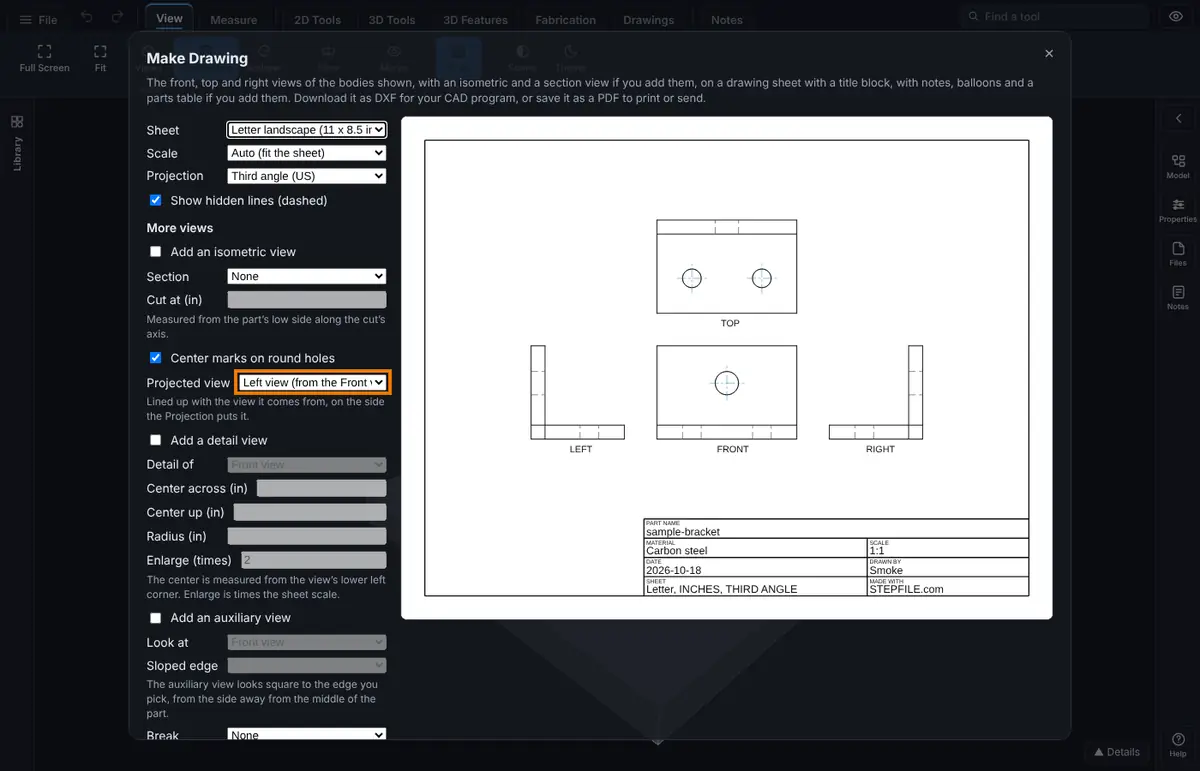
- Check Projection near the top of the window: Third angle (US) or First angle (ISO). It decides which side of its view the projected view goes on (see Where the Projected View Goes below).
- Check the picture and the line under the settings. It names the projected view and counts its lines, for example: Left view, projected from the Front view: 6 visible lines, 4 hidden.
- Scroll to the bottom of the window and click Save as PDF (between Cancel and Download DXF). The file downloads, named after the model and ending in -drawing.pdf. A message at the bottom of the screen gives the sheet, the scale, the number of lines and the size of the file, starting Drawing saved as PDF: and then, for example, Letter landscape, scale 1:1.
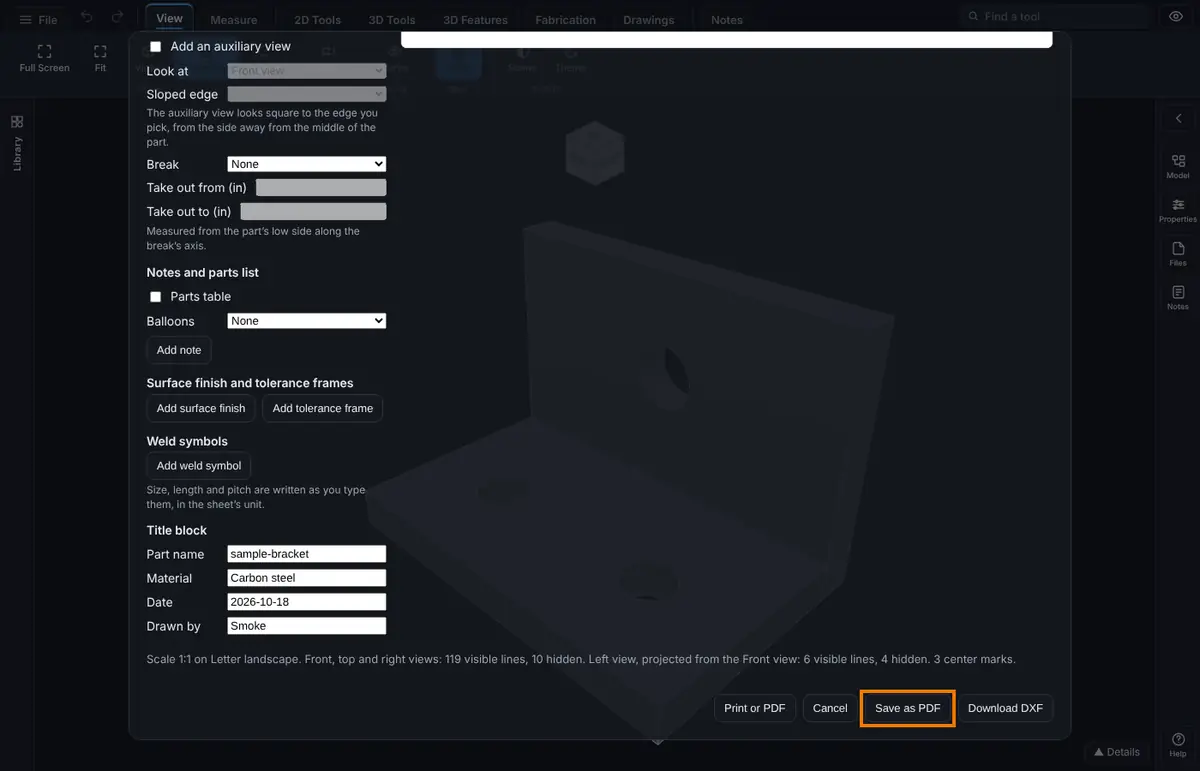
- The window stays open after the PDF is saved, so you can click Download DXF for the same sheet too, or change a setting and save another PDF. Click Cancel or the X to close it.
- Open the PDF in any PDF reader. To print it to scale, print at actual size (100%, not Fit to page) on the sheet size you picked.
Options
- Projected view: None, Left view (from the Front view), Bottom view (from the Front view) or Back view (from the Right view). It starts on None, so a drawing you made before opens as it did.
- Left view: the part seen from its left side, the side the right view does not show.
- Bottom view: the part seen from below.
- Back view: the part seen from behind, as you would see it walking round from the right view.
- Save as PDF: saves the sheet in the picture, with every view, note, balloon and table on it. It is on whenever Download DXF is on, and off while the views are being worked out or when the window says a choice cannot be drawn.
Where the Projected View Goes
- Third angle (US): the left view goes left of the front view, the bottom view below the front view and the back view right of the right view.
- First angle (ISO): the left view goes right of the front view, the bottom view above the front view and the back view left of the right view.
- It lines up with the view it comes from: a left or back view sits at the same height as that view, and a bottom view straight under (or over) the front view with its ends in line.
- The other views move over to make room for it, and Auto (fit the sheet) picks a scale that fits them all.
- It is labelled LEFT, BOTTOM or BACK under it. Edges hidden behind the part are dashed when Show hidden lines (dashed) is ticked, and a round hole you look straight down gets a center mark in it, as in the other views.
What Is in the PDF
- One page, the size of the sheet: A4 is 297 x 210 mm, A3 is 420 x 297 mm, Letter is 11 x 8.5 in and Tabloid is 17 x 11 in, all landscape.
- Every line is a sharp line, not a picture, so it stays sharp however far you zoom in. Each kind of line has the color, thickness and dashes the window's picture shows: the part's lines black, hidden lines gray and dashed, center marks blue, the cutting line red.
- The words are in Helvetica, a font every PDF reader has, so nothing extra is stored in the file. Letters with accents print as they are, and an accent typed as a separate mark is joined to its letter first. An accent that cannot join its letter, and the marks that make a symbol show as an emoji, are left out. A letter Helvetica does not have (Chinese or Greek letters, an emoji) prints as a question mark. Hidden marks that show nothing (such as a zero width space) are left out.
- The file's title is the part name in the title block, so it shows in your PDF reader's title bar.
- The scale on the sheet is true on paper when you print it at actual size (100%, not Fit to page) on the sheet size you picked.
Limits
- A projected view and a broken view cannot be on one sheet yet.
- One projected view per sheet, and only these three. You cannot project a view from the top view, the isometric view or another projected view yet.
- The projected view has the same limits as the front, top and right views: at most 600,000 triangles, 8 seconds and 60 million steps to work it out.
- The PDF is one page with one sheet. It holds lines and words, not a shaded picture of the part, and a CAD program reads the DXF better than the PDF.
- A PDF of more than 16 MB is not made (a sheet with very many lines), and writing it stops after 5 seconds.
- It needs the Advanced plan or higher, and on a shared model the Exports box ticked, the same as Download DXF.
Common Mistakes and Messages
- "A projected view and a broken view cannot be on one sheet yet. Set Projected view or Break to None." You picked a projected view and a break together. Set Projected view or Break back to None.
- "At 1:1 the views need ... and this sheet has ... for them. Pick a smaller scale, a bigger sheet or Auto." The projected view takes room. Set Scale to Auto (fit the sheet), a smaller scale or a bigger Sheet. Save as PDF stays off until the views fit.
- "This PDF would be ... MB, more than the 16 MB one sheet may take." Untick Show hidden lines (dashed), or hide some bodies, and try again.
- "Writing the PDF took longer than 5 seconds, so it was stopped." Untick Show hidden lines (dashed), or hide some bodies, and try again.
- "Part of the drawing lies far off the sheet, so no PDF was made." A view or a note sits well outside the sheet. Set Scale to Auto (fit the sheet), or pick a bigger sheet, and try again.
- "Working out the views took longer than 8 seconds, so it was stopped." Hide some bodies, or open a simpler part, and try again.
- "Make a drawing and save it as DXF on the Advanced plan or higher." The plan does not include exports, so Save as PDF is off too.
- Save as PDF is gray. The window is still working out the views (the line under the settings says Working out the views...), or it shows a message in red. Wait a moment, or fix what the red message says.
- The PDF prints too small or too big. Print it at actual size (100%), not Fit to page, on the sheet size you picked.
- Some letters show as a question mark. The PDF's font does not have them. Type the title block and notes in Latin letters, or use the DXF.
- Nothing downloads. Your browser may ask where to save the file or block the download. Look at the top or bottom of the browser window for a prompt.
Tips
- Pick a left view when the left side of the part has holes or shapes the right view only shows as dashed lines.
- A bottom view helps on a part with pockets or holes cut from below.
- Save the PDF for people who print or read the drawing, and the DXF for people who open it in a CAD program.
- Save as PDF writes the PDF file straight away.