Rotate Component
Turns a part of the assembly by dragging it or by typing the angles. A part that is held by mates turns only the way its mates allow. Assemblies need the Pro plan.
What you get: the part turned by exactly the angles you typed (or as you dragged it), the line at the bottom of the window saying "Turned Cube<1>.", and one step on the undo list.
When to Use It
- Turn a part to face the right way before mating
- Spin a part about a hole axis or an edge
- Turn a part by exact angles
Step by Step
- Click a component in the view or in the Model tree.
- Click Rotate on the Assembly tab (Components group), or right-click the component and choose Assembly tools, Rotate Component. The Rotate Component window opens and names the component.
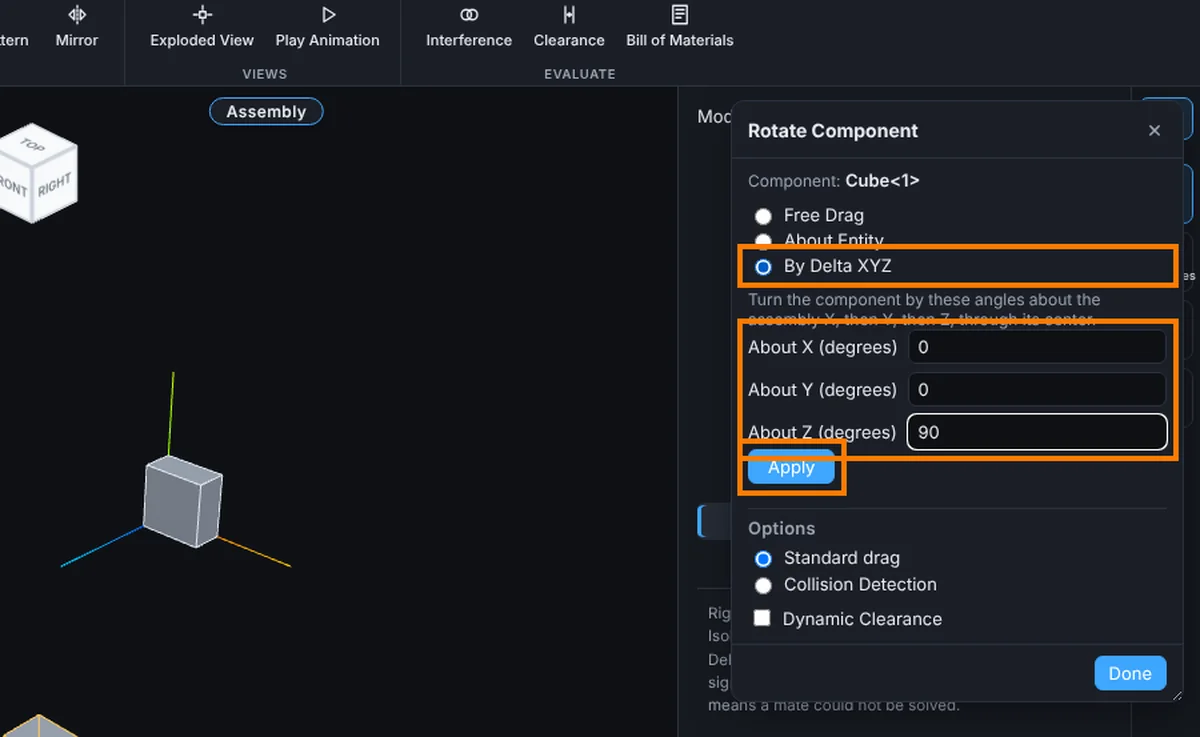
- Choose a mode. For exact angles, click By Delta XYZ (each mode is described under Modes below).
- Type About X, About Y and About Z in degrees, for example 90 in About Z and 0 in the other two.
- Click Apply (or press Enter). The part turns about X, then Y, then Z, through its center, and the line at the bottom says "Turned Cube<1>." with the part's own name.
- Click Done, the X, or press Esc to close the window.
Modes
- Free Drag: drag the part with the left mouse button to turn it about its own center.
- About Entity: click a straight edge, or a round face (its axis is used), then drag the part to turn it about that line. Pick another changes the entity.
- By Delta XYZ: type About X, About Y and About Z in degrees and click Apply (or press Enter). The part turns about X, then Y, then Z, through its center.
Options
The Options part (Standard drag or Collision Detection, and Dynamic Clearance) is the same as in Move Component and shared with it.
Tips and What to Expect
- You can also right-drag a floating part in the view to turn it without opening the window.
- To turn a part with a triad, right-click it and choose Move with Triad, then drag a ring. Right-click a ring for Rotate 90 and Rotate 180.
- Ctrl+Z undoes a turn.
Common Mistakes and Messages
- "Plate<1> is fixed. Right-click it and choose Float to move it." Fixed parts do not turn. Right-click it and choose Assembly tools, Float first.
- "The assembly is exploded. Collapse it to move components." Collapse the exploded view first.
- "Pick a straight edge or a round face." About Entity needs one of those.
- "Type angles in degrees, such as 90 or -45.5." A box holds something that is not a number. Type plain degrees.
- The part will not turn the way you drag. Its mates only leave certain turns free. The tree row shows what is left, for example "free: 1 rotation".