Model Tree
Open it from the right rail (Model). It lists every plane, sketch, and feature step in build order, the same idea as the feature tree in professional CAD tools.
What you get: every step of the part in build order, each one a row you can right-click to edit, suppress, roll back to, reorder, rename or delete, with the part's bodies under Solid Bodies.
Step by Step: Change a Step From the Tree
- Click Model on the right rail. The tree opens with the part's name at the top, then Solid Bodies, the three planes, the Origin and the steps, oldest first.
- Right-click the step you want, for example Shell1. Its menu opens.
- Click Edit Feature to reopen the step's panel with its sizes, change them and apply. Or click Suppress to leave the step out of the build for now.
- To see the part as it was before a step, click Roll Back to Here. The blue rollback bar moves above the step. Right-click any step and choose Roll to End to build every step again.
- To rename a step, click it and press F2, type the new name and press Enter.
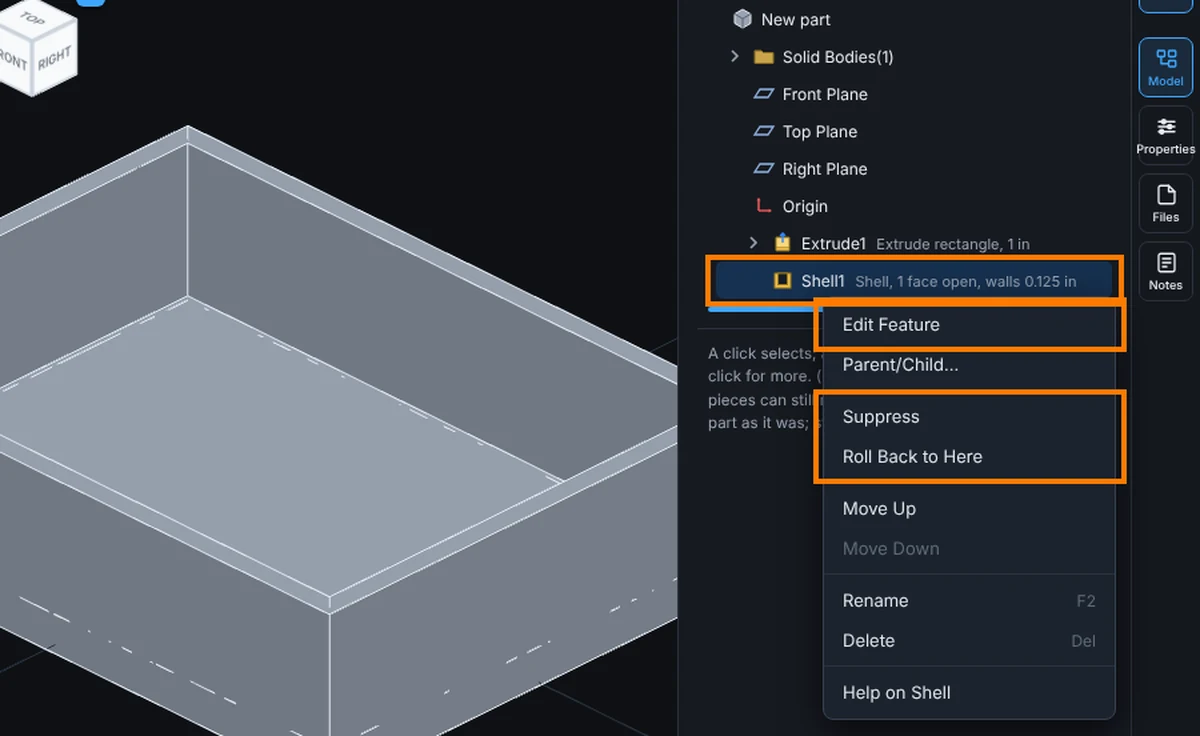
Right-Click Menu (a Feature Step)
- Edit Feature: reopens the step's own panel (depth, angle, size, or whatever it took) in place, without redoing any face or edge picks
- Edit Sketch: for a step with a profile, reopens its sketch to change the shape itself
- Suppress / Unsuppress: temporarily removes a step from the build (and everything built on top of it) without deleting it; Unsuppress brings it back
- Roll Back to Here: moves the rollback bar to just before this step, so everything below it is kept but not built, ready for a new step to go in at the bar; Roll to End builds every step again
- Move Up / Move Down: reorders the step, when the steps around it allow it (a step built on another cannot move above it, and the tree explains why when a move is rejected)
- Parent/Child...: a read only window listing the steps, sketches and planes this step is built on and the steps built on it; click a row to select it (see Parent/Child)
- Rename (F2)
- Delete (Del)
- Help on the step's tool, at the end of every menu, opens its own Help page
Drag a row to reorder it directly, the same moves Move Up/Down make from the menu.
Right-Click Menu (a Body, in Solid Bodies)
- Hide / Show: free on every plan
- Show Only This: hides every other part. It needs the Advanced plan or higher; on a Free account, or signed out, the item stays in the menu, grayed, and a click says what it needs
- Material...: sets that body's own material, independent of any other body (see Materials and Weight)
- Rename (F2)
- Delete (Del)
Right-Click Menu (a Plane)
- Sketch on This Plane
A Sketch Not Yet Used
A sketch drawn but not yet cut, extruded, or otherwise turned into a feature shows as its own entry (labeled whether it is the one currently open or waiting). Right-click it for Open (reopen it to keep drawing) or Discard (throw it away).
Editing In Place
Renaming, editing a step's size, and reordering all happen right in the tree row, with Enter to commit and Esc to cancel.
Parts and Assemblies
A model of any size, with any number of parts, opens on every plan, signed in or not. Showing and hiding parts is free too: the eye beside each body in Solid Bodies, Hide this part and Show all parts in the right-click menu.
What needs the Advanced plan or higher is what you do with a part. Isolating it takes Isolate this part in the right-click menu, Show Only This in this menu, or the only button in the Parts list. Exporting takes Export this part as STEP, Export this part as STL or Export this face as DXF in the right-click menu. On a Free account, or signed out, these stay visible but grayed, with a short note when you hover and a message when you click. Editing the model (the Sketch, Features and Fabrication tabs) is a Pro feature, as before.
A model opened from a share link follows the plan of the person who shared it, so recipients never pay: when the sender is on Advanced or Pro, the recipient can isolate parts. Exports from a share also need the Exports permission on that link, which is off unless the sender turns it on. Both have to allow it.
More on the Tree
Common Mistakes and Messages
- "Isolate a part on the Advanced plan or higher." Show Only This is grayed on a Free account or signed out. Hide the other bodies with their eyes instead, which is free.
- Move Up or Move Down is grayed, or a move is refused. A step cannot go above the step it is built on. The tree says why when a move is rejected.
- The part looks unfinished. The rollback bar is above some steps, so they are kept but not built. Right-click a step and choose Roll to End.
- Edit Sketch is missing. Only a step made from a sketch profile has it. A Shell or a Round is changed with Edit Feature.