Combine
Joins bodies into one, takes bodies away from another, or keeps only the material bodies share. It works on whole solid bodies, the way Extrude and Cut work on a sketch. (Compare Merge result on Extrude, which joins new material as you make it.)
What you get: the picked bodies joined, taken away or cut down to what they share, as one body in one History step, and a message that names the operation and the new volume.
When to Use It
- Join two bodies you made separately into one part
- Use one body as a cutting tool: shape it, then subtract it from the part
- Keep only the overlap of two bodies, for example a profile seen from the front crossed with a profile seen from the side
How to Start It
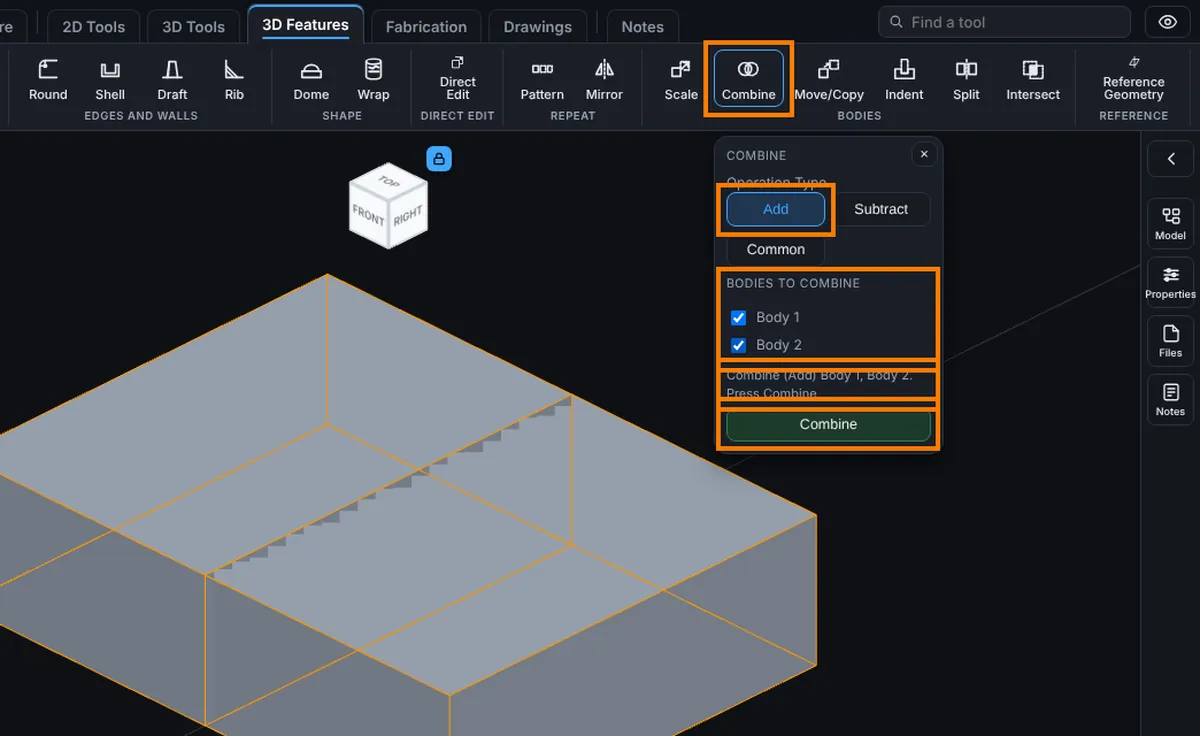
Click Advanced on the Features tab, then Combine. Modeling must be open (it comes with the Pro plans), and the part needs at least two bodies. To make a second body, untick Merge result when you extrude.
What to Pick
- Operation Type: Add joins the bodies into one body. Subtract takes the bodies away from the main body. Common keeps only the material that all the bodies share.
- Main body (Subtract only): the body material is taken away from. Choose it from the list, or click it in the view.
- Bodies to combine (Add and Common): tick two or more.
- Bodies to subtract (Subtract): tick one or more. The main body is not in this list.
With the panel open you can also click bodies in the 3D view: each click ticks a body or drops it. For Subtract, the first click chooses the main body (outlined in blue) and the next clicks tick the bodies to subtract (outlined in orange). A line under the lists says what will happen.
Step by Step
- Make the bodies. For a second body, untick Merge result in the Extrude panel.
- Click Advanced on the Features tab, then Combine.
- Choose Add, Subtract or Common.
- For Subtract, choose the Main body.
- Tick the bodies, or click them in the view.
- Press Combine. The result is one step in History, and the toast says the new volume.
What Happens to the Bodies
- The result keeps the name of the first body ticked (for Subtract, the main body's name).
- The other bodies you picked are used up: they become part of the result (Add), are taken away (Subtract) or are cut down to the shared part (Common). Bodies you did not pick are left alone.
- Two 10 mm cubes that overlap by half: Add gives 1500 mm³, Common gives 500 mm³, and Subtract gives 500 mm³.
Things to Know
- Combine is refused in plain words, and the part is left as it was, when:
- fewer than two bodies are picked (Add and Common), or Subtract has no main body or nothing to subtract
- the bodies for Add do not touch: a body here is one solid piece, so bodies that do not touch would still be separate pieces. Move them so they touch or overlap, or keep them as separate bodies
- the bodies for Common share no material, so nothing would be left
- a body to subtract does not overlap the main body, so it would remove nothing, or it covers all of the main body, so nothing would be left
- the result would not be a sound solid
- Combine is a History step like any other: Undo takes it back, and in the Model tree you can suppress it, delete it, drag it to another place, or right-click it and choose Edit Feature to change the operation type or, for Subtract, which of its bodies is the main body.
- Each body is remembered by its exact size and place. If an earlier step changes a body's size or removes it (an Extrude made deeper, a body suppressed or deleted), this step stops and names the body rather than combine a different one. Edit Feature cannot pick the bodies again, so delete the step and make it again, picking the bodies.
- A model with a Combine step stops at that step when it is opened in a viewer older than 6.344.0.
- Moving a Combine above a step that makes one of its bodies stops it the same way.
Common Mistakes and Messages
- "Combine needs at least two bodies. To make a second body, untick Merge result when you extrude." The part is one body. Make a second one first.
- "Subtract needs a main body to take material away from." Choose the Main body, or click it in the view first.
- "Those bodies do not all touch, so adding them would still leave 2 separate pieces. A body here is one solid piece: move them so they touch or overlap, or keep them as separate bodies." Move a body with Move/Copy Bodies so they touch.
- "Those two bodies do not overlap, so there is nothing in common and Common would leave no body. Pick bodies that overlap." Common keeps only shared material.