Export Assembly as STEP
Writes the whole assembly as one STEP file that keeps the structure: every part is a component with its place, and subassemblies are nested. Use it to hand the assembly to someone with other CAD software. It needs the Advanced plan or higher.
What you get: one STEP file named after the assembly (Assembly1.step for a new one), with every part as a component in the place it has here and subassemblies nested, ready for other CAD software.
When to Use It
- Send a finished assembly to a customer or a shop
- Move your assembly into other CAD software
- Keep a STEP copy for your records
Step by Step
- Open the assembly (saved or not). It needs at least one component.
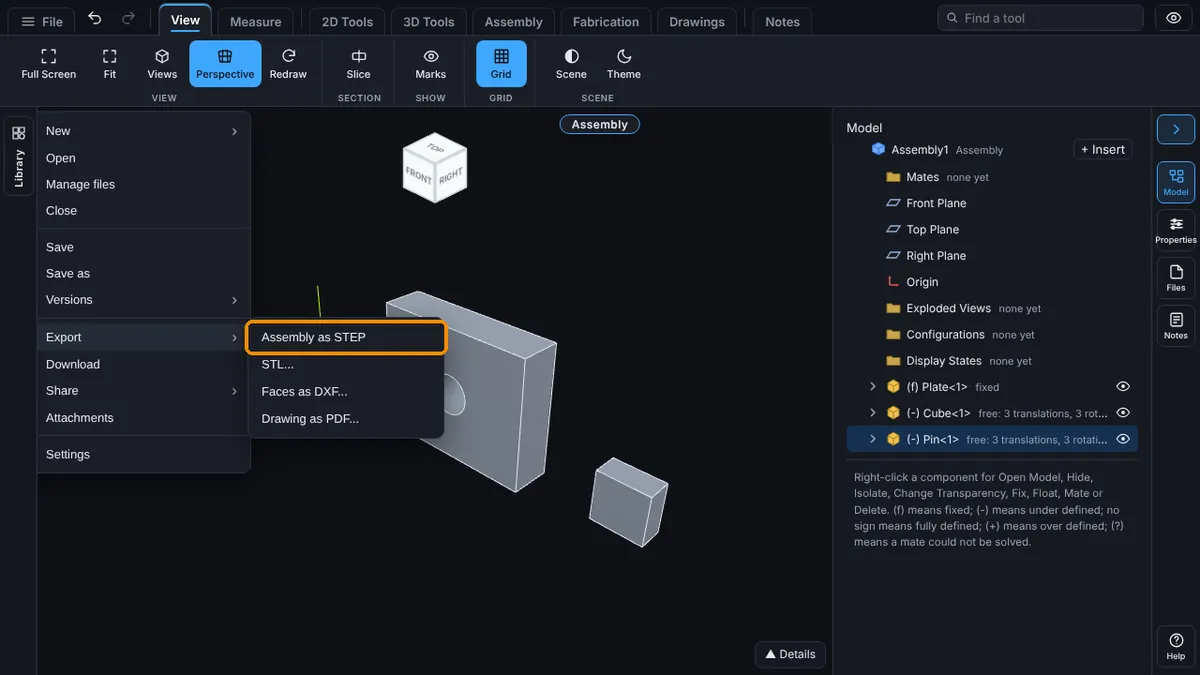
- Click File, point to Export (or click it), then click Assembly as STEP. The item only shows while an assembly is open.
- A loading message counts through the models: "Reading the parts..." then "Reading part N of M..." then "Writing the STEP file..."
- Your browser downloads the file. It is named after the assembly, with spaces and odd characters changed to underscores, and ends in
.step. For example, Table Frame becomesTable_Frame.step. - A message says how many components were written, for example "Assembly exported as STEP: 3 components, each placed as it is here."
Options
There are no boxes to fill in. On a plan below Advanced the menu item is grayed. What the file holds:
- One component for every placed part, with the same placement it has in the assembly.
- Subassemblies as nested products.
- Pattern copies, each as a component.
- Hidden components too. Hiding does not leave a part out.
- Units: the file is written in inches when your display unit is inches or feet, and in millimeters otherwise.
Tips
- Only parts that are STEP models can be written. Others are left out, and the message names them: "Left out (not STEP models or not readable): <names>."
- Each distinct model is read once, even if you placed it ten times.
- Mates aren't written. The parts are put where the mates left them.
- To export a single part instead, see Exporting Parts, Faces and Files.
Common Mistakes and Messages
- "Export an assembly as STEP on the Advanced plan or higher." Your plan does not include exports.
- "Start or open an assembly first." No assembly is open.
- "This assembly has no components yet." Insert a part first; see Insert Components.
- "The owner of this model has not allowed exports." A shared assembly follows its share's Exports setting.
- "Could not export the assembly as STEP: none of the parts is a STEP model, so there is nothing to write" Every part came from a mesh file (STL, OBJ, 3MF). Replace them with STEP models.
- "Could not export the assembly as STEP: Could not read a part" or similar. Check your connection and try again.