The View Cube and Lock View
The cube at the top center of the 3D view shows which way you are looking. It turns as you turn the model, and its faces read TOP, BOTTOM, FRONT, BACK, LEFT and RIGHT. It is also a button for the standard views and the place where you lock the view.
What you get: the model turned to look straight at the side you pick (Front, Right, Top and the others, or the 3D view from a corner), and, if you want, a locked view that a stray drag cannot spin.
Step by Step
- Look at the cube to see your direction. If the word TOP faces you, you are looking at the top of the part.
- Click or tap the cube. The Views panel opens just below it.
- Click a view, for example Right. The camera turns to that side and the panel closes.
- To close the panel without choosing a view, click the X at its top left corner or press Esc. Clicking the cube again, pressing Space, or clicking anywhere else in the 3D view also closes it. Space opens the panel too.
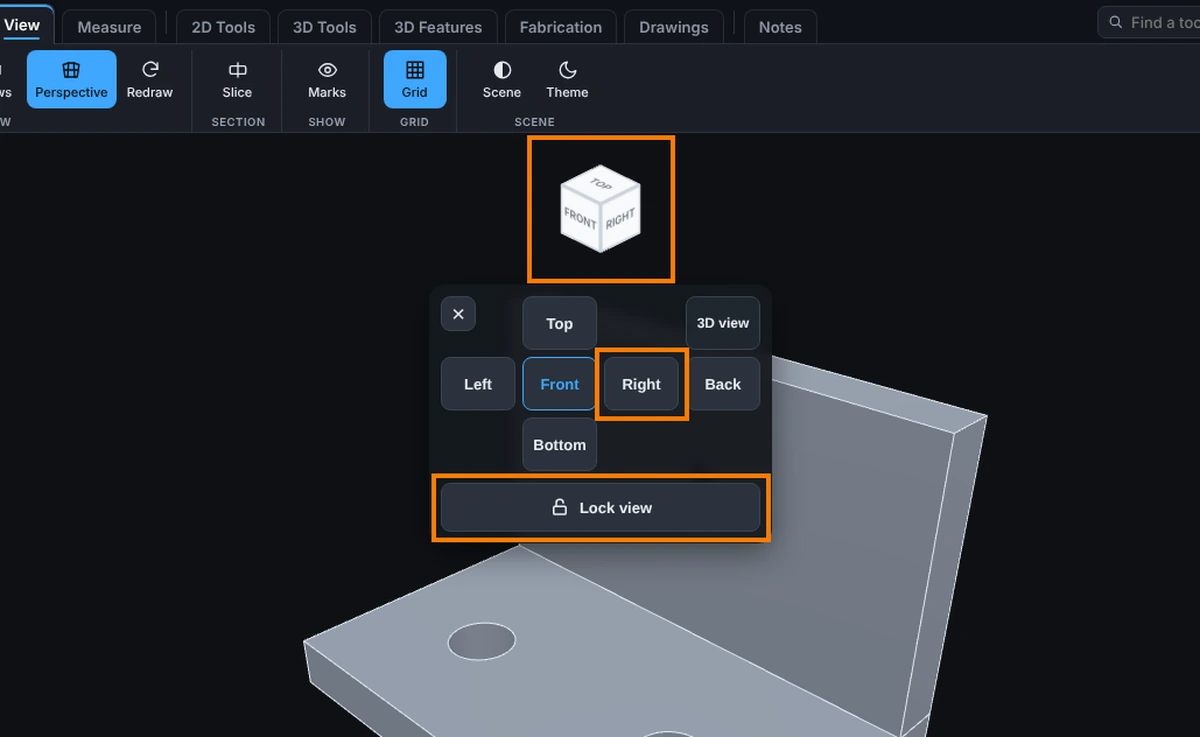
The cube has its own space at the top of the view. A press on it never starts a measurement or a sketch pick. The cube is drawn on its own: six labeled faces and nothing else, with no box outline around it.
Lock View
Lock View holds the view still, which is useful while you dimension a sketch from directly above and do not want a stray drag to spin the part.
- Open the Views panel (click the cube, or press Space).
- Click Lock view. The panel closes and a small padlock appears on the cube's top right corner.
- To unlock, click the padlock on the cube. A message says View unlocked. You can also open the panel again and click Locked - tap to unlock.
While locked:
- Dragging with the left button or one finger does not turn the view.
- The arrow keys do not turn it either. A message says The view is locked. Open the cube to unlock it, then use the arrow keys.
- The standard views still work, and zooming and panning still work.
- A deliberate turn with the right or middle mouse button, if you have given it the Spin or Rotate job under Settings, Mouse, still works.
Tips
- A flat DXF drawing is locked. Flat drawings open with the view locked so they stay flat. To spin one, turn on Allow 3D rotation in the Scene settings. See Scene.
- Sketching locked the view. When you start a sketch on a face, the view squares up to the face and locks so a slip cannot spin it. Unlock from the cube whenever you like, and it stays unlocked for the rest of the sketch.
- The cube turns light on a light background so it still reads. See Theme.
Common Mistakes and Messages
- "The view is locked. Open the cube to unlock it, then use the arrow keys." You pressed an arrow key while the view is locked. Click the padlock on the cube, or open the panel and click Locked - tap to unlock.
- "View unlocked. Drag to orbit; open the cube to lock it again." You clicked the padlock. The view turns again when you drag.
- I cannot turn the model. Look for the padlock on the cube. Click it to unlock.
- The view turned the wrong way. Front, Top and Right follow the model's own axes, so a part drawn lying down shows its Front from another side. Pick the view that looks right, or use 3D view to start over from a corner.