Interference Detection
Finds parts of the assembly that overlap, and tells you how much. Assemblies need the Pro plan.
What you get: a list of every overlap, each named like Interference1 with its volume and the two components, the overlap shown in red in the view when you click it, and a CSV file of the list if you want one.
When to Use It
- Check that parts really fit before you build
- Find a bolt that runs into a plate
- List overlaps and save them as a spreadsheet
Step by Step
- Open the assembly.
- Click Interference on the Assembly tab (Evaluate group). The Interference Detection window opens.
- In Selected components every component is ticked to begin. The note under the list says what will be checked: the whole assembly, one component against all the others, or only the ticked components against each other. Untick to narrow it.
- Click Calculate. The status reads "N interferences found." (with "and N coincident" when touching counts), or "No interferences found."
- Click a result in Results to see the overlap in red in the view. Use the sort list: Order found, Largest volume first or By component.
- Click Ignore to set a result aside. It leaves the list; tick Show ignored interferences to see it again, and there its button reads Unignore.
- Click Save results to write a CSV file, with the interference, its type, the two components, the volume and whether it is ignored.
- Close the window with the X or Esc.
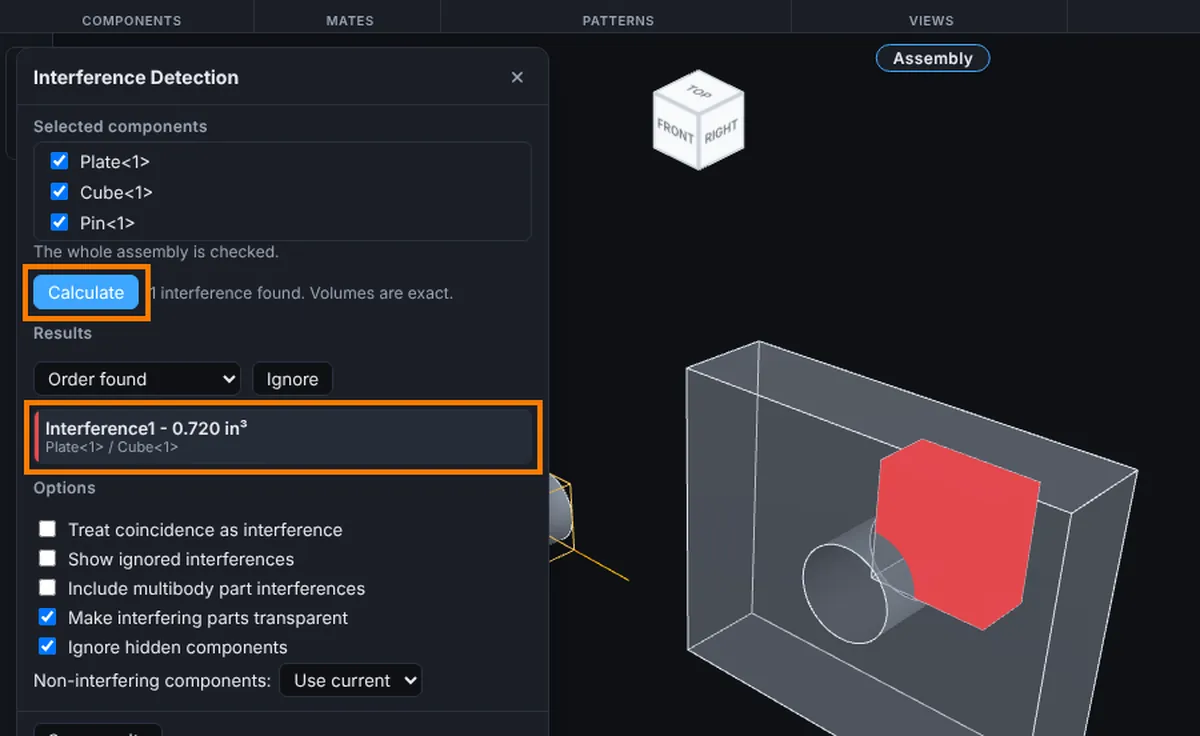
Options
- Treat coincidence as interference: counts parts that only touch.
- Show ignored interferences: shows the ones you set aside.
- Include multibody part interferences: also checks bodies inside one part against each other.
- Make interfering parts transparent (on to begin): the parts in the clash turn see-through.
- Ignore hidden components (on to begin).
- Non-interfering components: how the rest is shown while you look at a result: Use current, Wireframe, Hidden or Transparent.
Tips and What to Expect
- Results are not saved with the assembly. Ignored results stay with this session, and Ignore can be undone with Ctrl+Z.
- Changing an option makes the list stale; press Calculate again.
- Touching faces are not an interference unless you tick Treat coincidence as interference.
- A message at the end says whether the volumes are exact.
Common Mistakes and Messages
- "Press Calculate." Nothing has been run yet.
- "Every interference is ignored. Tick Show ignored interferences to see them." Every result was set aside with Ignore. Tick Show ignored interferences, or pick one and click Unignore.
- "No interferences found." No two ticked parts overlap. If you expected one, check that both parts are ticked, that neither is hidden (hidden ones are skipped while Ignore hidden components is on), and that touching counts only with Treat coincidence as interference.
- No components listed. The assembly has no components yet.