3 Point Corner Rectangle
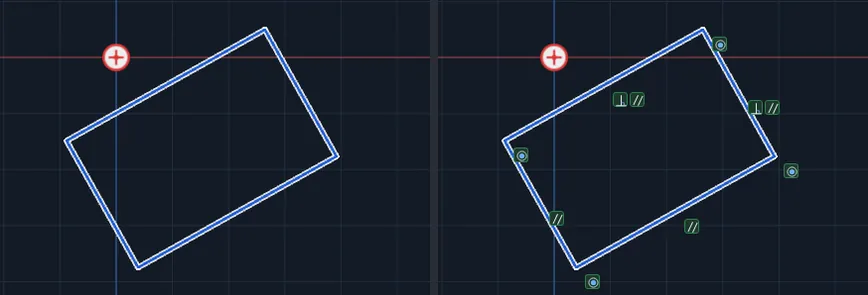
Draws a rectangle at any angle. You click two corners for the first side, then click once more to say how wide the rectangle is. The other two sides come out square to the first.
When to Use It
- A part that sits at an angle, not level or upright
- A rectangle that must line up with a slanted edge you already have
- Any time the plain Rectangle (always square to the screen) will not do
Step by Step
- Open a sketch on a plane or a face (see Planes and Faces). Sketching is part of modeling, which comes with the Pro plans.
- On the Sketch tab, click Rect. In the flyout, click 3 Point Corner Rectangle.
- Click the first corner.
- Move the mouse and click the second corner. These two clicks are the first side, at any angle. Hold Ctrl to lock that side to 15 degree steps. A dashed line shows the side while you move.
- Move the mouse to either side of the first side. A preview shows the rectangle. Click to set the width. The side of the line you click on is the side the rectangle grows toward.
- The rectangle is placed and 3 Point Corner Rectangle placed. appears. The tool stays armed.
Options
- Construction Geometry: tick the box at the bottom of the Rect flyout first and the four sides are drawn as dashed construction lines.
Tips and What to Expect
- How far your third click is from the first side sets the width. Where along the side you click does not matter.
- Clicking in line with the first side shows Click away from the line to set the width.
- This shape is four separate lines, not one Rectangle piece. They are tied with Coincident at the corners, Parallel across from each other, and Perpendicular at one corner, so they stay a rectangle when you change them. Because it is not a Rectangle piece, there is no width and height box. Set the size with Smart Dimension on two neighboring sides, or double-click a side to type its length. See Dimensions and Units.
- The four lines meet end to end, so they close into one outline for Cut or Extrude.
- Esc after the first or second click cancels. One Undo takes back all four lines and their relations together.