Radius and Diameter
A circle can be sized by its diameter or by its radius. Use whichever your drawing calls for. An arc is sized by its radius, or by the angle it sweeps (see Angle Dimensions).
What you get: a circle or arc held at the exact radius or diameter you typed, its number on the sketch starting with R or the diameter sign.
When to Use It
- Make a hole 1/2 in across (a diameter)
- Make a fillet or a rounded end 1/4 in in radius
- Change a circle that was sized by diameter so it is sized by radius, without moving it
- Set the radius of an arc
Step by Step
- Open a sketch and draw a circle (see Line, Circle, Rectangle, Arc, and Construction).
- Click Dimension on the Sketch tab.
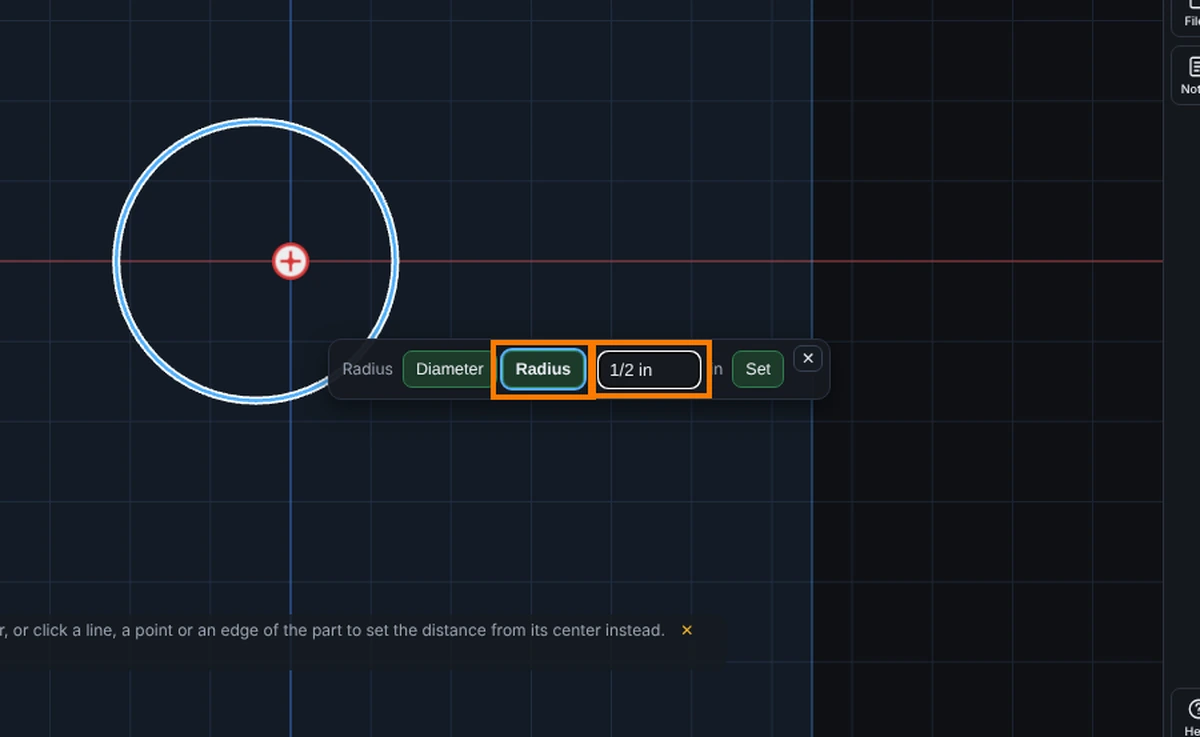
- Click the circle on its rim. A box opens with Diameter marked and the circle's diameter in it. A Radius button sits beside it.
- Click Radius if you want the radius instead. The number in the box changes to the radius.
- Type the size, such as
1/2 in, and press Enter. The circle changes size around its center, and the center stays where it was. - The number on the sketch starts with R for a radius, or with the diameter sign (a circle with a slash through it) for a diameter.
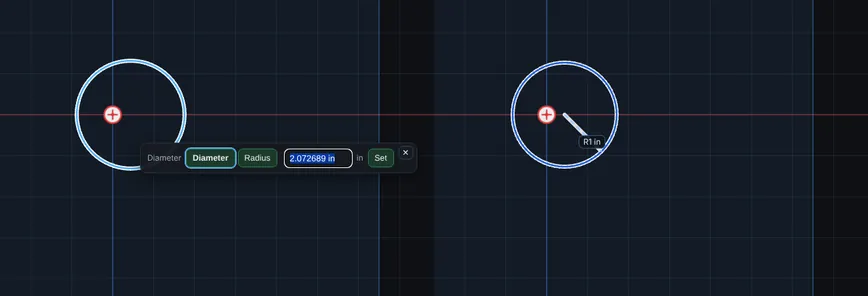
Switch Between Radius and Diameter
- Click the number on the sketch. The box opens with the kind in use marked.
- Click the other button, Radius or Diameter.
- The dimension is remade at once. The circle does not move or change size. The number now reads the radius or the diameter, as you chose.
- Type a new size if you want one, and press Enter. Press Ctrl+Z once to take the switch back.
A circle holds one size at a time, so switching replaces the old dimension. It never ends up with both.
Options
- Diameter: the distance across the circle through its center. This is the first choice for a circle.
- Radius: the distance from the center to the rim. Half the diameter.
- On an arc: click the arc. The choices are Radius and Arc angle. Radius sizes the arc round its center. The choice is made when you place it; an arc dimension is not switched afterward, so delete it and place the other one.
Tips and What to Expect
- The size is held by the sketch solver. Dragging other pieces will not change it.
- A circle you dimension keeps its center. Put the center where you want it with a distance from an edge or an origin, see Smart Dimension.
- Typing
1/2 inor12mmworks in either unit. A plain number uses the display unit. - A size of zero or less is refused, and nothing changes.
- One Undo takes back a dimension or a switch, and Redo puts it back.
- The box takes a formula as well as a number, such as
D1@Sketch1 / 4, and every dimension has a name. See Equations. - Press Help while Smart Dimension is armed to open its page.
Common Mistakes and Messages
- "Type the diameter, or click a line, a point or an edge of the part to set the distance from its center instead." This prompt means the box is waiting. Type the size and press Enter, or press Esc to cancel.
- "... would over define the sketch. Make it a reference dimension?" The circle's size is already set, for example by another dimension or an Equal relation. Click Make it a reference dimension, or Cancel.
- "The formula gives zero or less, but a size has to be more than zero." A formula in the box works out to zero or below. Change the formula or the dimension it uses.
- The center moved when I wanted the rim to move. A size changes the circle around its center. To place the circle, add a distance from its center to an edge or the origin, see Smart Dimension.